
How can we help?

Your Loop password is the one you type, together with your email address, on the PearlFibers sign-in page. This guide shows where to change it while you are signed in, which passwords the form accepts, and what a new password does not do — read that part if you are changing it because someone else may know it.
Before you start
- You are signed in to Loop and you know the password you sign in with today: the form asks for it. If you do not know it, follow the guide Reset a Forgotten Password instead.
- Have a new password in mind that the form will accept; its rules are listed before Step 3.
- Where this guide says "our support team": on the home screen, click Help, then Submit a Ticket.
Step 1 — Open Account Settings
The home screen has no tile for your account. You reach it from the bar at the top of the page.
- Go to the Loop home screen, the page with the tiles.
- At the end of the bar at the top of the page, click the first letter of your first name — or your picture, if you have added one. A menu opens.
- In the menu, click Account Settings. A page headed Account Settings opens.
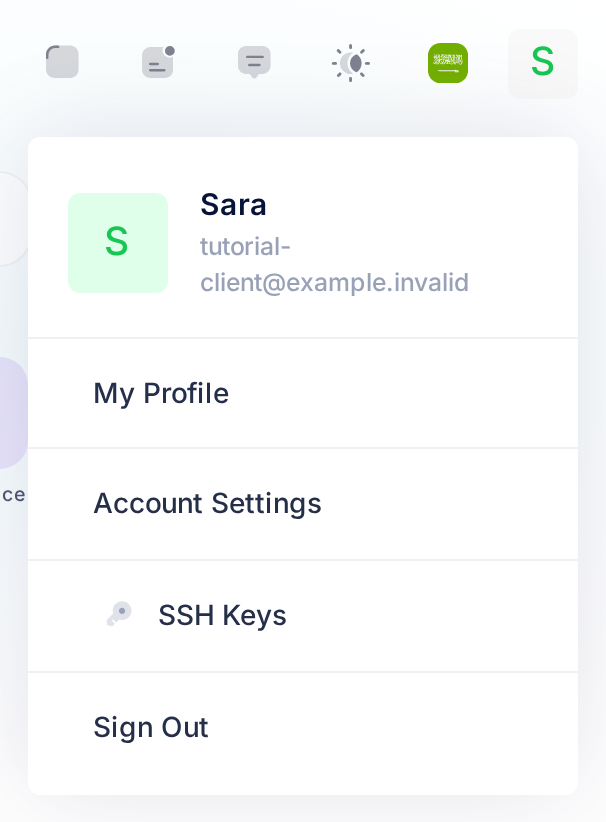
If you clicked My Profile by mistake, you are on a page headed My Account, which only shows information: click the tab Settings in the row of tabs on that page. The tab Security is not the place either; it has no password form.
Step 2 — Open the password form
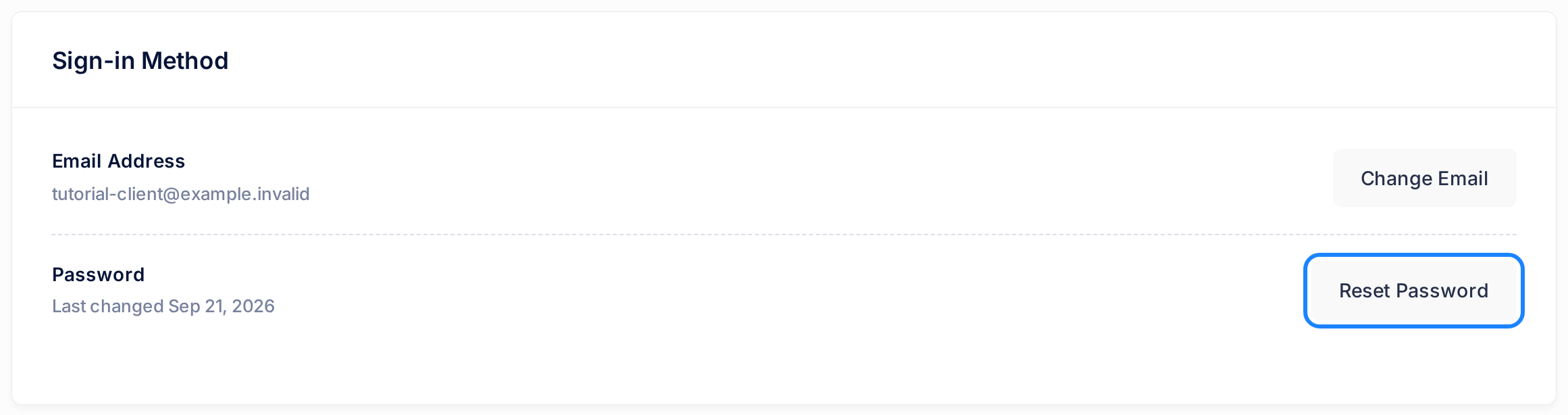
- Scroll down past the card Profile Details to the card Sign-in Method.
- In that card, find the row Password, under the row Email Address. It reads Last changed and the date your password was last set.
- Click Reset Password in that row. Despite its name, this button resets nothing and sends nothing: it opens the form for changing your password, in the same place on the page.
Choose a password the form will accept
The form gives one hint: Password must be at least 8 characters. It checks more than that, and it does not tell you which rule a password breaks, so go through this list before you type. A new password is accepted only when all four of these are true:
- It is 8 to 128 characters long. An Arabic letter, or a digit in its Arabic form, counts as two.
- It contains at least one English letter (a to z, small or capital) and at least one digit from 0 to 9. Arabic letters and digits in their Arabic form may be in the password, but they do not count for this rule: a password typed only in Arabic is refused.
- It is different from your present password.
- You type it exactly the same in both fields for the new password.
Within these rules a longer password is harder to guess. Use it nowhere else, and tell it to nobody.
Step 3 — Type the passwords
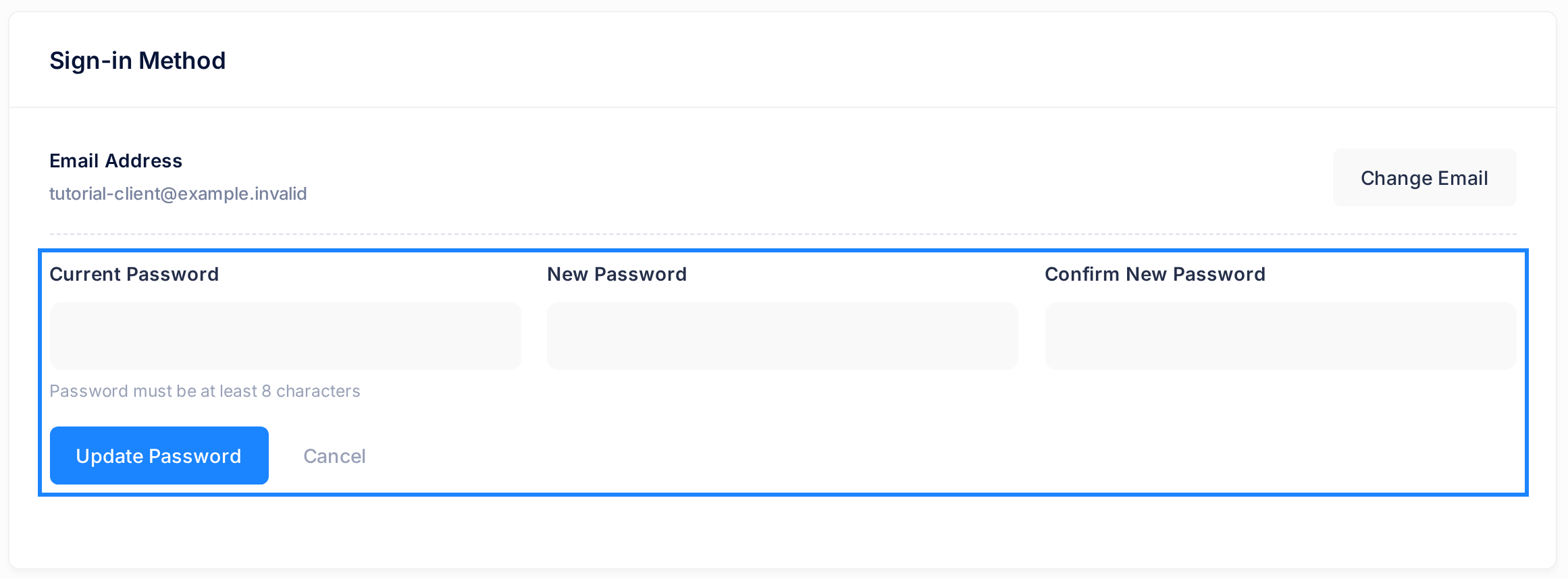
- In Current Password, type the password you sign in with today.
- In New Password, type the new password.
- In Confirm New Password, type the new password once more.
- Click Update Password. Nothing changes before this click; if you have changed your mind, click Cancel instead.
A box opens. If its title is Password Changed, read on. If it is Change Failed or Error, go to If something goes wrong.
What happens next
The box Password Changed says Password changed successfully. It closes by itself after about 2 seconds, and the form closes with it. From that moment only the new password signs you in.
The row Password comes back with its old date, because the page does not refresh that line. Reload the page and it reads Last changed with the date of the change.
Within a minute or two, Loop also sends an email titled Password Changed to your account's email address; it reads Your password has been successfully changed. A notice with the same title is added to Notifications, the list behind the square icon with a dot in the bar at the top of the page; you see it there on the next Loop page you open. Both confirm the change if you missed the box.
You stay signed in on this browser and can go on working. The next time you sign in, type your email address and the new password; Loop then asks for a one-time code, exactly as before. If the new password is ever refused there, follow Reset a Forgotten Password.
What a new password does not do
It signs nobody out. Every browser, phone and computer that is signed in to your account stays signed in after the change — also one that somebody else is using. Left alone, a browser stays signed in until someone signs out in it, or until 30 days have passed since it signed in.
Loop has no page where you can sign another device out yourself. If a device is lost, or someone who should not be in your account may still be signed in, ask our support team to end the other sign-ins on your account: only our team can end a sign-in from outside. What signing out on your own device covers is explained in the guide Sign Out of Loop and Other PearlFibers Apps.
If something goes wrong
- The box is titled Change Failed and says Current password is incorrect. What you typed in Current Password is not the password of your account, and nothing was changed. Type it again and click Update Password. If you no longer know it, follow Reset a Forgotten Password.
- The box is titled Error and says An error occurred. This is what the form shows when a field is empty or the new password breaks one of the four rules; your password is unchanged. Go through the list under Choose a password the form will accept, then fill in all three fields again.
- The Error box comes back for a password that meets every rule, or Change Failed shows other words. Reload the page, sign in again if you are asked to, and repeat from Step 2. If it still fails, tell our support team the words in the box — never the password itself.
- A message titled Password Changed reaches you, and you did not change your password. Someone who is signed in to your account and knew your password has changed it. Set a new one with Reset a Forgotten Password, then ask our support team to end the other sign-ins on your account.
To reach our support team, click the Help tile on the Loop home screen, then Submit a Ticket.