
How can we help?

Loop is the PearlFibers app you sign in to as a customer. It holds the pages about your account with PearlFibers — your services, what you pay for them, your invoices and the Help Center — next to everyday apps for your own files, mail, calendar, tasks and contacts. All of it opens from one home screen, where each app is a tile: an icon with its name under it. This guide says what each tile opens and what to look at first. Where it says "contact support": on the home screen, click Help, then Submit a Ticket.
Where to find it
- Type
loop.pearlfibers.com/loginin your browser's address bar, the line that shows the page's address. If you are signed in, the home screen opens. If you are not, the sign-in page opens first, and the home screen follows once you have signed in. - Look for a greeting with your first name and, under it, a grid of tiles: that is the home screen.
From a page inside Loop, click the Loop logo in the bar at the top of the page. It brings you back to the home screen.
The home screen in one look
Under the bar at the top of the page, a card shows the time, the date and the greeting. Below it, every tile is in one grid, with no headings and no folders. Click a tile once, or tap it on a phone, and the app opens in the same browser tab. A phone shows the same tiles in the same order. For the bar at the top and the rest of this screen, see the guide Find Your Way Around the Home Screen; for a small screen, Use Loop on Your Phone.
What each tile opens
A customer account has these thirteen tiles, in this order. Three are about your account with PearlFibers: Portal, Billing and Help. Five keep your own things: Drive, Mail, Calendar, Todo and Contacts.

| Tile | What it opens, and what it is for |
|---|---|
| Portal | Your customer portal, a page with the words My Portal under its greeting: your projects and your services with PearlFibers. |
| What's New | The page What's New, with the release notes of Loop itself. |
| Peak AI | Leaves Loop: the Peak AI site, ai.pearlfibers.com, opens in the same tab. |
| Drive | The Drive app: your own files and folders. |
| The Mail app. Until a mailbox is connected to it, it opens on a page for connecting one. | |
| Calendar | The Calendar app: your calendar events. |
| Todo | The Todo app: your tasks. |
| Workspace | The Workspace app. |
| Git | Leaves Loop: the Git site, git.pearlfibers.com, opens in the same tab. |
| Chat | No new page: the chat panel opens across the whole home screen. To write to our support team, use Help, not this tile. |
| Contacts | The Contacts app: your own contacts, with their names, email addresses, phone numbers and companies. |
| Billing | The page My Subscriptions: your subscriptions, the services you pay for one period at a time. Your invoices are in the same app. |
| Help | The Help Center: answers to frequent questions, step-by-step guides like this one, and the form for writing to our support team. |
An account that owns an analytics subscription, or has been given access to an analytics site, has a fourteenth tile after Billing: PearlFibers Analytics, which leaves Loop for the analytics site.
What to do first
Four short visits show you what you have, what you pay and where the answers are.
See that your services are all there
- On the home screen, click Portal.
- Click View All Services. It is in the box that shows a number and the words My Services. The page My Services opens.
- Click the tabs Hosting, Email Plans and Domains, one after the other, and check that what you have is listed. If something is missing, contact support and name it.
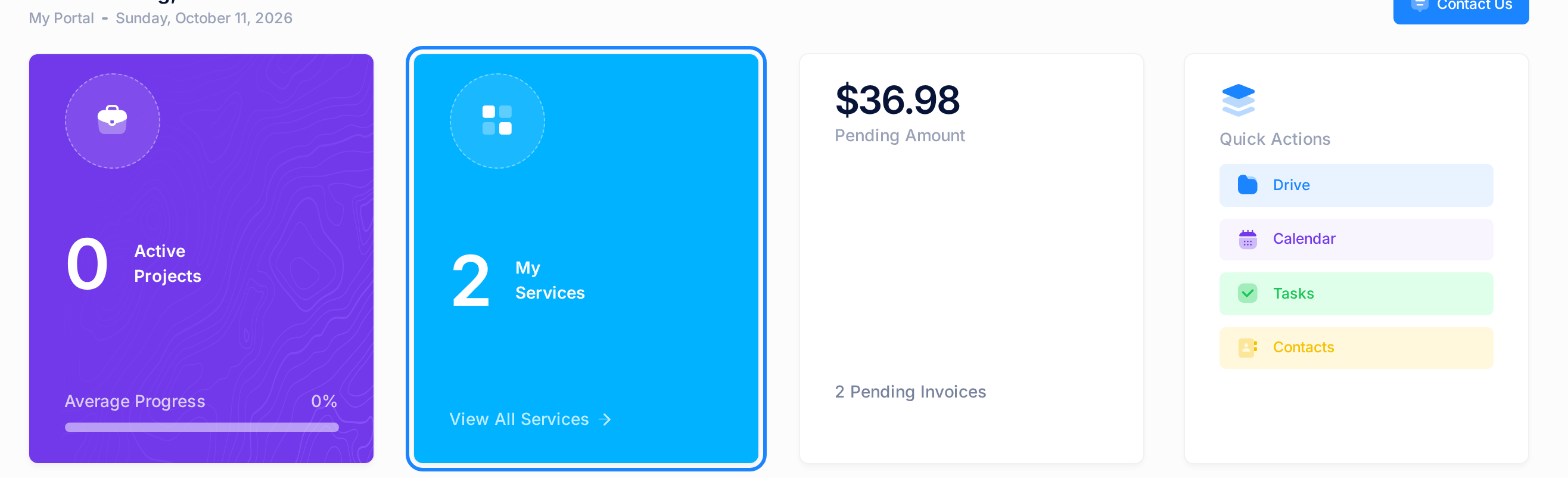
Go by that box and those tabs. Lower on the Portal's first page, a card also titled My Services leaves out hosting plans, email plans and domains, so it can read No services yet while you have some. The dates on the tabs are each service's own: a domain's date there can be earlier than the period you have paid for. For the date a paid period ends, go by Billing, the next visit. The guide View and Understand Your Domains explains the domain pages.
See what you pay, and until when
- On the home screen, click Billing. The page My Subscriptions opens, with one card for each subscription: a hosting plan, an email plan or a domain, for example.
- On each card, read PRICE, the price of one billing period, and RENEWS ON, the date the current period ends.

The guide Understand Your Subscriptions explains the rest of a card.
See whether an invoice is waiting
- On My Subscriptions, open the side menu. On a computer it is the narrow strip of icons at the side of the page: move the pointer onto it and its words appear. On a phone, tap the first button of the bar at the top of the page.
- Click Invoices. The page My Invoices opens, with a table that has one row for each invoice.
An invoice whose STATUS reads Sent or Overdue is waiting for payment. Click PDF on its row to download it. These pages have no button for paying: to ask how to pay an invoice, contact support.
See where the answers are
On the home screen, click Help. The Help Center opens with the heading How can we help? Look through its questions and guides now, so you know where the answers are before you need one: the guide Find Answers in the Help Center shows how to search and browse them. The card Submit a Ticket on that first page opens the form for a ticket, a written request to our support team.
Common questions
Where are my domains, my hosting and my email plans? They have no tile.
They are inside the Portal, on the page My Services, each kind under its own tab: the first visit under What to do first takes you there.
I use Loop in Arabic. Why are the names under the tiles in English?
The tile names are not translated: they are the same English words in the Arabic interface. Look for the names as they are written in this guide.
If something looks wrong
- You see no grid of tiles after signing in, but a page with a menu of apps at its side. That is the start page of an account that is not set up as a customer account, so this guide does not match your screen. If you are a PearlFibers customer, tell us so: the contact page of our website,
pearlfibers.com, shows how to reach us. - One of the thirteen tiles is missing. Loop shows an account only the tiles it may open; a tile it may not open is left out, never shown greyed out. Contact support and name the tile.
- You clicked Peak AI or Git and Loop is gone. Nothing is wrong: both tiles open another PearlFibers site in the tab you were using. Come back with step 1 of Where to find it.
Anything else? Contact support: click Help on the home screen, then Submit a Ticket.