
How can we help?

You can use Loop in the browser of your phone, at the same address and with the same account as on a computer. On a small screen some parts sit elsewhere and a few are opened differently: this guide shows where everything is and how to get around.
Where this guide says send us a ticket: on the home screen, tap Help, then Submit a Ticket.
Where to find it
- In the browser of your phone, type
loop.pearlfibers.com/loginin the address bar. If this browser is already signed in, Loop opens straight away. - If the page Sign In opens, sign in as on a computer: your email and password, then the code that is sent to you. The guide Sign In with a One-Time Code goes through these pages.
The code is typed into six boxes, with the digits 0 to 9. If the boxes stay empty while you type, your keyboard is writing digits in their Arabic form, which the boxes do not take: switch the keyboard, or copy the code from the message and paste it.
Loop then opens on the home screen: the page with your tiles, one for each app.
The home screen on a phone
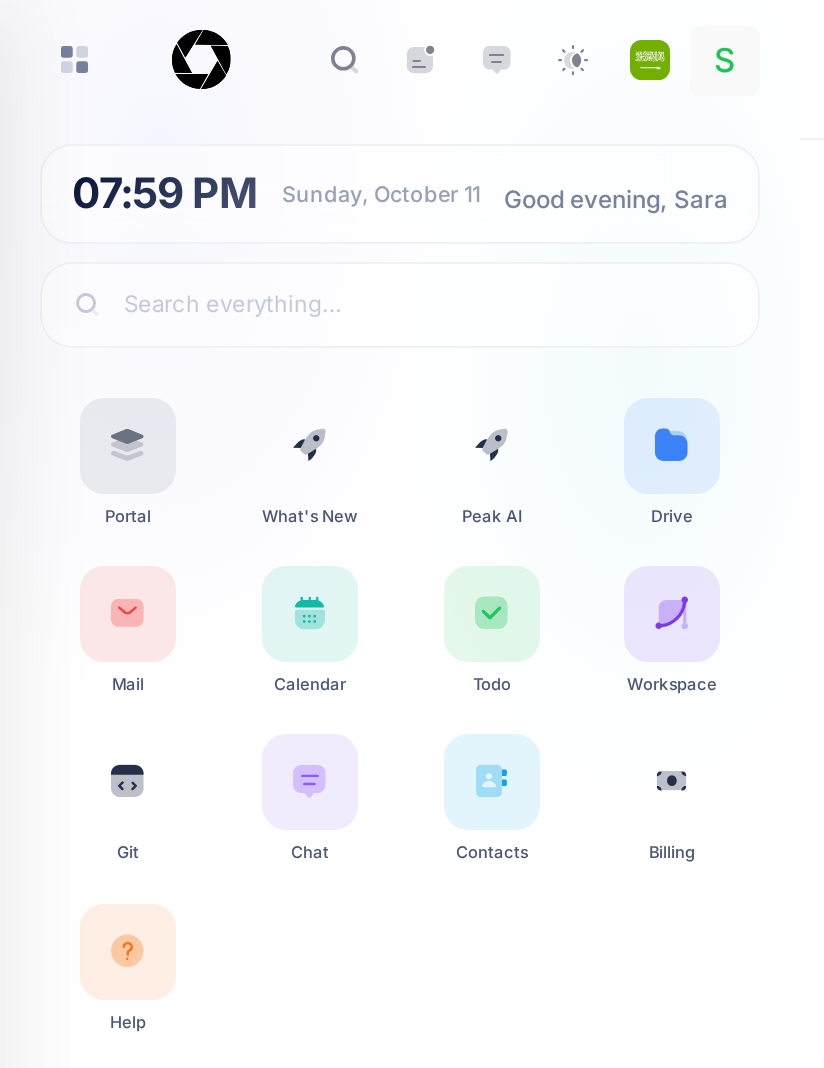
The top bar runs across the top of the page. On a phone you will find in it, in this order:
| In the top bar | What a tap does |
|---|---|
| A button with four small squares | On the home screen, opens a panel headed Widgets. Inside an app, opens the app's side menu. |
| The Loop logo | Opens the home screen, from any page that has this bar. |
| A magnifier | On the home screen, opens the window that finds an app by its name. |
| The notifications icon: a small rounded square with two short lines and a dot | Opens the list headed Notifications. |
| The chat icon: a speech bubble | Opens the chat panel, headed Messages. The cross button in that heading closes it; from a conversation, the arrow at its top leads back there first. |
| The light and dark icon | Opens a menu with Light, Dark and System. |
| A flag | Switches Loop between English and Arabic. |
| Your picture, or the first letter of your first name | Opens a menu that holds Account Settings and Sign Out. |
Under the top bar come two cards, one above the other. The first shows the time, the date and a greeting with your first name. The second reads Search everything….
Then come your tiles, four in a row at the width of a phone. They are the last thing on the page: if they do not all fit on your screen, scroll down.
Open an app and come back
- On the home screen, tap a tile once, for example Help. The app opens in the same browser tab, with the same top bar above it.
- To come back, tap the Loop logo in the top bar. The home screen opens again.
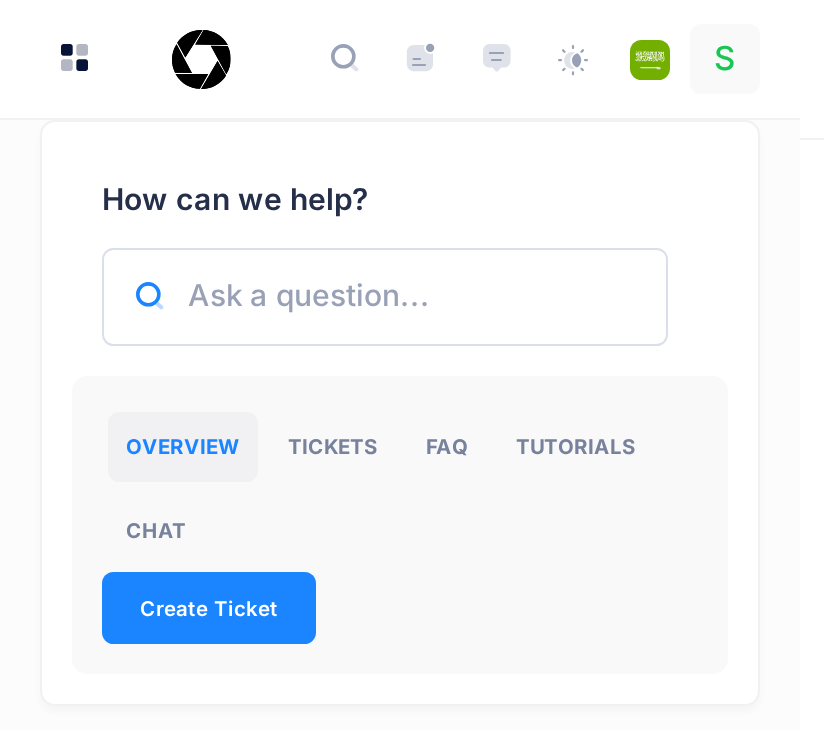
Most tiles work this way. These do not:
- Peak AI, Git and, if you have that tile, PearlFibers Analytics leave Loop for a site of their own, in the same tab. To return, type
loop.pearlfibers.com/loginagain: while you are signed in, it opens the home screen. The same address is the way back from any page without the logo. - Chat opens no page but the chat panel: close it with its cross button.
The side menu inside an app
An app lists its own pages in a side menu. On a computer the menu stands at the edge of the page as a narrow strip of icons. On a phone it is hidden until you call it:
- Inside the app, tap the button with four small squares, the first one in the top bar. The menu slides in from the edge of the screen, over the dimmed page.
- Tap an entry to open its page. In Help, for example, the menu starts with Overview, FAQ and Tutorials.
- To close the menu without choosing, tap the dimmed page beside it.
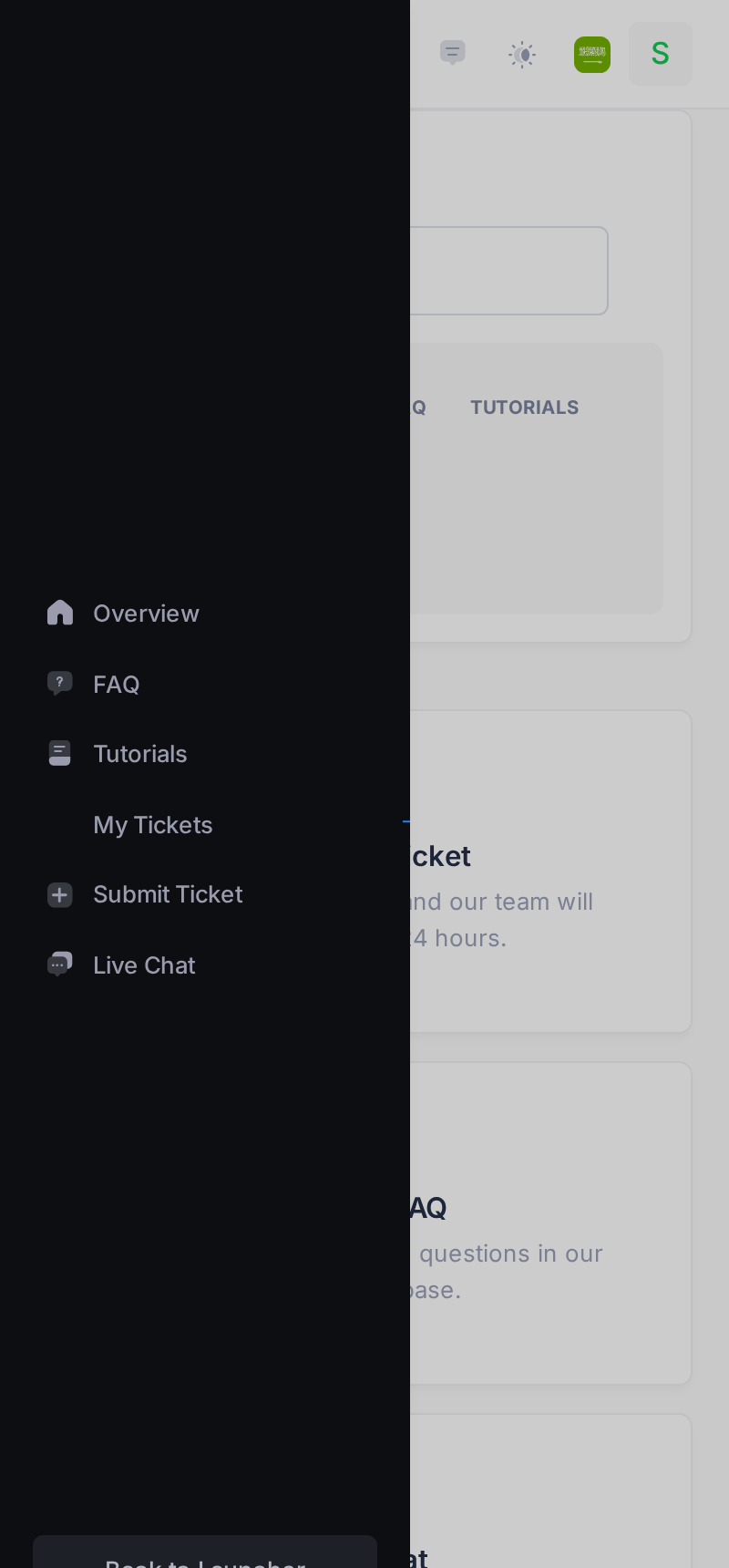
At the foot of the menu, Back to Launcher also opens the home screen: Launcher is the word Loop's buttons use for it.
Find an app by name
- On the home screen, tap the card Search everything… or the magnifier in the top bar. Both open the same window, which on a phone fills the whole screen.
- The window lists all your apps. Type the first letters of a name into the field at its top: the list narrows as you type.
- Tap the app you want. It opens in the same tab.
This search knows the names of apps and nothing else, whatever the card says: to find a contact, a task or a file, open Contacts, Todo or Drive. Type an app's name in English, as it stands under its tile. When nothing fits, the list reads No matching apps found.
On a phone the window has no close button. To leave it without choosing an app, reload the page in your browser: the home screen comes back without the window. Or tap an app, for example Help, and come back with the Loop logo.
Use this search, and the magnifier, on the home screen only: inside an app, go to the home screen first.
Common questions
Why does my phone ask me to sign in when my computer is signed in?
Each browser signs in for itself: a sign-in on your computer does not cover the browser of your phone.
How do I change the wallpaper or the colours from my phone?
That is done on the page Personalize. On a computer it is in the menu that a right-click on an empty part of the home screen opens. On a phone, type the address of the page: loop.pearlfibers.com/app/settings/personalize. The guide Change the Look of Your Home Screen goes through the page. The wallpaper and the accent colour are saved in your account, so they show on every device. Icon Size changes nothing at the width of a phone: the icons keep one size, four in a row, with all three choices.
Why is Loop light on my phone and dark on my computer?
Light and dark are kept in each browser, not in your account, and a browser that has no choice yet starts light. Tap the light and dark icon in the top bar and choose. System follows the phone's own setting.
If something looks wrong
- A panel headed Widgets covers the screen. You tapped the button with four small squares on the home screen. The arrow button in the panel's heading closes it.
- The sign-in pages are in English although you use Loop in Arabic. They open in English in every browser that is new to them. Tap العربية at the bottom of the page; that browser then remembers it.
For anything else, send us a ticket and say which page you were on and what you tapped.