
How can we help?

The home screen of Loop, the page that shows your apps as tiles, can have another background, larger or smaller icons and another accent colour, the colour Loop uses for a few small marks. You can also switch between a light and a dark mode. This guide shows where each control is, where you see the result after you save, and how to return to the standard look.
Before you start
- You are signed in to Loop and you are on the home screen. From another Loop page, click the Loop logo in the bar at the top of the page to come back to it. If the home screen is new to you, read the guide Find Your Way Around the Home Screen first.
- Use a computer for Steps 1 to 3. The page they use opens from a menu that appears on a right-click, and Loop has no button for that page on a phone or tablet.
- Light and dark mode need no right-click. That part, further down, can be done on a phone too; for more about Loop on a small screen, see the guide Use Loop on Your Phone.
Step 1 — Open the Personalize page
- On the home screen, put the pointer on a place where there is no tile: the background around the tiles, or the card that shows the time.
- Click the right mouse button. A small menu opens with three entries: Refresh, Reset Layout and Personalize.
- Click Personalize. A page headed Personalize opens.
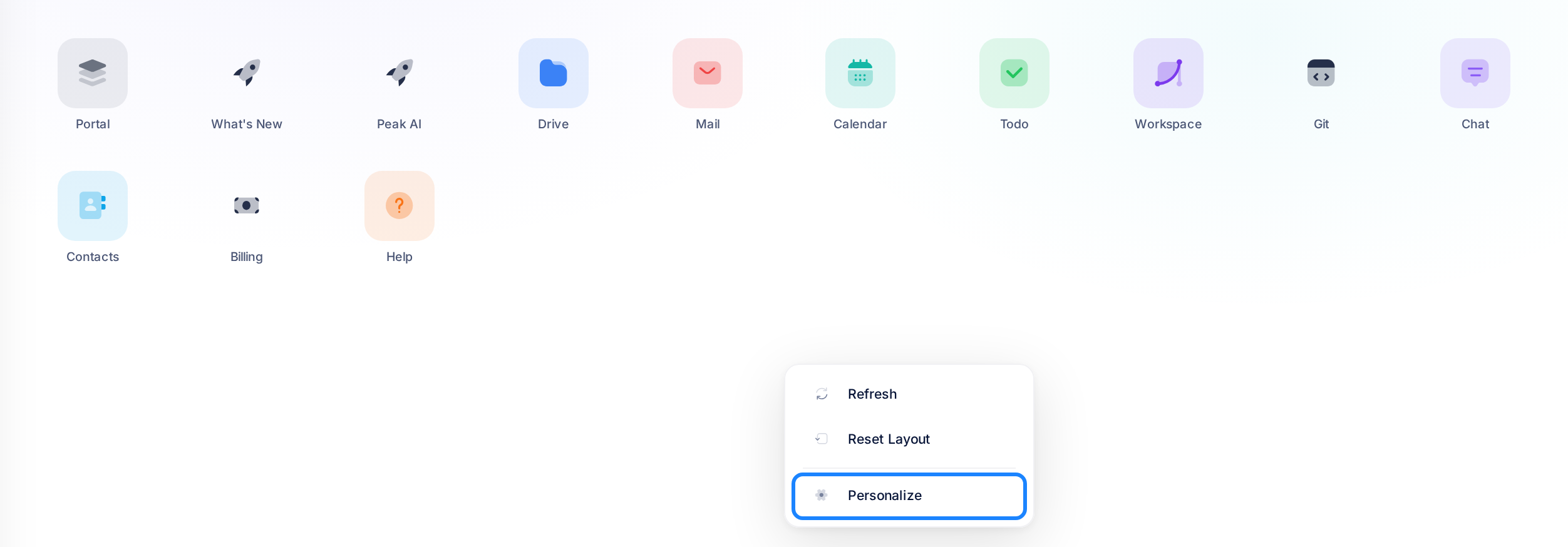
If the menu has two entries and no Personalize, the pointer was on a tile: right-click again, away from the tiles.
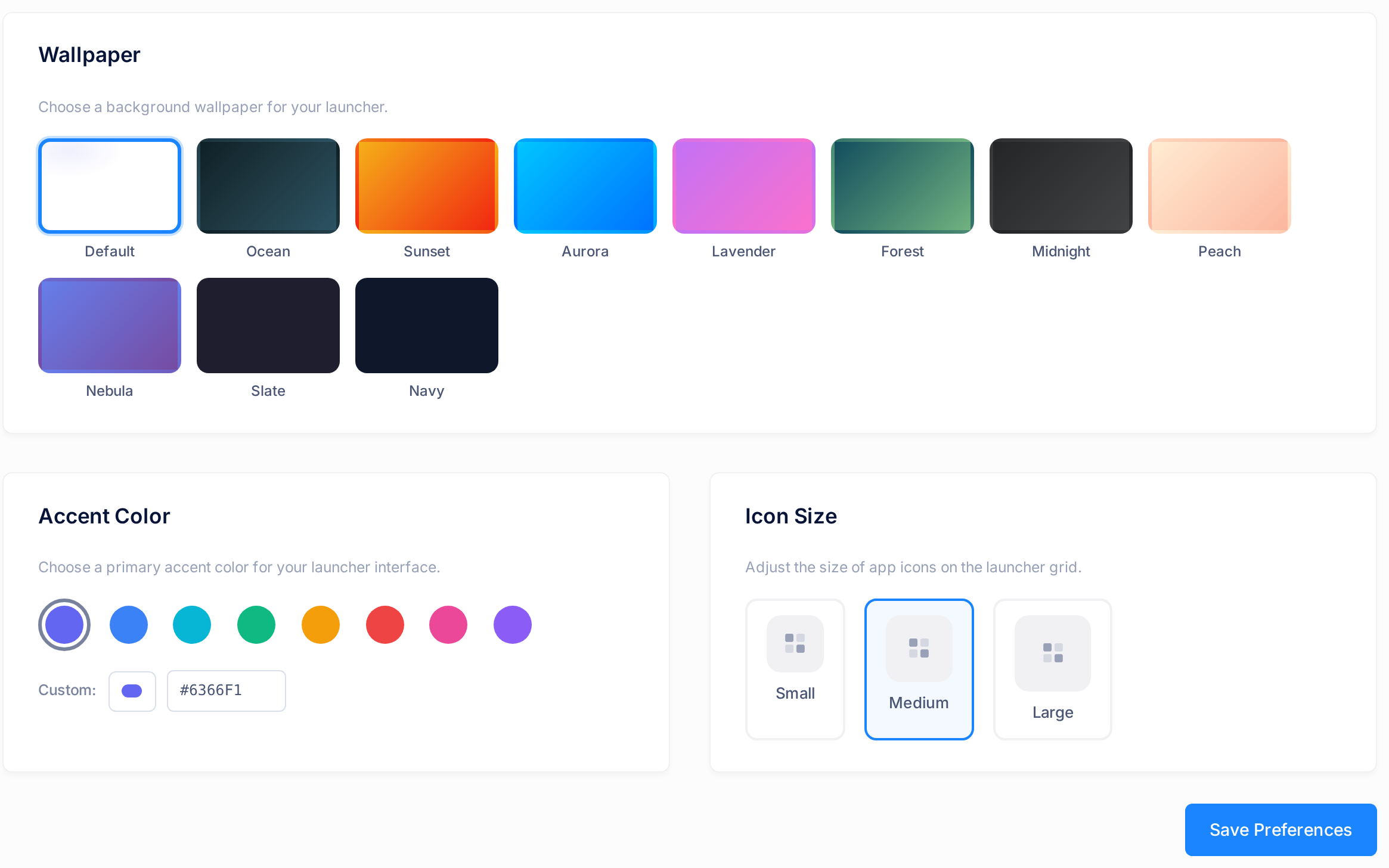
The page has three sections, Wallpaper, Accent Color and Icon Size, and one button, Save Preferences. Where its texts say "launcher", they mean the home screen.
Step 2 — Make your choices
Change what you want and leave the rest as it is. A click only marks a choice, with a highlighted frame around it: nothing is kept until you save in Step 3.
- Under Wallpaper, click the background you want. There are eleven small samples, each with its name under it: Default, the standard background, then Ocean, Sunset, Aurora, Lavender, Forest, Midnight, Peach, Nebula, Slate and Navy. You cannot use a picture of your own. The names under the tiles stay dark on every wallpaper, so on a dark one, such as Ocean, Midnight, Slate or Navy, they are hard to read.
- Under Accent Color, click one of the eight round colour swatches. The first one is the standard setting: with it Loop uses its usual blue, not the colour of the swatch. For a colour that is not among them, use the row Custom: click its colour box and pick a colour, or type the code of your colour into the field of that row. The code is
#followed by six characters, each a digit from 0 to 9 or a letter from A to F, for example#0F766E. When you leave the field, the colour box beside it takes your colour; if it does not, the code is not written that way, and Loop keeps the colour that was chosen before. On the home screen the accent colour shows in the Widgets panel, which you open in Step 3; the tiles and the background keep their own colours. - Under Icon Size, click Small, Medium or Large; Medium is the standard size. The choice shows on a computer screen. On a phone it changes nothing you can see: there the icons have one size, four to a row, whichever size you saved.
Step 3 — Save, then open the home screen
- Click Save Preferences, below the three sections. While Loop stores your choices the button reads Saving…; then it reads Save Preferences again. The page shows no message and keeps the look it had. That is normal: the result shows on the home screen.
- Click the Loop logo in the bar at the top of the page. The home screen opens with the wallpaper and the icon size you chose.
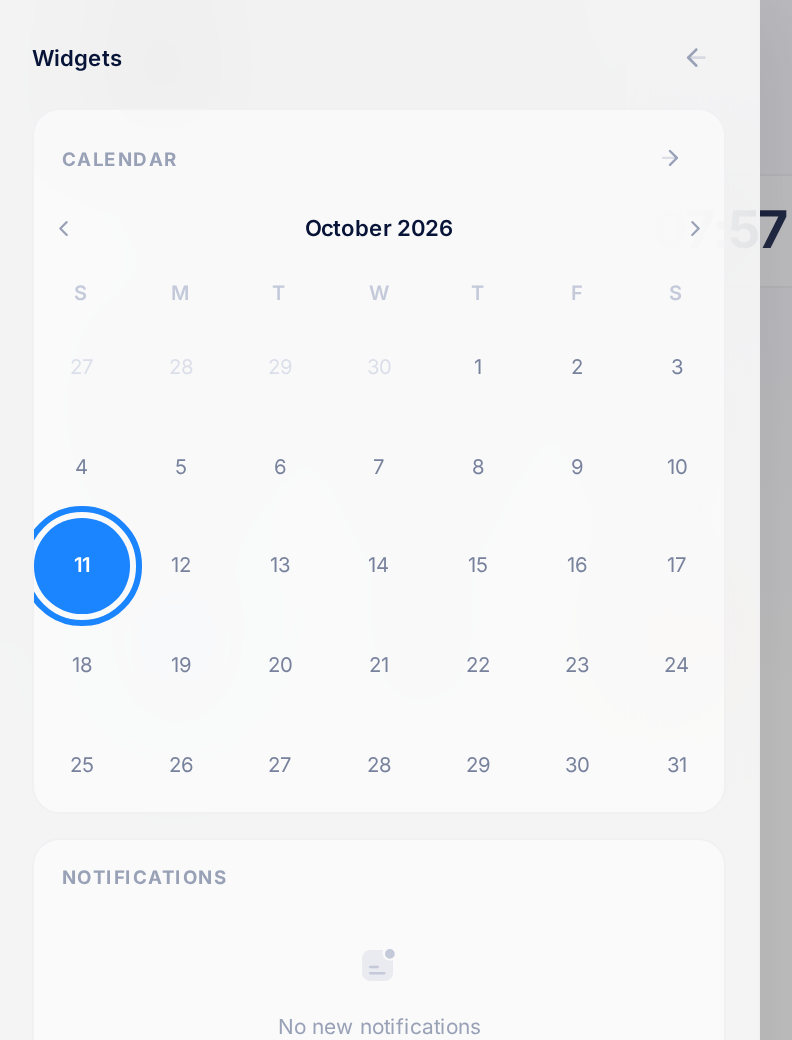
- To see a new accent colour, click the first button of the top bar, the one with four small squares before the Loop logo. A panel headed Widgets opens: in its calendar, the circle on today's date has your colour. Click outside the panel to close it.
What happens next
Your choices are kept in your account, not in the computer you used. Sign in to Loop on another computer, in another browser or on your phone, and the choices you saved are there too.
They change the home screen only. The pages inside your apps look as they did before.
Go back to the standard look
The page has no button that puts everything back and no button to cancel. If you have not clicked Save Preferences, leave the page: nothing was changed. To undo a look you have saved, open the Personalize page again and put back each thing you changed:
- under Wallpaper, click Default;
- under Accent Color, click the first swatch, the standard setting;
- under Icon Size, click Medium.
Then click Save Preferences and open the home screen again, as in Step 3.
Switch between light and dark mode
Light and dark mode are not on the Personalize page. Their control is an icon in the bar at the top of the home screen.
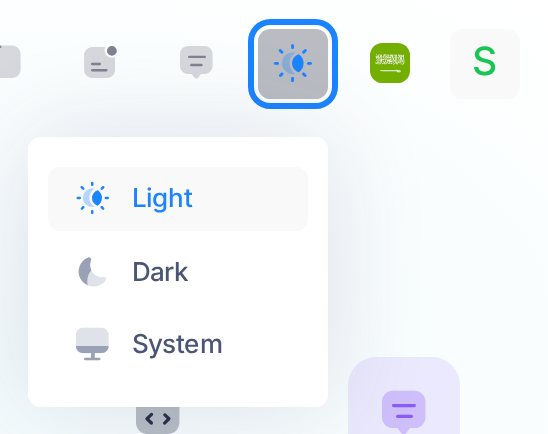
- Look at the end of that bar. Its last three items are an icon, a flag and the first letter of your first name, or your picture if you have added one. The icon before the flag is a small sun in light mode and a moon in dark mode. Move the pointer onto it; on a phone, tap it. If no menu opens, click the icon. The menu has three choices: Light, Dark and System.
- Click Dark for the dark mode or Light for the light one; the page changes at once. System makes Loop follow the light or dark setting of your device.
In dark mode the names under the tiles of the home screen are faint, unless your wallpaper is a light one. If you find them hard to read, choose Light again.
This choice is kept in the browser you are using, not in your account. In another browser or on another device, choose it again; a browser in which you have never chosen starts in light mode. A wallpaper does not change with the mode: one you saved in Step 3 is the background of the home screen in light mode and in dark mode alike.
If something goes wrong
- The home screen has the old wallpaper or icon size after you saved. Your choices did not reach Loop. Open the Personalize page again, signing in again if Loop asks you to: the choices that are saved are the marked ones. Make your choices again and click Save Preferences.
- You changed only the accent colour and the home screen looks the same. That is how it should look: the colour is in the Widgets panel. Open the panel as in Step 3 and look at today's date.
If the page still does not do what this guide describes, tell our support team: on the home screen, click Help, then Submit a Ticket.