
How can we help?

The home screen is the page that shows your apps as tiles: each app is opened by its tile. This guide goes through it from top to bottom as it looks on a computer, and shows how to come back to it from an app. On a phone or in a narrow window the parts are arranged differently: see the guide Use Loop on Your Phone.
Where to find it
- Sign in to Loop. The guide Sign In with a One-Time Code explains the code you are asked for.
- Look at the page that opens. A sign-in ends on the home screen, unless you had opened the address of another Loop page: then that page opens, and you click the round Loop logo in the bar at the top of it.
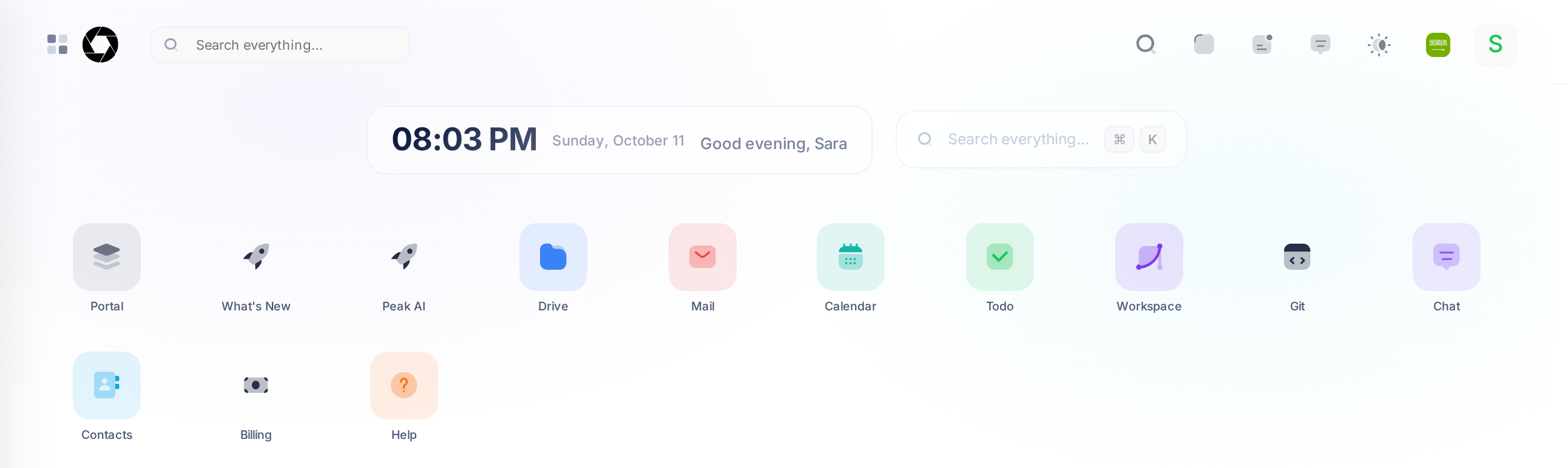
- Check that you are there: a greeting with your first name stands above a grid of tiles, and the browser tab is titled Loop — Launcher. Launcher is Loop's own word for the home screen.
The top bar
A bar runs across the top of the page. Only its search box has words in it, so this table describes each thing by its look, from the start of the bar to its end.
| What you see | What it does |
|---|---|
| A button with four small squares | On the home screen, opens the Widgets panel (see below). |
| The round Loop logo | Brings you back to the home screen from any page that has this bar. |
| A search box that reads Search everything… | Type two or more letters of an app's name: the apps that match are listed under the box, under APPS, and a click opens one. |
| A magnifier | On the home screen, opens the window described under Find an app by its name. |
| A plain rounded square. With the pointer on it, it shows Toggle fullscreen. | Switches your browser to full screen. To leave, press Esc: while the screen is full, this button shows no icon. |
| The notifications icon: a small rounded square with two short lines inside and a dot on its upper corner | Opens the panel Notifications. |
| The chat icon: a speech bubble with two lines | Opens and closes the chat panel, headed Messages. A small blinking dot on the icon means unread chat messages. |
| A sun, or a moon while Loop is dark | Offers Light, Dark and System for a light or a dark screen: see the guide Change the Look of Your Home Screen. |
| A small flag | The language button. While Loop is in English it is the flag of Saudi Arabia: a click turns Loop to Arabic and reloads the page. |
| Your picture or, if you have none, the first letter of your first name | Opens the account menu (see further down). |
On a computer, the notifications panel, the light and dark choices and the account menu open as soon as the pointer rests on their icon, without a click.
The Widgets panel
The button with four squares slides a panel headed Widgets in over the dimmed home screen. It holds three boxes:
- CALENDAR: one month, with today's date in a filled circle; two arrows change the month.
- NOTIFICATIONS: your newest notifications, each with its title and its text.
- RECENT ACTIVITY: up to 8 entries from the last 7 days, newest first: your sign-ins to Loop, changes to your password and your notifications.
To close the panel, click the dimmed page or press Esc.
The clock and the search card
Under the top bar are two cards. The first shows the time, the date and a greeting with your first name, for example Good evening, Sara. The time and the date are those of your own device. The second reads Search everything… and shows two keys, ⌘ and K. Nothing can be typed into this card: a click on it opens a small search window that finds apps by their names and nothing else (see Find an app by its name).
The tiles
Below the two cards is one grid of tiles. Each tile is an app: an icon with the app's name under it. If the tiles do not fit in the window, scroll down.
A customer's account usually has these 13 tiles, in this order: Portal, What's New, Peak AI, Drive, Mail, Calendar, Todo, Workspace, Git, Chat, Contacts, Billing and Help. The guide Welcome to Loop says what each app is for.
Opening an app
Click a tile once. The app opens in the same browser tab, in place of the home screen. Three tiles behave differently:
- Chat opens no page: the chat panel opens over the whole home screen. To close it, press Esc.
- Peak AI and Git are PearlFibers sites of their own. They open in the same tab too, so you leave Loop. To return, type
loop.pearlfibers.comin the address line of your browser: while you are signed in, that address opens the home screen.
Numbers on tiles
A number can appear at the top corner of four of these tiles.
| Tile | What the number counts |
|---|---|
| What's New | Releases published since you last opened it |
| Unread messages in the Inbox folders of all your mail accounts | |
| Todo | Your tasks that are pending or in progress |
| Help | Your own support tickets that are open or in progress |
A tile with nothing to count shows no number; above 99 it reads 99+. The numbers are read when the home screen opens, so reload the page to bring them up to date.
Coming back to the home screen
An app that opens inside Loop keeps the top bar. In it the round Loop logo is always visible: click it and you are back on the home screen.

A second way, on a computer: the side menu of an app starts as a narrow strip of icons with an arrow button at its foot. Move the pointer onto the strip: the menu widens and the button reads Back to Launcher. Click it.
The account menu
Rest the pointer on your picture or letter at the end of the top bar. A menu opens with your first name and email address, then four entries:
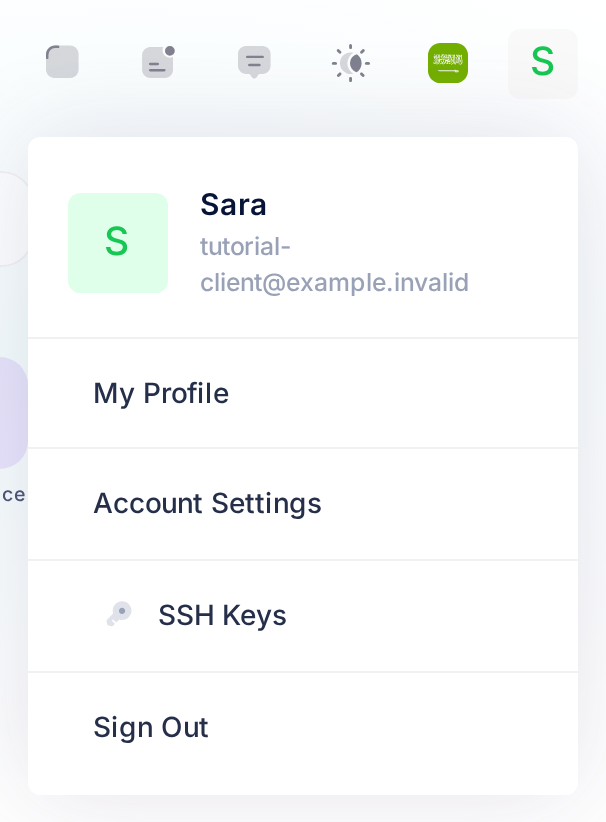
- My Profile opens the page My Account, which only shows your details.
- Account Settings opens the page of the same name. Your password is changed there: see the guide Change Your Password.
- SSH Keys opens a page that belongs to the Git app.
- Sign Out ends your PearlFibers sign-in in this browser, not only in Loop: see the guide Sign Out of Loop and Other PearlFibers Apps.
Find an app by its name
On the home screen, you can open an app by typing its name:
- Click the card Search everything… beside the clock, or the magnifier in the top bar. A window opens in the upper middle of the screen, with one field that reads Search apps… (Ctrl+K) and a list of your apps under it.
- Type the first letters of the app's name as written under its tile, for example
cal. The list under the field shrinks to the apps that match, best match first: here, Calendar. - Press Enter to open the first app in the list, or click another one. It opens in the same tab.
To close the window without opening anything, press Esc or click outside it. If it reads No matching apps found, check your spelling.
The keys on the card are a shortcut for step 1: press Ctrl and K together, or ⌘ and K on a Mac. They open the chat panel at the side of the page as well; Esc closes it together with the window.
Common questions
Can I keep two apps open at the same time?
Yes, in two browser tabs. Open a new tab, type loop.pearlfibers.com there and open the second app from that home screen.
The app names stay in English when I use Loop in Arabic. Is that right?
Yes. App names are written in English in both languages, so in Arabic, too, you type an app's English name to find it.
If something looks wrong
- A tile you expected is not there. Loop shows a tile only for an app that your account may use, and no locked tiles for the others. Send us a ticket and name the app you need.
- Loop is suddenly in the other language, and mirrored. Click the flag in the top bar, the last thing before your picture: it switches the language back.
To send us a ticket, click Help on the home screen, then Submit a Ticket.