
How can we help?

When PearlFibers issues the invoice for your project, it appears on the project's page in Loop. A project has one invoice for its whole payment schedule: paid instalments and those still to come are on the same document. This guide shows where to find it, how to read it and how to save it as a PDF file, for example for your accountant.
Before you start
- You are signed in to Loop, on the home screen: the page that shows your apps as tiles.
- PearlFibers has issued the invoice. Until then the project shows none: see If something goes wrong.
- Neither the invoice page nor the PDF says how to pay. To ask, send us a ticket: on the home screen, click Help, then Submit a Ticket.
Step 1 — Find the invoice on your project
- On the home screen, click the Portal tile. Your portal opens.
- In the card Recent Projects, click the name of your project. The project's page opens; its tabs stand under the project's name and progress bar.
- Click the tab Budget & Payments.
- Scroll down, past the table Payment Schedule, to the card Project Invoice.
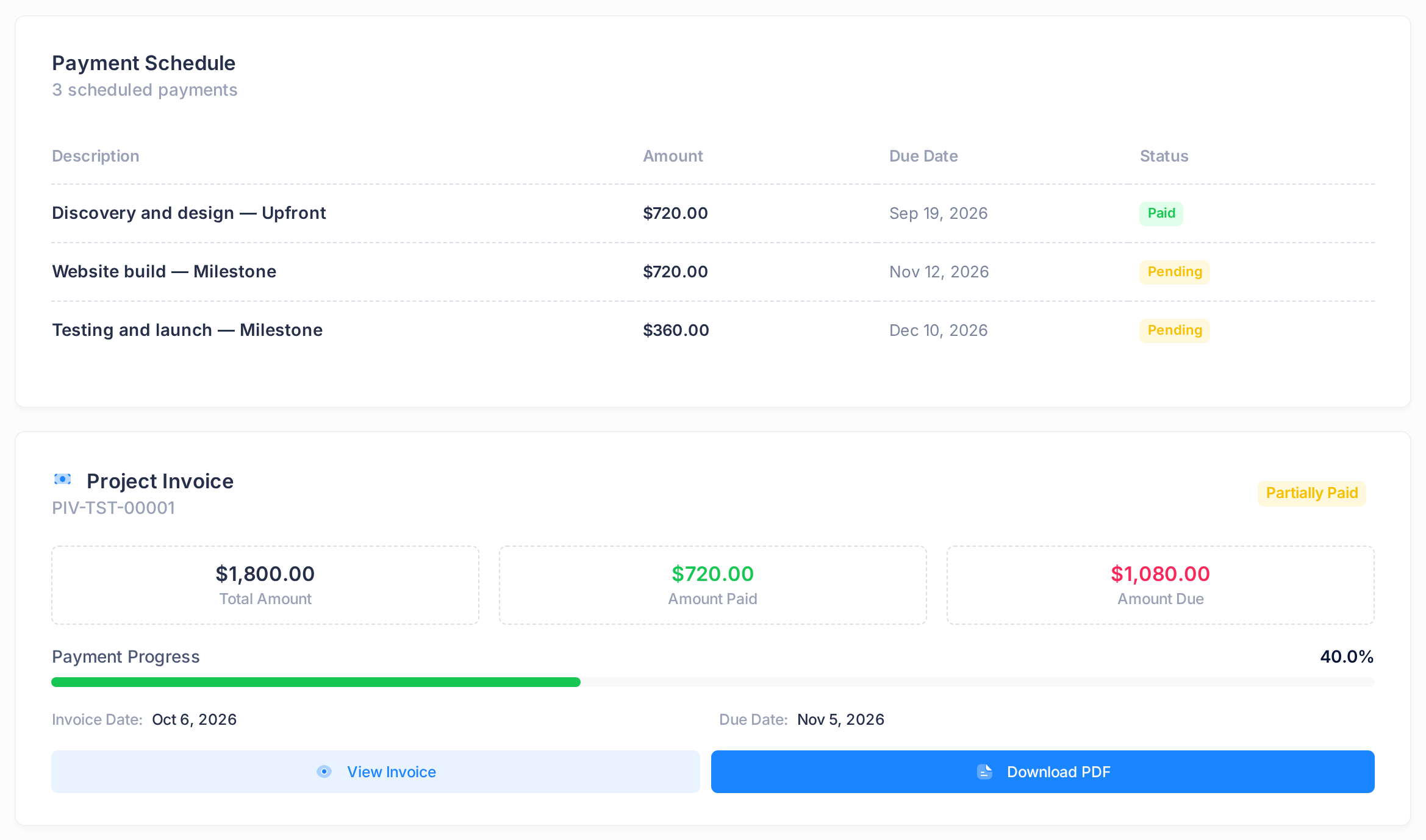
The card sums the invoice up: its status, Total Amount, Amount Paid, Amount Due, Invoice Date and Due Date. Its two buttons are View Invoice and Download PDF.
Step 2 — Read the invoice
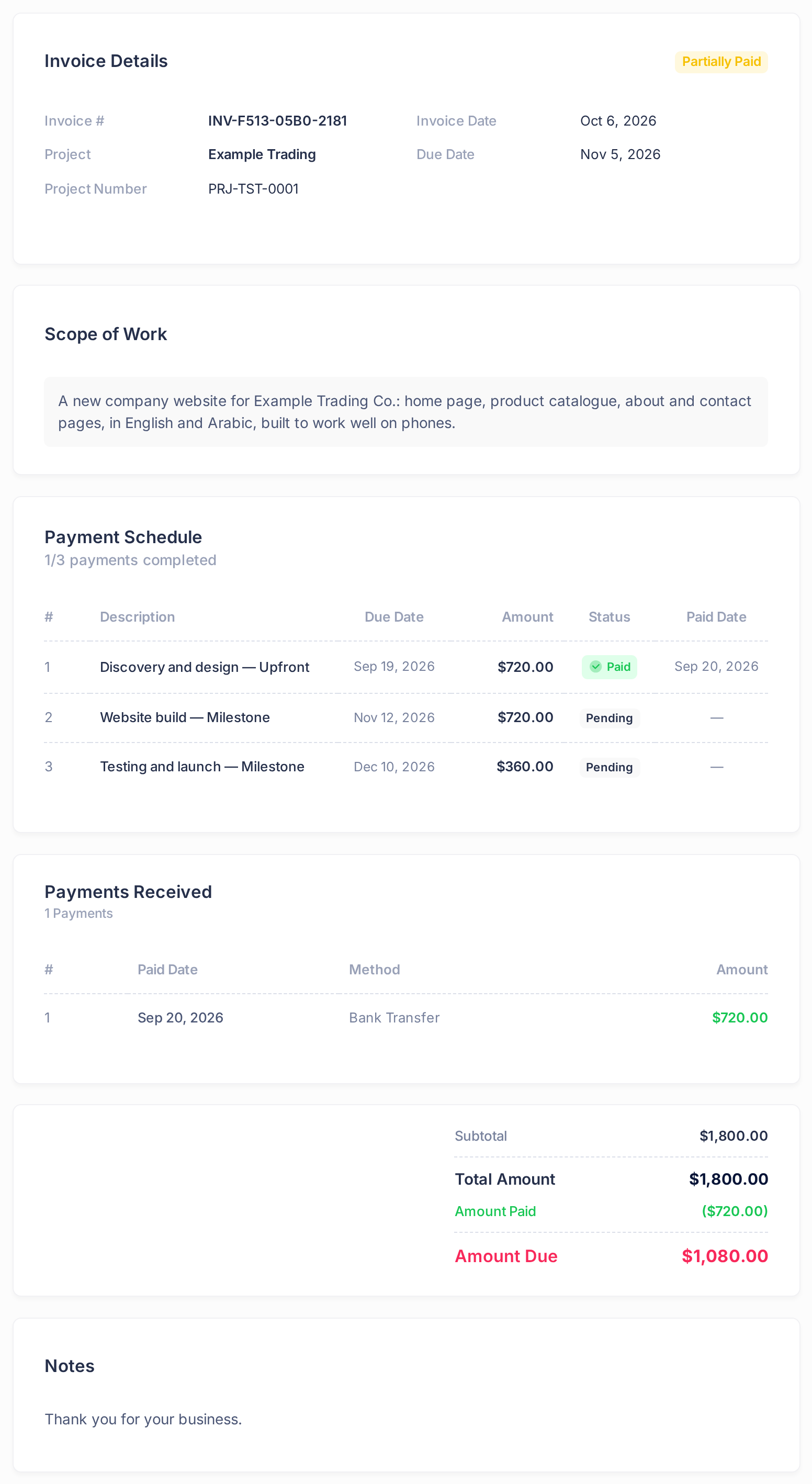
- Click View Invoice. The invoice page opens; its first card is Invoice Details.
- In that card, find the row Invoice #: the invoice's reference, for example
INV-F513-05B0-2181. It is the number printed on the PDF; give this one to your accountant and to us. The number beginning with PIV- on the card of Step 1 is our own number for the same invoice. - Read the page from top to bottom, with the help of this table.
| Part of the page | What it tells you |
|---|---|
| Invoice Details | The status of the invoice, the project and its number, the Invoice Date, and the Due Date of the invoice as a whole. |
| Scope of Work | The description of the project. Where none is stored it reads No line items; the amounts are further down. |
| Payment Schedule | One numbered row for each instalment: Description (the stage of the project, called a milestone, and the kind of payment, such as "Discovery and design — Upfront"), its own Due Date, Amount, Status and, once paid, Paid Date. On a phone, slide this table sideways to see its last columns. The line under the heading counts the paid instalments, for example 1/3 payments completed. An instalment paid in part reads Partial, with the paid part under its amount. |
| Payments Received | One row for each payment PearlFibers has received: its date, its Method (for example Bank Transfer) and its amount. Shown once a payment is recorded. |
| The totals, under the tables and again in Invoice Summary | Subtotal and Total Amount, Amount Paid in brackets, and Amount Due: what is still to be paid. |
Step 3 — Download the PDF and check it
- Click Download PDF at the top of the invoice page; the button on the card of Step 1 gives the same file. Your browser saves the invoice as a PDF file named after the reference, for example
INV-F513-05B0-2181.pdf. A new tab opens for the download: close it if it stays open. If it shows the invoice page with a red message instead, the PDF could not be made: try once more, then send us a ticket. - Open the file and look at its top: "Invoice #:" must show the reference of Step 2, and "Project:" the number in the row Project Number of the invoice page. A PDF with another reference, or without a project number, is a different invoice: download it again from the project.
- Compare the totals with the invoice page: the PDF calls them "Total", "Paid" and "Amount Due", and the figures are the same.
The PDF names who is billed and the project, then repeats the scope of work, the payment schedule, the totals and the notes, but not the list of payments received. Three differences are not errors:
- The PDF is in English, whichever language you use Loop in.
- A long description in the payment schedule is cut short in the PDF and ends in three dots.
- Amounts in Iraqi dinars have two decimals in the PDF and none on the invoice page.
What happens next
The file you saved is a copy of the invoice as it stood on that day. In Loop the invoice goes on changing: each payment PearlFibers records shows in the schedule, under Payments Received, and in Amount Paid and Amount Due. Download the PDF again when you need the new figures.
What the status of the invoice means
| Status | Meaning |
|---|---|
| Sent | The invoice has been issued and is waiting for payment. |
| Partially Paid | A payment has been recorded and a balance remains. |
| Paid | The recorded payments cover the total. |
| Overdue | The invoice is marked as unpaid after its due date. |
| Void | PearlFibers has cancelled the invoice. |
The Due Date of the invoice turns red on that day if the invoice is not Paid, even while your next instalments are not due yet: each has its own date in the Payment Schedule.
Another way in: your invoices list
The invoice is also in the list of all your invoices, with those of your subscriptions.
- Click the Loop logo at the top of the page to return to the home screen, then click the Billing tile. The page My Subscriptions opens.
- Open the side menu: on a computer, move the pointer onto the narrow strip of icons at the side of the page and its words appear; on a phone, tap the first button of the top bar. Click Invoices.
- On My Invoices, find the row whose TYPE is Project; your project's name stands under the reference. On a phone the table is wider than the screen: scroll sideways to the end of the row.
- Click View for the invoice page of Step 2, or PDF for the file of Step 3. Do not click the reference itself: it opens a different page, where the status always reads Draft.
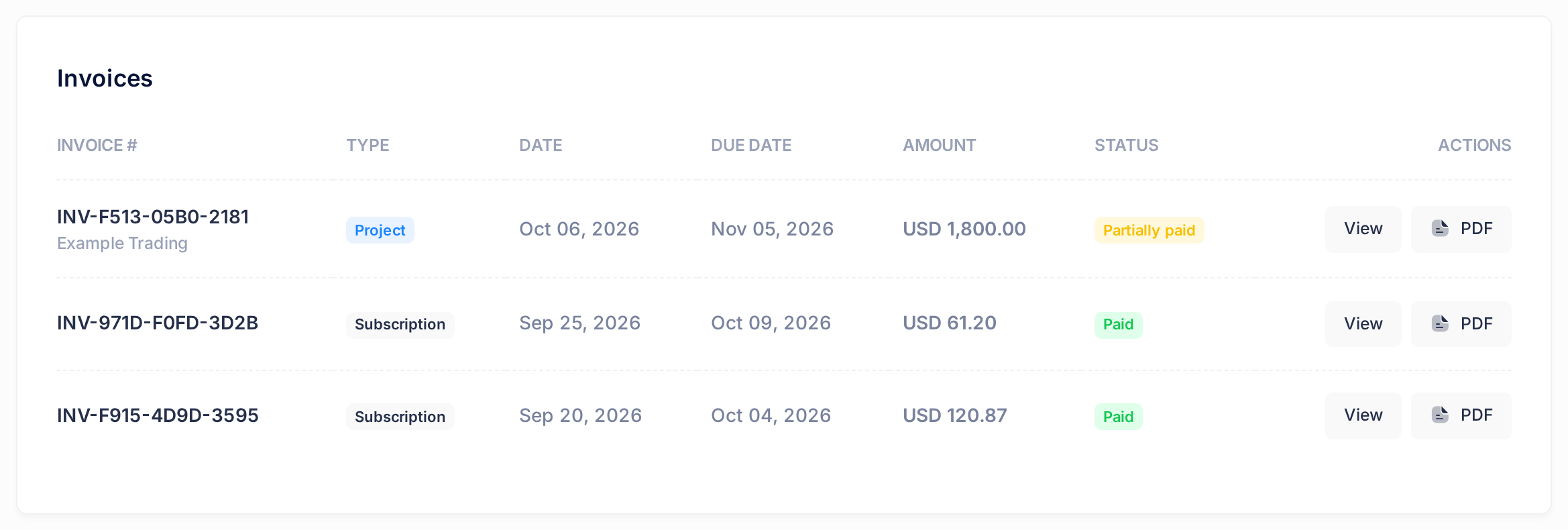
Ignore the boxes Paid and Outstanding above the table: they do not show your figures.
If something goes wrong
- There is no card Project Invoice. PearlFibers has not issued the invoice for this project yet; the card appears once it has. In the invoices list such an invoice reads Draft; View and PDF then only bring you to the project's page, and the red message Invoice is not yet available. shows on a later page. To ask for the invoice, send us a ticket with the project number that stands under the project's name, for example PRJ-TST-0001.
- A payment you made is not on the invoice, or a figure looks wrong. Send us a ticket with the invoice reference and what should be different; for a payment that is not under Payments Received, add its amount and the day you paid.
The guide "Open and Follow a Support Ticket" shows how to send a ticket and follow our answer.