
How can we help?

When PearlFibers builds something for you, such as a website, the work is kept in Loop as a project. This guide shows where to find your project and how to read its page: the status, the dates, the money, the progress and what each tab is for. Where it says "ask us", go to the home screen and click Help, then Submit a Ticket.
Where to find it
Your project is inside the Portal; the home screen has no tile for projects.
- Sign in to Loop and go to the home screen — the page that shows your apps as a grid of tiles.
- Click the Portal tile. The Portal opens on a page with a greeting at the top and the small line My Portal under it, then four boxes, then cards.
- Find the card Recent Projects — on a phone it is further down, under the four boxes — and click View All on it. The page My Projects opens.
- Click the card of your project; the whole card is a link. The page Project Details opens.
Two shortcuts. In Recent Projects, the project's name opens the project directly. The Portal's side menu has My Projects, which opens the list: on a computer the menu is a narrow bar of icons at the side of the page, opened with the small arrow on its edge; on a phone, tap the first button in the top bar.
To go back, click Back to Projects on the project page for the list, or the logo at the top of the page for the home screen.
Your project on the My Projects list
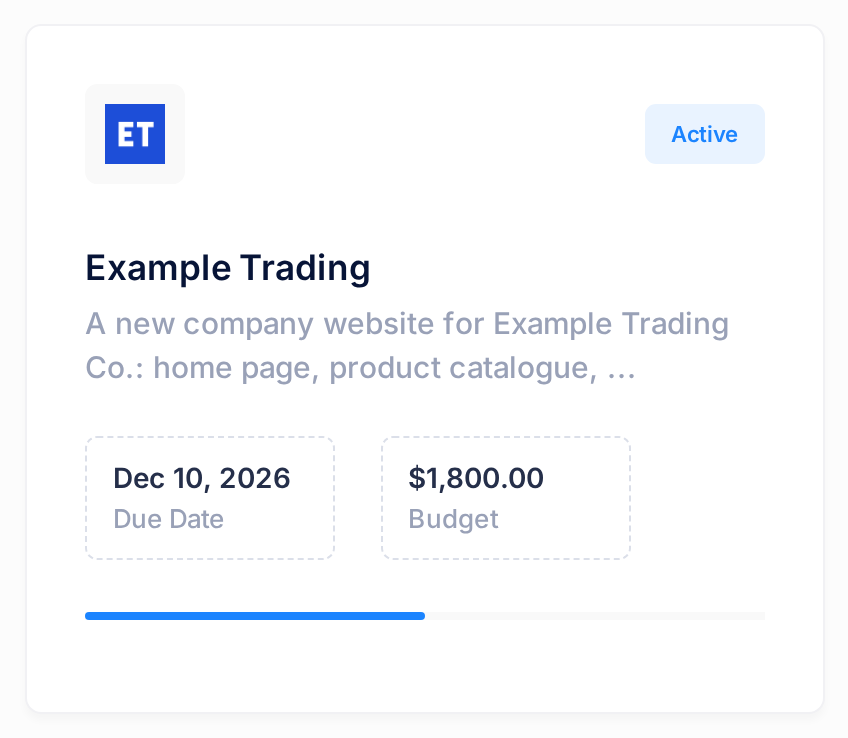
The page shows one card for each of your projects, newest first. Finished and cancelled projects stay on it.
| On the card | Example | What it tells you |
|---|---|---|
| Badge and title | Active, Example Trading | The project's status (see What the status means below) and its name. |
| Line under the title | A new company website for… | The beginning of the project's description, with three dots where a long one is cut off. A project without a description shows its type here. |
| Due Date | Dec 10, 2026 | The end date recorded for the project, or No due date. |
| Budget | $1,800.00 | The project's total budget. Iraqi dinars are written like IQD1,638,000.00 here and IQD 1,638,000 on the project page: the same amount. |
| Thin bar | — | The progress of the work. The figure is on the project page; on a computer, resting the pointer on the bar shows it too: 50% Complete in the example. |
| Round pictures or initials | — | The project's team, when it has one. |
The top of the project page
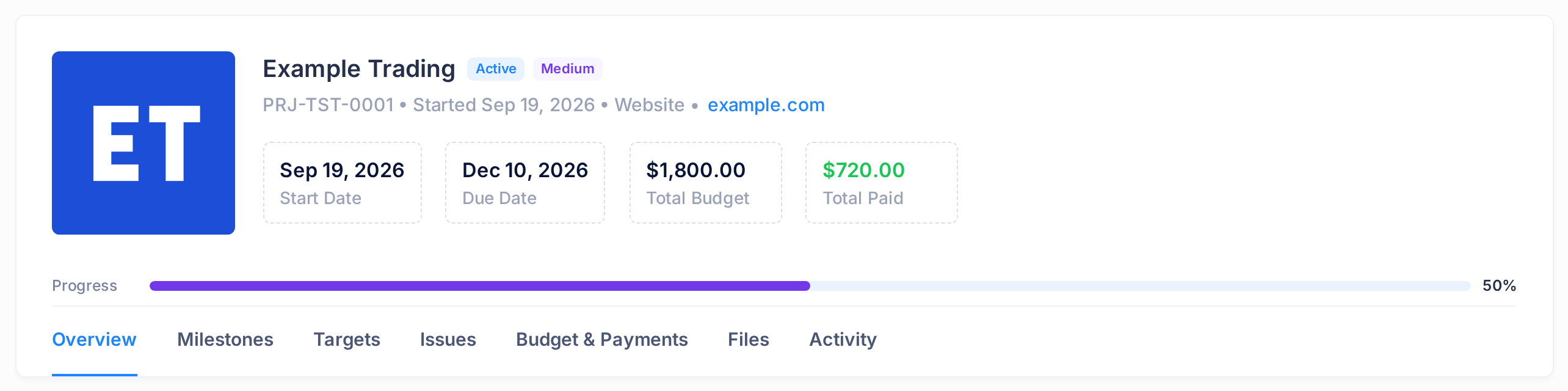
The top card sums the project up and stays in place whichever tab is open.
| Part | Example | What it tells you |
|---|---|---|
| Title and two badges | Example Trading, Active, Medium | The first badge is the status. The second is the priority our team gave the project, for example Medium or High. |
| Line under the title | PRJ-TST-0001 • Started Sep 19, 2026 • Website • example.com | The project number, the start date, the project type and, when our team has stored the project's web address, a link to it that opens in a new browser tab. |
| Start Date, Due Date | Sep 19, 2026, Dec 10, 2026 | The project's start date and end date. A box is missing when no date is recorded. |
| Total Budget | $1,800.00 | The project's budget. |
| Total Paid | $720.00 | What has been recorded as paid so far on the payment schedule, the list of payments on the tab Budget & Payments. |
| Round pictures or initials | — | The team. Rest the pointer on one to see the person's name. |
| Progress | 50% | How far the work has come, as a bar and a whole number. |
The progress figure comes from the project's milestones — its stages. Each milestone has its own figure from 0 to 100, which is 100 once the milestone is Completed, and the project shows their average: in the example 100, 50 and 0 give 50%. The milestones' own figures are not shown on the page.
What the status means
The status badge shows one of five words. Our team sets it; nothing on your pages changes it. When it reads On Hold or Draft, ask us where the project stands.
| Badge | What it tells you |
|---|---|
| Active | The work is in progress. |
| Completed | The project is finished. |
| Cancelled | The project was cancelled. |
| On Hold | The project is paused. |
| Draft | A new project is Draft until our team makes it Active. |
The row of tabs
The last line of the top card is a row of seven tabs; on a phone they run over several lines. Looking at a tab changes nothing and tells nobody.
- Overview — a summary of the milestones, the progress and the money. The page opens here.
- Milestones — the stages of the project, each with its status. See Understand Milestones and Deliverables.
- Targets — single pieces of work the team plans and ticks off. On most projects the tab reads No targets yet.
- Issues — the problems and requests recorded on the project, by you or by the team. See Read the Project Activity.
- Budget & Payments — the budget, what has been paid, the payment schedule and, once it has been issued, the project's invoice. See View and Download Your Project Invoice.
- Files — the files stored on the project, each with a download button. See Understand Milestones and Deliverables.
- Activity — a dated list of what happened on the project, newest first. See Read the Project Activity.
The Overview tab
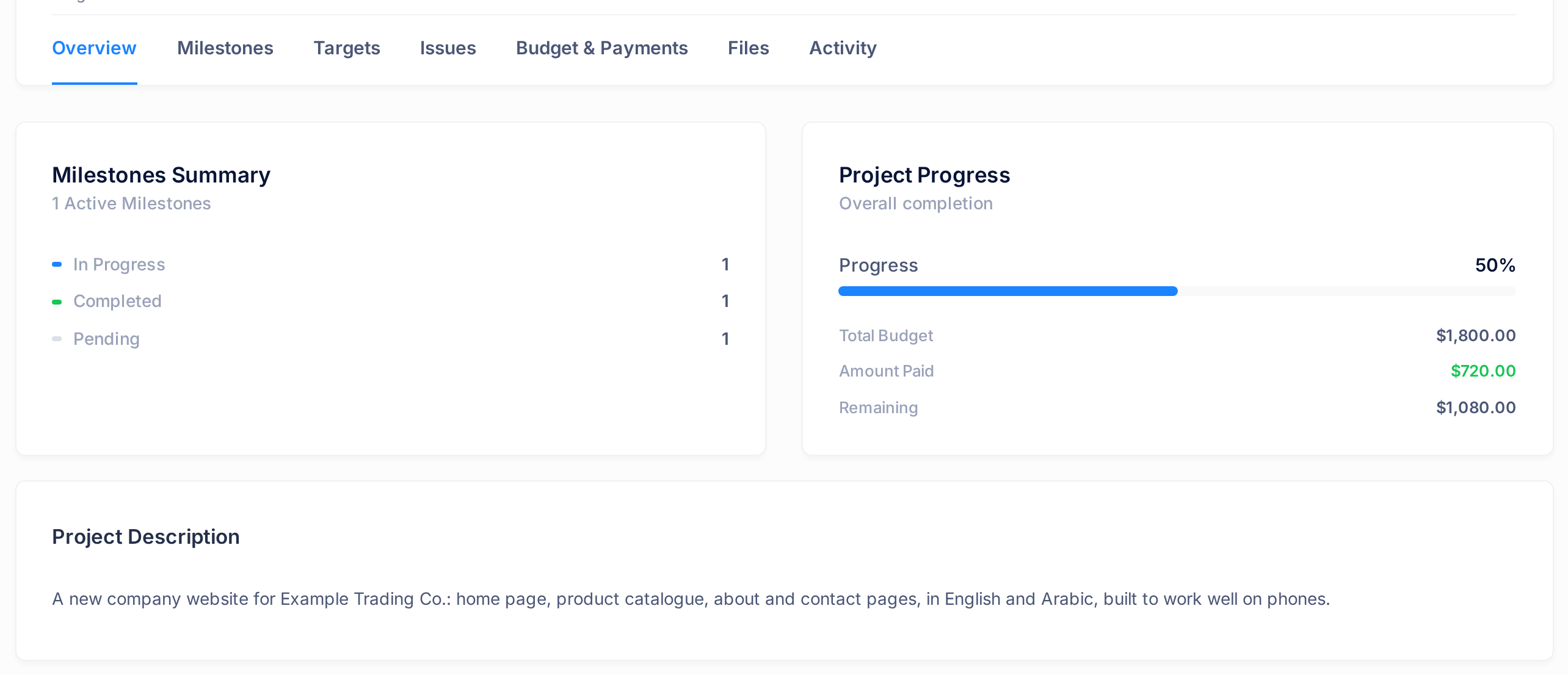
The tab has two cards, and up to two more below them.
- Milestones Summary counts the project's milestones by status in three rows: In Progress, Completed and Pending. In the example each row reads 1. The line above them, Active Milestones, repeats the In Progress count: it often reads 0 although the project itself is Active.
- Project Progress repeats the progress figure and lists three amounts: Total Budget, Amount Paid and Remaining, which is the budget minus the amount paid. In the example:
$1,800.00,$720.00and$1,080.00. - Project Description appears when the project has a description, and Notes For You when our team has written you a note.
Common questions
Why does Progress show one figure and Payment Progress another?
Progress is about the work. Payment Progress, on the tab Budget & Payments, is about the money: the share of the budget that has been paid. In the example the work stands at 50% and the payments at 40%.
I have paid, but Total Paid has not changed. Why?
Payments on a project are recorded by our team, and Total Paid counts a payment only once it is recorded. If a payment you made is missing, ask us and give the project number, the amount and the day you paid.
If something looks wrong
- A link in a notification or an email about your project does not open the project. You may land on an error page instead. Open the project from My Projects.
- The card Recent Projects reads No projects yet, or the page My Projects reads No Projects Yet. No project is linked to the account you signed in with. The button Contact Support there only opens Loop's chat panel and sends us nothing: ask us through Help.
- The Portal's first page shows 0 beside Active Projects. That box counts only projects whose status is Active. A completed project is still in Recent Projects and on My Projects.
Need a hand? On the home screen, click Help, then Submit a Ticket, and tell us the project number and what the page shows. The guide Describe a Problem So We Can Fix It Fast lists what else helps.