
How can we help?

On your project's page, the Activity tab is a dated list of what happened on the project. The Issues tab is a board of the problems and requests raised on it, and the place to report one yourself.
Where this guide says send us a ticket: click the Loop logo at the top of the page to return to the home screen, then Help, then Submit a Ticket.
Where to find it
- On the home screen, click Portal.
- In the card Recent Projects (on a phone, scroll down to it), click the name of your project. Its page opens: a card with the project's name, its status, a Progress bar and seven tabs.
- Click Activity, the last tab, or Issues.
The Activity tab: what happened and when
The card Project Activity lists one line for each event, the newest first.
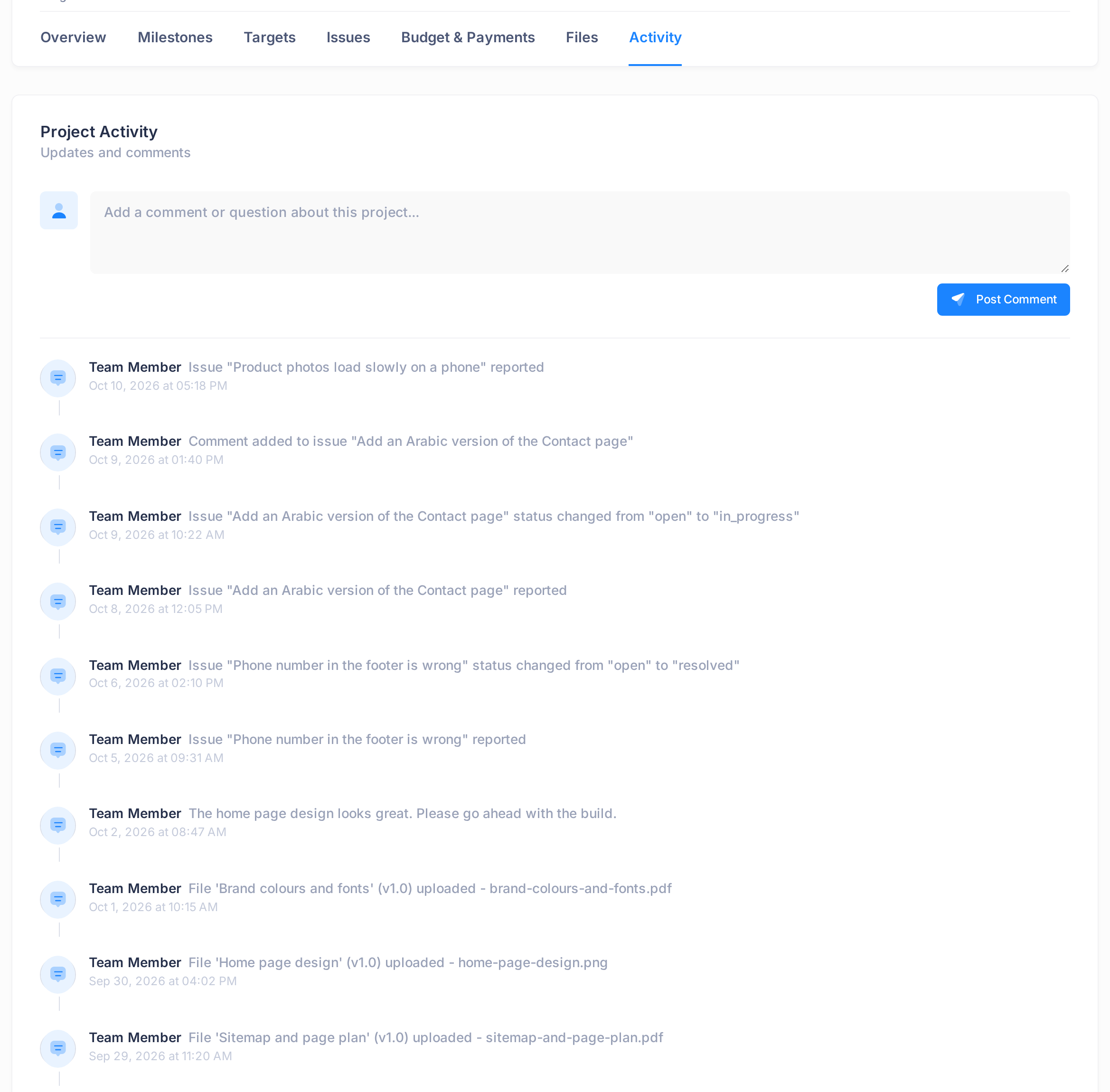
A line shows the words Team Member, a sentence saying what happened, and the day and time, for example Oct 11, 2026 at 02:30 PM. Team Member stands on every line, also on the lines for what you did yourself, so the name does not tell you who did it. Times on this page are in UTC, the world's standard time, not your local time: in Iraq, add three hours.
| The line reads | What happened |
|---|---|
Project "…" was created … | The project was set up in Loop. |
Project status changed from "draft" to "active" | PearlFibers changed the project's status. |
File '…' (v1.0) uploaded - … | A file was added to the Files tab. A removed file gets a line too. |
Issue "…" reported | An issue was added to the Issues tab. |
Issue "…" status changed from "open" to "in_progress" | PearlFibers moved the issue to another column; in_progress is In Progress. |
Comment added to issue "…" | A comment was added to that issue. Read it in the issue's window. |
| A sentence in ordinary words | A comment: yours, written in the box at the top of this tab, or one from PearlFibers. |
The list leaves out:
- Milestones and payments. Nothing is written when a milestone (a stage of the work) is completed or a payment is recorded. See the Milestones tab for each milestone's status (Understand Milestones and Deliverables) and Budget & Payments for each scheduled payment and its status (View and Download Your Project Invoice).
- Older lines. Only the 20 newest lines are shown.
The box at the top, Add a comment or question about this project..., and its button Post Comment add a line of your own: the list reloads with your comment first. No message about it goes to anyone at PearlFibers; the team can read it when they open the project. For anything that needs an answer, report an issue instead. Read a comment before you post it: here and on an issue, it cannot be edited or deleted afterwards.
The Issues tab: the board
An issue is one problem, request or question about the project. The tab shows every issue on the project, yours and the team's, and their number under the title, for example 3 Issues.
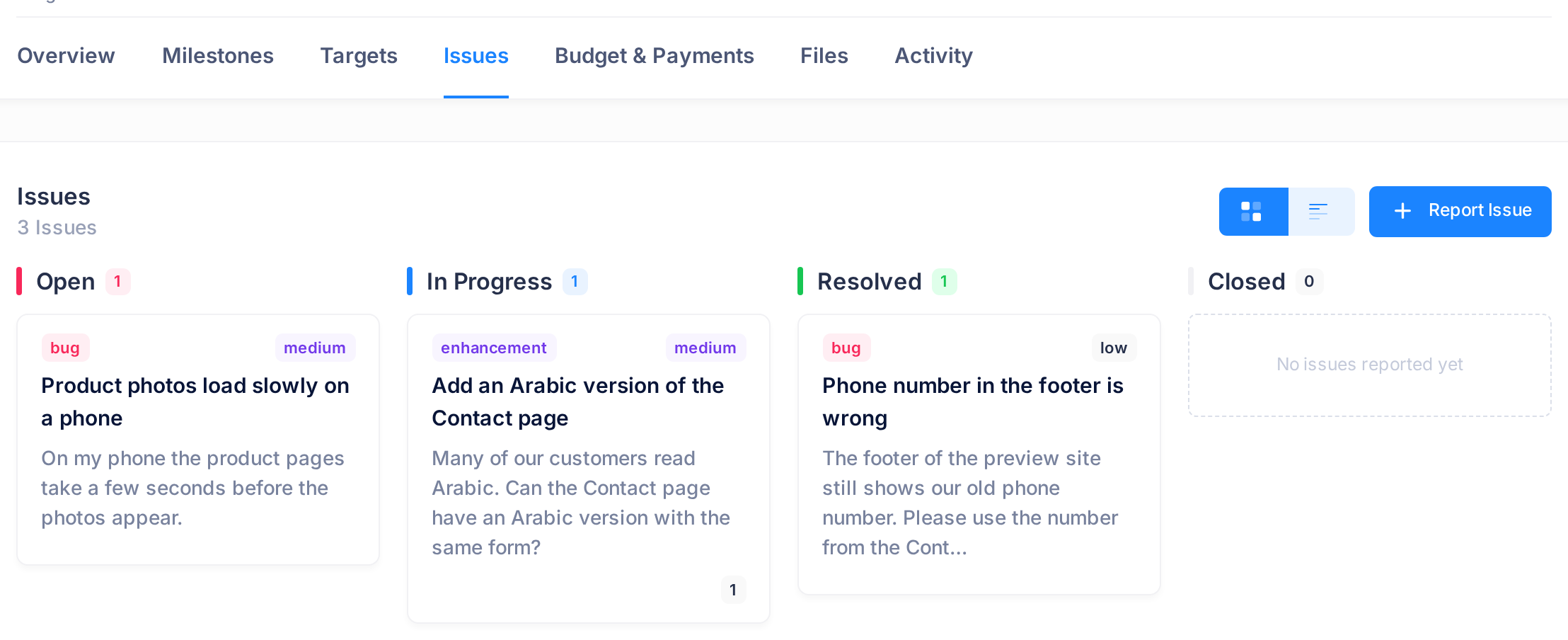
The board has four columns, each with a count: Open, In Progress, Resolved and Closed. On a phone they stand one under the other. An issue you report starts in Open, and PearlFibers moves it from column to column.
A card shows the issue's type and severity in small letters (bug, medium), its title, the start of its description and, when there are any, the number of comments.
Open an issue
Click a card. A window opens with the issue's title, four small labels (status, type, severity and priority), its description and, where they exist, Assignee, Reported By and Milestone. Under Comments, each comment carries its author, its time and its text.
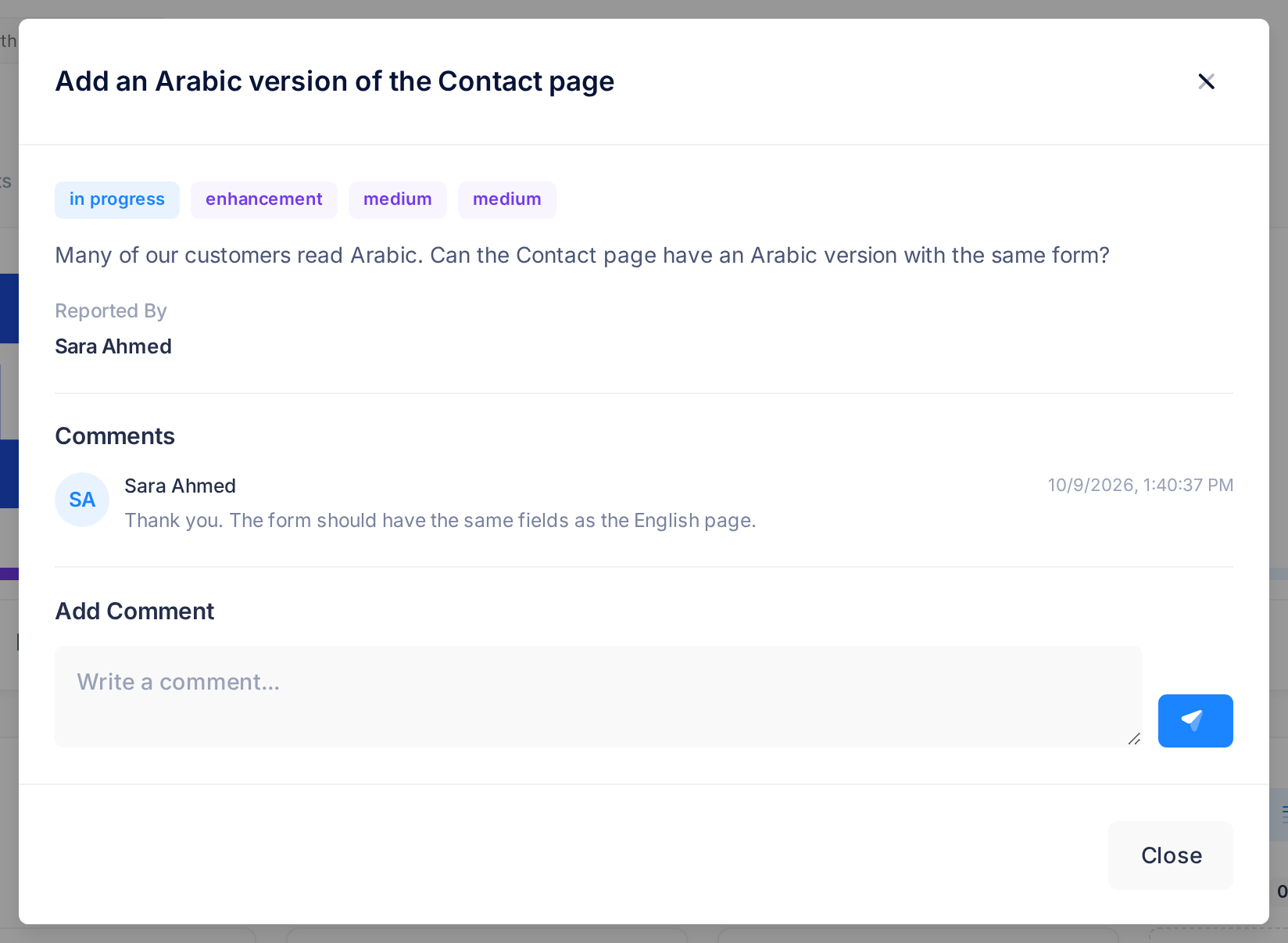
To add a comment, type in the box Write a comment... under Add Comment and click the button with the paper-plane icon. The box empties and your comment appears in the window. The project's team and the administrators at PearlFibers receive a notification in Loop, and a line is added to the Activity tab. When you then close the window, the page behind it stays grey and does not react to clicks: reload the page.
Report an issue
- On the Issues tab, click Report Issue. A window with five fields opens.
- In Title (required), name the problem in one line, for example
Phone number in the footer is wrong. - In Description (optional), say where you saw it, what you did and what you expected. No file can be attached.
- Choose Type, Severity and Priority, or leave them on Bug, Medium and Medium.
- Read your text once more, then click Submit Issue once: an issue cannot be edited or deleted afterwards, and one sent twice is saved twice. The button reads Submitting…, the window closes and the issue appears in the Open column; nothing else confirms it.
The administrators at PearlFibers receive a notification in Loop at once, and the line Issue "…" reported is added to the Activity tab.
What Loop sends you about the project
Loop puts a notification in your notifications list for each event below. Open the list from its icon in the top bar (see Find Your Way Around the Home Screen); it opens on its tab Alerts, so click the tab Projects. An email with the same title may come as well, but do not wait for it: look in Loop.
| Title | Sent when |
|---|---|
| New Comment on Issue | A member of the team comments on an issue. |
| Issue Resolved | An issue that you reported is marked as resolved. |
| Milestone Completed, Milestone Approved | A milestone is completed or approved. |
| Payment Received | A payment for the project is recorded. |
| Project Created or Project Created for Your Order; Project Completed | The project is created or completed. |
| Project Status Updated | The project's status changes. No email. |
Clicking one of these notifications, or the button in its email, does not open your project: most show an error page. Open the project from Portal instead.
Common questions
An issue is marked resolved, but the problem is still there. What now?
Open the issue and say so in a comment, with what you still see.
Is an issue the same as a support ticket?
No. An issue stays on this project's board. A ticket goes to the PearlFibers support team: use one when a page of Loop does not work or your question is about another service.
If something looks wrong
- The list reads Failed to load activity. Reload the page.
- Failed to create issue, Error creating issue, Failed to add comment or Failed to post comment, or nothing happens when you click the paper-plane button. Copy your text, reload the page and look whether it arrived all the same: an issue in the Open column, a comment in the issue's window or at the top of the Activity list. Send it again only if it is not there.
If one of these messages keeps coming back, send us a ticket and name the project.