
How can we help?

A project in Loop is divided into milestones: the stages of the work, each with a status badge. This guide shows how to read your milestones, how they connect to the project's progress figure and to its payment schedule, and where the files stored on your project are. Where it says "contact support": on the home screen, click Help, then Submit a Ticket.
Where to find it
- Sign in to Loop and go to the home screen, the page that shows your apps as tiles.
- Click the Portal tile.
- In the card Recent Projects, below the four boxes, click the name of your project.
- Your project's page opens with a card that carries the project's name. The last row of that card holds seven tabs (on a phone they wrap onto several rows): click Milestones.
Looking at the tabs and downloading a file change nothing on your project and notify nobody. For the page as a whole, see the guide Follow Your Project.
The Milestones tab
The card Project Milestones shows how many milestones the project has (3 milestones in the picture) and lists them in the order our team gave them.
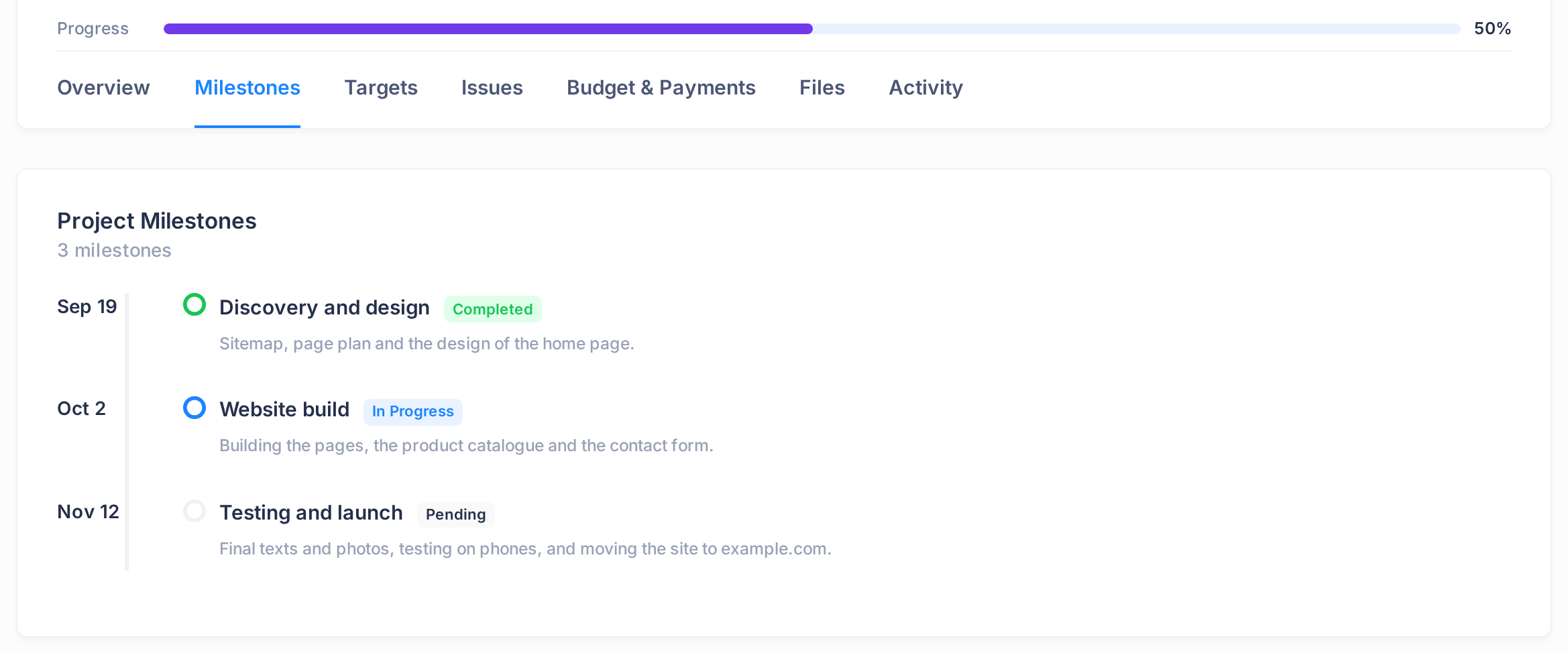
Each milestone is one entry. From the start of the line it shows:
| Part | In the picture | What it tells you |
|---|---|---|
| A date | Sep 19 | The start date our team set for the stage: month and day, without the year. It is not a deadline, and a stage can start later than this date. |
| A small ring | A green ring | Green for a completed stage, blue for one in progress. For any other stage the ring is so pale that it is hard to see. |
| The title | Discovery and design | The name of the stage. |
| A status badge | Completed | Where the stage stands: see the next table. |
| A line of text below | Sitemap, page plan and the design of the home page. | The description of the stage, when it has one. |
Our team sets the badge by hand; it does not change by itself when a date passes.
| Badge | What it means |
|---|---|
| Pending | Not marked as started. |
| In Progress | Marked as under way. |
| Completed | Marked as finished. |
A stage can also carry the badge On Hold or Cancelled.
How the milestones make up the progress figure
Each stage has a figure from 0 to 100, which the tab does not show: 100 once the stage is Completed, and before that 0 or a figure our team has recorded. Progress, the bar and percentage above the row of tabs, is the average of these figures. In the example the three stages stand at 100, 50 and 0, so Progress reads 50%.
The Targets tab lists the single pieces of work the team plans and ticks off; on most projects it reads No targets yet.
Milestones in the payment schedule
Click Budget & Payments. Below three cards with the budget figures and the bar Payment Progress, the card Payment Schedule lists the project's instalments, the parts in which the project is paid, and says how many there are (3 scheduled payments in the picture). Each instalment belongs to a milestone and is named after it. A stage can have more than one instalment: tell them apart by amount and due date. On a phone the table is wider than the screen: slide it sideways to see Due Date and Status.
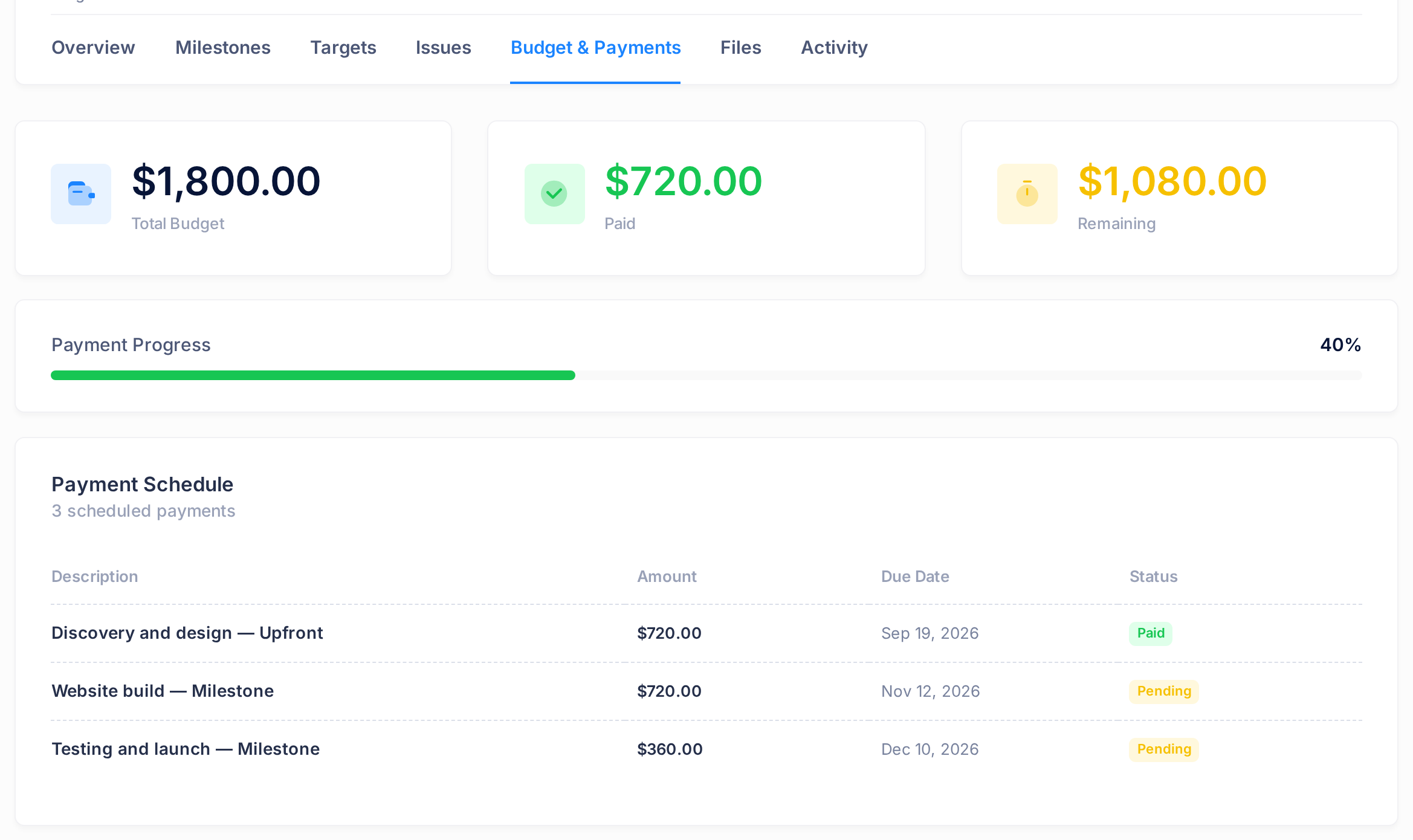
| Column | In the picture | What it tells you |
|---|---|---|
| Description | Website build — Milestone | The milestone the instalment belongs to, a dash, then the kind of payment, such as Upfront, Milestone or Custom. |
| Amount | $720.00 | The amount of the instalment. When part of it has been paid, that part is written below it, followed by Paid. |
| Due Date | Nov 12, 2026 | The day the instalment is due. |
| Status | Pending | Pending: the instalment awaits payment. Partially Paid: part of it has been paid. Paid: it has been paid in full. |
Payments are recorded by our team. Read the two tabs separately: the badge on Milestones is about the work, Status here is about the payment. Payment Progress is the share of the budget that has been paid (40% in the picture), not the progress of the work.
Below the schedule, the card Project Invoice is shown once our team has issued the invoice: see the guide View and Download Your Project Invoice.
The Files tab: where delivered files are
Click Files. The card Project Files holds every file stored on the project. When nothing is stored, it reads No files uploaded yet; if you expected a file there, contact support. Otherwise it shows the number of files (4 files in the picture) and a table with four columns, the newest file first:
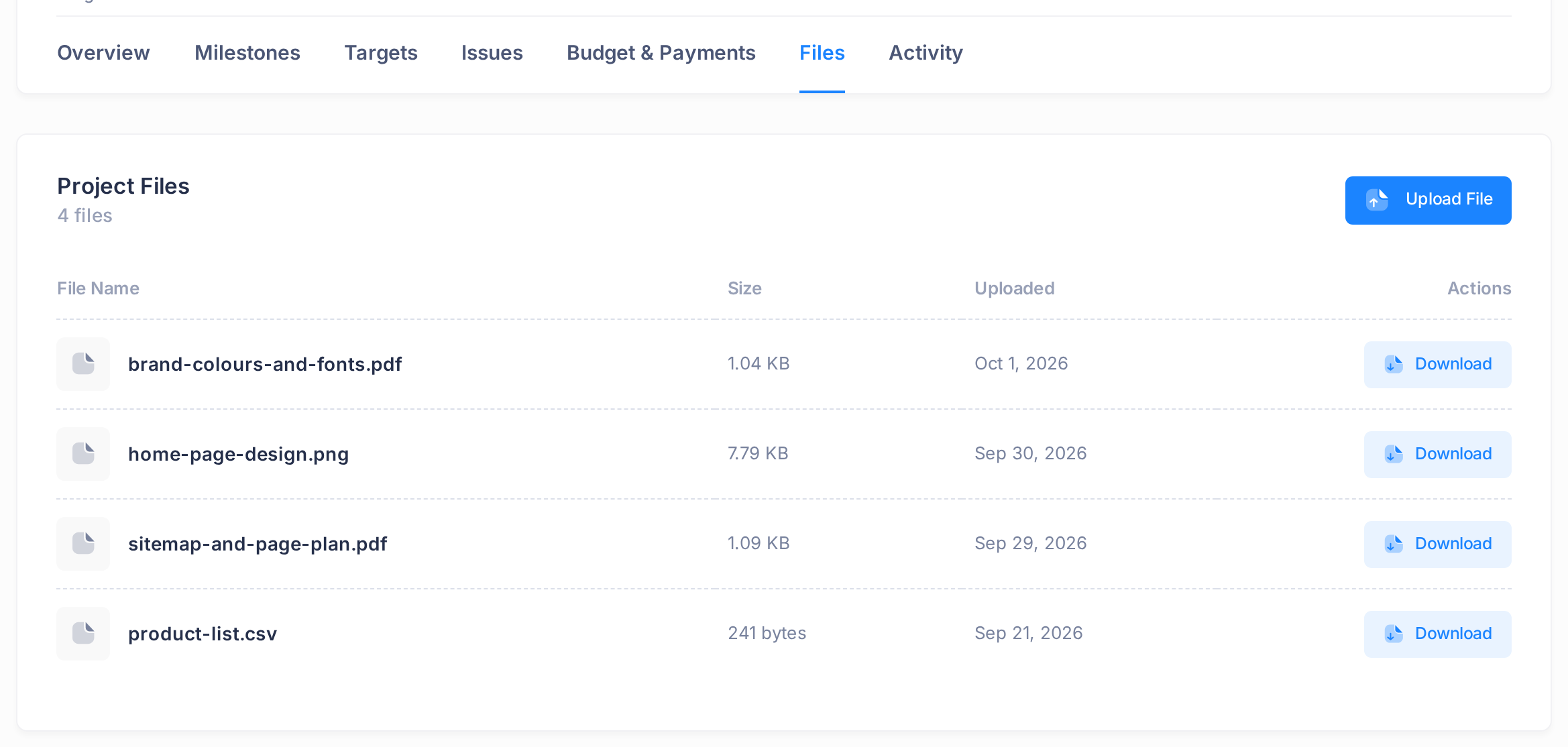
- File Name — the file's name with its ending, such as
.pdfor.png. - Size — how big the file is, in bytes, KB, MB or GB.
- Uploaded — the day the file was added.
- Actions — the button Download. Click it and your browser saves the file to your device. On a phone this column is off the screen: slide the table sideways to reach it.
The list holds the files our team added and the files you uploaded yourself. The table does not mark which is which, or which milestone a file belongs to: go by the name and the date. In the picture, product-list.csv came from the customer and the other three from the team.
The button Upload File at the top of the card (Upload First File on an empty one) adds a file of your own to this list: any kind of file, up to 100 MB. Before you use it, know three things: nobody at PearlFibers is told about the file unless you contact support, you cannot remove it afterwards, and the upload ends on a page of technical text in place of your project. Press your browser's Back button, reload the page and click Files: if the upload worked, your file is in the list.
Common questions
The date beside a stage has passed and the badge still reads Pending. Is the project late?
Not necessarily: neither the date nor the badge says so (see the two tables above). The day the whole project is due is Due Date, in the first card of the page. To learn where a stage stands, contact support.
A stage has one date on Milestones and another on Budget & Payments. Which is right?
Both. The first is the start date set for the stage; the second is the day its instalment is due.
Where do I approve a stage or a file?
These pages have no approve button. To tell us that you accept a stage or a file, contact support. To ask for a change to a delivered file, report an issue on the Issues tab, which the guide Read the Project Activity covers.
If something looks wrong
- The card Recent Projects reads No projects yet. No project is linked to the account you signed in with. If you expected one, contact support.
- After a click on Download, a page of text opens and no file is saved. The file could not be fetched. Contact support and name the file.
- You have paid, and the instalment still reads Pending. Contact support with the amount and the day you paid.
Need a hand? From a project page, click the Loop logo in the bar at the top to return to the home screen, then Help and Submit a Ticket. Give us the project number, which starts the line under your project's title (PRJ-TST-0001 in the example). The guide Describe a Problem So We Can Fix It Fast lists what else to send.