
How can we help?

A new hosting account shows visitors a "Coming soon" page. This guide puts your own website in its place and checks the result as a visitor sees it. To send a ticket, click the Loop logo at the top of the page to return to the home screen, click Help, then Submit a Ticket.
Before you start
- The account is new. If it already holds a website, use Manage Files in the File Manager instead: Step 3 would take its first page away.
- Your site is on your computer, as a folder or as one ZIP archive (a file ending in
.zipthat holds the whole site). Keep that copy. - Its first page is named
index.html, in small letters (index.phpfor a site written in PHP). The server does not takehome.htmlorIndex.htmlas the first page: have whoever built the site rename it.
Step 1 — See what your domain shows now
- Open a private window in your browser (also called Incognito or InPrivate): it shows no page kept from an earlier visit.
- In the address bar, type
http://(nothttps://) and your domain, for examplehttp://example.com, and press Enter. - Look for the small label COMING SOON with your domain in large letters under it. This welcome page shows that your domain leads to the new account.
An older website, another company's page or no site at all means the domain does not lead here yet: follow Point Your Domain to Your Website, then Check That a DNS Change Is Live. Steps 2 to 5 can be done meanwhile. For a page titled Apache2 Ubuntu Default Page, see "If something goes wrong".
Step 2 — Open the website's folder
- On the home screen, click the tile Portal.
- Click View All Services.
- On the page My Services, click the tab Hosting.
- Click Manage on the card of your domain.
- In the card Quick Links, click File Manager.
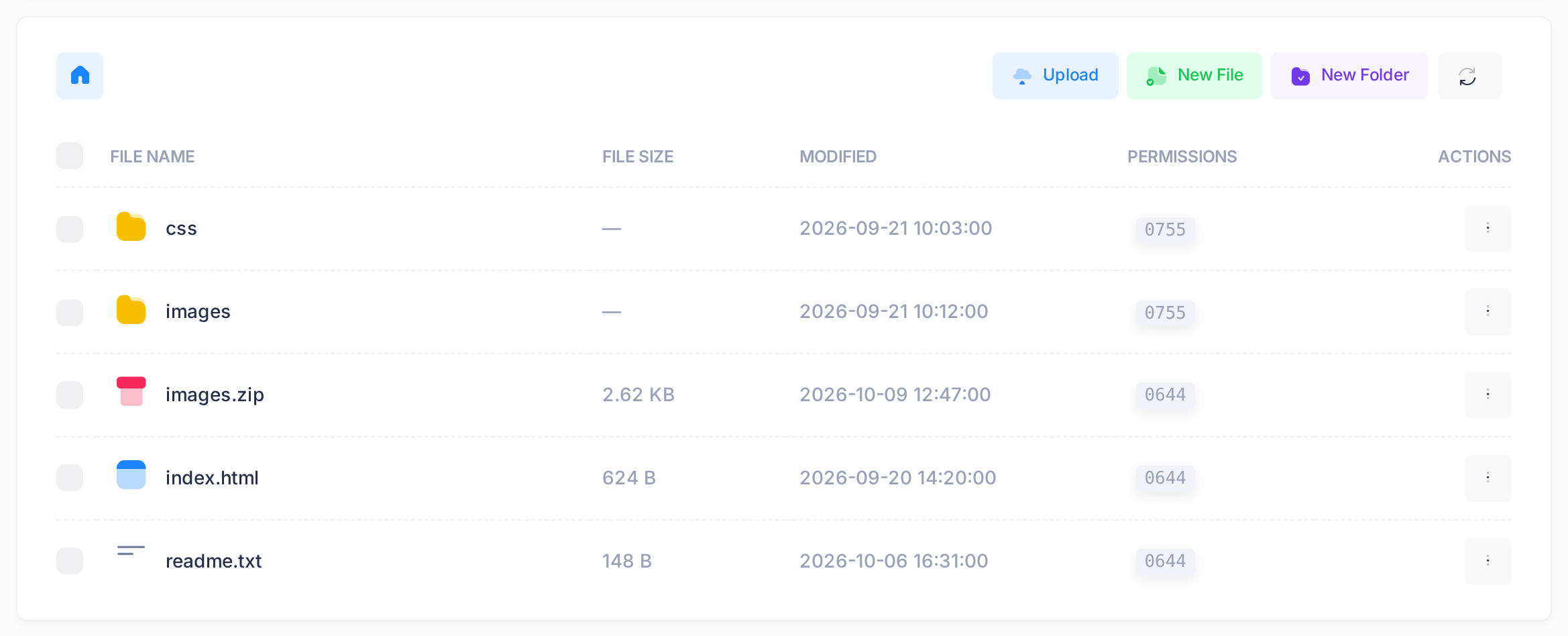
- Scroll past the first card, Git Repository, without clicking in it, to the list under the buttons Upload, New File and New Folder.
The list opens in the top folder, marked by a house icon: on a new account, the folder the server shows to visitors. It holds one file, index.html, the welcome page (the picture shows a small site).
Step 3 — Rename the welcome page
An upload never replaces a file: while the welcome page is named index.html, your own index.html is left out. Once it is renamed, visitors see a list of the folder's files until your first page is in place; renaming it back undoes this.
- Click the three-dot button at the end of the row
index.html, under ACTIONS, and choose Rename. - In the field New Name, type
index-old.htmland click Rename. A message reads Renamed successfully and the row shows the new name; if not, repeat this step.
Step 4 — Upload the files
With many folders, use Step 5 instead. Manage Files in the File Manager shows each window.
- Click Upload, click the dashed area of the window that opens and choose the files that lie directly in your site's folder, at most 20 at a time.
- Click Upload in the window and wait for the message. For three files it reads 3 file(s) uploaded successfully: compare its number with the number you chose.
- For each folder of the site, click New Folder, type its name exactly as on your computer, such as
images, and click Create. - Click the new folder's three-dot button and choose Open: its name appears beside the house icon. Upload its files there. The house icon leads back to the top folder.
Folders cannot be uploaded, and files cannot be moved between folders. Keep every name and place as on your computer: your pages find their files by them.
Step 5 — Or upload one archive
Open the ZIP on your computer first: you must see your first page beside the site's folders. If you see one single folder instead, make a new ZIP of what is inside it, or ask your designer for one: the site would otherwise land one level too deep.
- Upload the ZIP into the top folder as in Step 4, items 1 and 2.
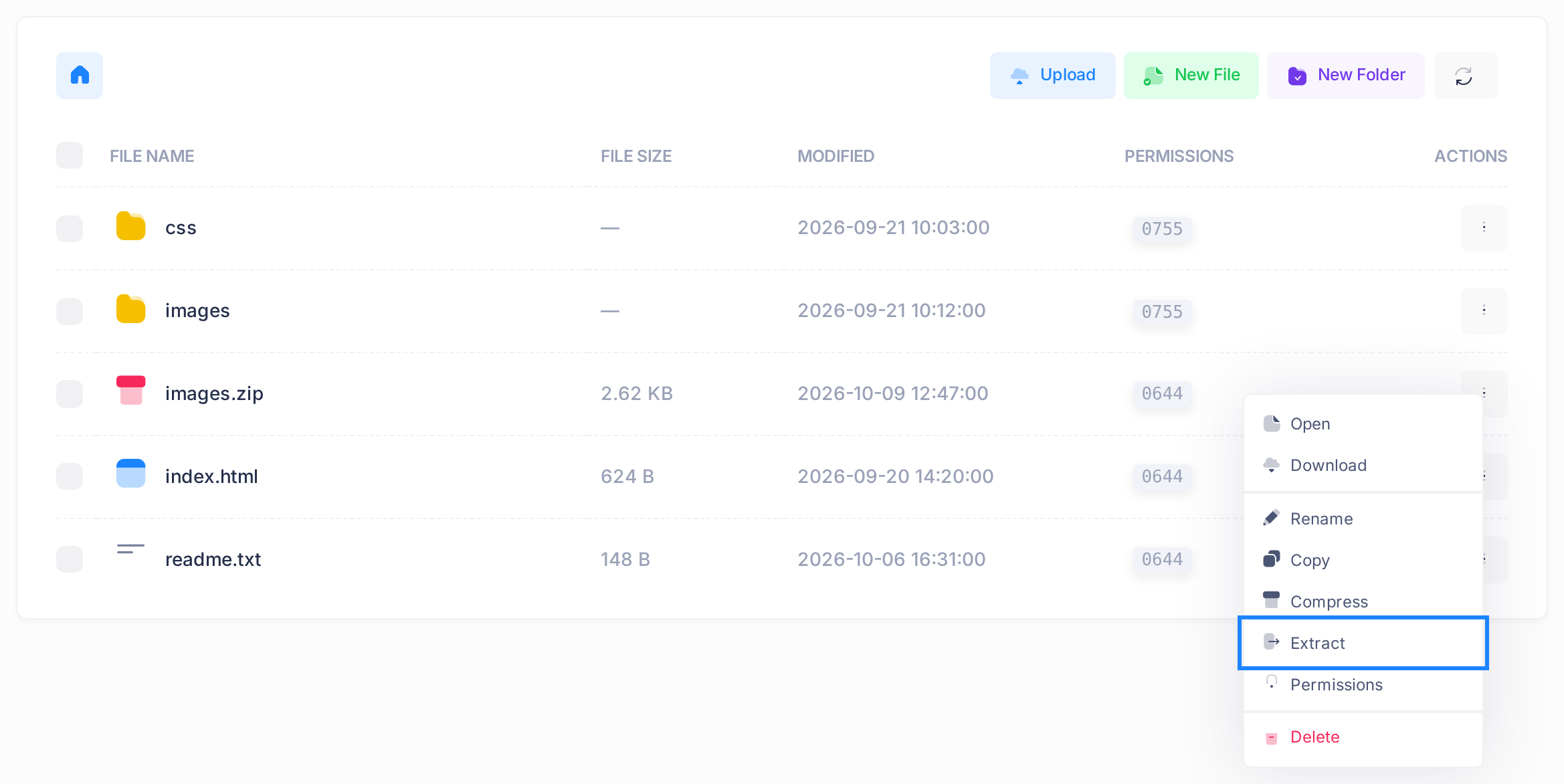
- Click its three-dot button and choose Extract. A box titled Extract Archive opens. Extracting writes over files of the same name in this folder without asking and cannot be undone.
- Click Extract in the box and wait: nothing moves on the page until a message reads Extracted successfully.
- Read the list: your first page and the site's folders must stand directly in it.
If one new folder appeared instead, delete it and the archive (Step 7) and repeat with a new ZIP. Compress and Extract Archives has the details.
Step 6 — Check the site as a visitor
- Close the private window of Step 1, which can still show the old page, and open a new one.
- Open
http://example.comwith your own domain, thenhttp://www.example.com: both must show your first page. - Click through to a second page: its pictures and colours must be there.
| What you see | What it means |
|---|---|
| The label COMING SOON | The welcome page is still named index.html: do Step 3, then check that your own first page is in the list. |
| A list of files under the heading Index of | The top folder has no first page: yours was not stored, has another name, or sits inside a folder (Step 5). |
| A page headed Not Found, or your page without its pictures or colours | A file is missing, in another folder than on your computer, or named differently: for the server, Storefront.png and storefront.png are two names. Upload or rename it. |
| A warning about the certificate, then a page headed Forbidden | The address began with https://, and the account has no certificate, which a secure address needs. Use http://; if the site must have https, send a ticket. |
| An older website, or no site at all | The name you typed does not lead here yet: Step 1. |
Step 7 — Tidy up
The archive and the old welcome page are still in the website folder, where visitors can reach them. Deleting is final, and a folder goes with everything in it.
- Click the archive's three-dot button, if you uploaded one, and choose Delete. A box titled Delete Item names the item.
- Read the name, then click Yes, Delete. A message reads Deleted successfully.
- Once your site is right, delete
index-old.htmlthe same way.
What happens next
Your site is online from the moment its files are in the folder. A folder with no first page of its own, such as example.com/images, shows visitors a list of its files: keep nothing there that visitors should not see.
If something goes wrong
- Upload failed, or a message that counts fewer files than you chose. Compare the list with your folder and upload only the missing files, a few at a time.
- Extraction failed: Command failed. The files may be unpacked all the same: reload the page and compare the list with your site's folder. If some are missing, upload them as in Step 4.
- A file is in place under the right name and still does not load. Files from an archive keep the archive's permissions, and the server must be allowed to read each one: see Set File Permissions.
- A page titled Apache2 Ubuntu Default Page, or an address that works on one try and not on the next, comes from the server, not from your files: change nothing and send a ticket.
When you send a ticket, give the domain, the address you opened and the exact words on the screen.