
How can we help?

An archive is one file that holds many files and folders, such as a .zip file. In the File Manager of your hosting account you compress a folder to download it as one file, or upload a whole site as one archive and extract (unpack) it there. The File Manager works on your live website and has no trash: read the warning in Step 4 before you extract.
Before you start
- Your hosting account is Active.
- Only archives ending in
.zip,.tar,.tar.gzor.tgzcan be unpacked here. Extract is offered for.rar,.7z,.bz2,.xzand other.gzfiles too, but fails: repack those as.zipon your device. - Pack the site's files and folders directly, not inside an outer folder: that folder is unpacked too, and the File Manager cannot move files.
- On a phone the list of files is wider than the screen: slide the page sideways to reach the end of a row.
Step 1 — Open the File Manager
- On the home screen, click the Portal tile.
- Click View All Services.
- Open the Hosting tab and click Manage on your account's card.
- In the card Quick Links, click File Manager.
- Scroll past the card Git Repository to the list of files.
The list shows the top folder, whose files are your website. Every row ends, under ACTIONS, with a three-dot button that opens the row's menu. For a download, follow Steps 2 and 3; for an upload, Steps 4 and 5.
Step 2 — Compress a folder or a file
Each archive holds one item, and you cannot choose its name: it is the item's name up to its last dot, plus the format's ending. The folder css gives css.zip; the file index.html gives index.zip. A folder's archive holds the folder itself: unpack it where css belongs, not inside css.
- If a file with that name is already in the list, rename it first: click Rename in its menu, type another name in New Name and click Rename. "When the name is already there" says why.
- In the item's menu, click Compress. A small window opens with one list, Format.
- Leave Format on ZIP (.zip). TAR (.tar) and GZip (.tar.gz) work as well.
- Click Compress once and wait: the window closes when the work is done, and a small message at the corner of the page reads Compressed successfully.
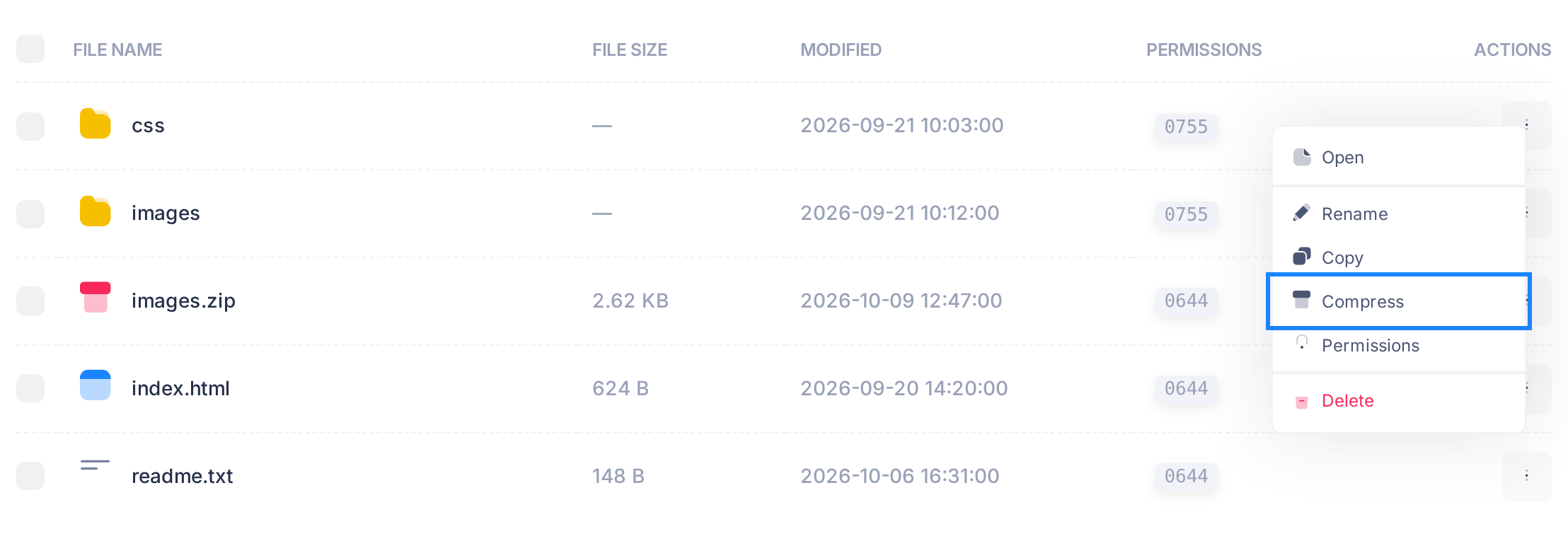
The list reloads with the archive in the same folder as the item, which stays where it is.
Step 3 — Download the archive
- In the archive's menu, click Download. A new browser tab opens and the file is saved under its own name.
- Open the saved file on your device and check that everything is in it.
Step 4 — Upload an archive
Read this first. Extract unpacks an archive straight into the folder that holds it and makes no folder of its own. Every file there with the same name, also inside folders of the same name, is replaced without a question, even a newer one, and cannot be brought back. Other files stay. So open the archive on your device first, compare its names with the list, and download a copy of what you want to keep: a file with Download in its menu, a folder with Steps 2 and 3.
- Open the folder the files belong in: for a whole site, click the house icon above the list; for another folder, click Open in its menu. The house icon alone means the top folder; a name after it is the folder that is open.
- Click Upload. In the window Upload Files, click the dashed area and choose the archive.
- Click Upload in the window. Wait, also after the progress bar is full, until the window closes and a message ends in file(s) uploaded successfully.
An upload never replaces a file: if the folder already has one of that name, the message reads Upload failed. Click Cancel, rename or delete the old file, then upload again.
Step 5 — Extract the archive
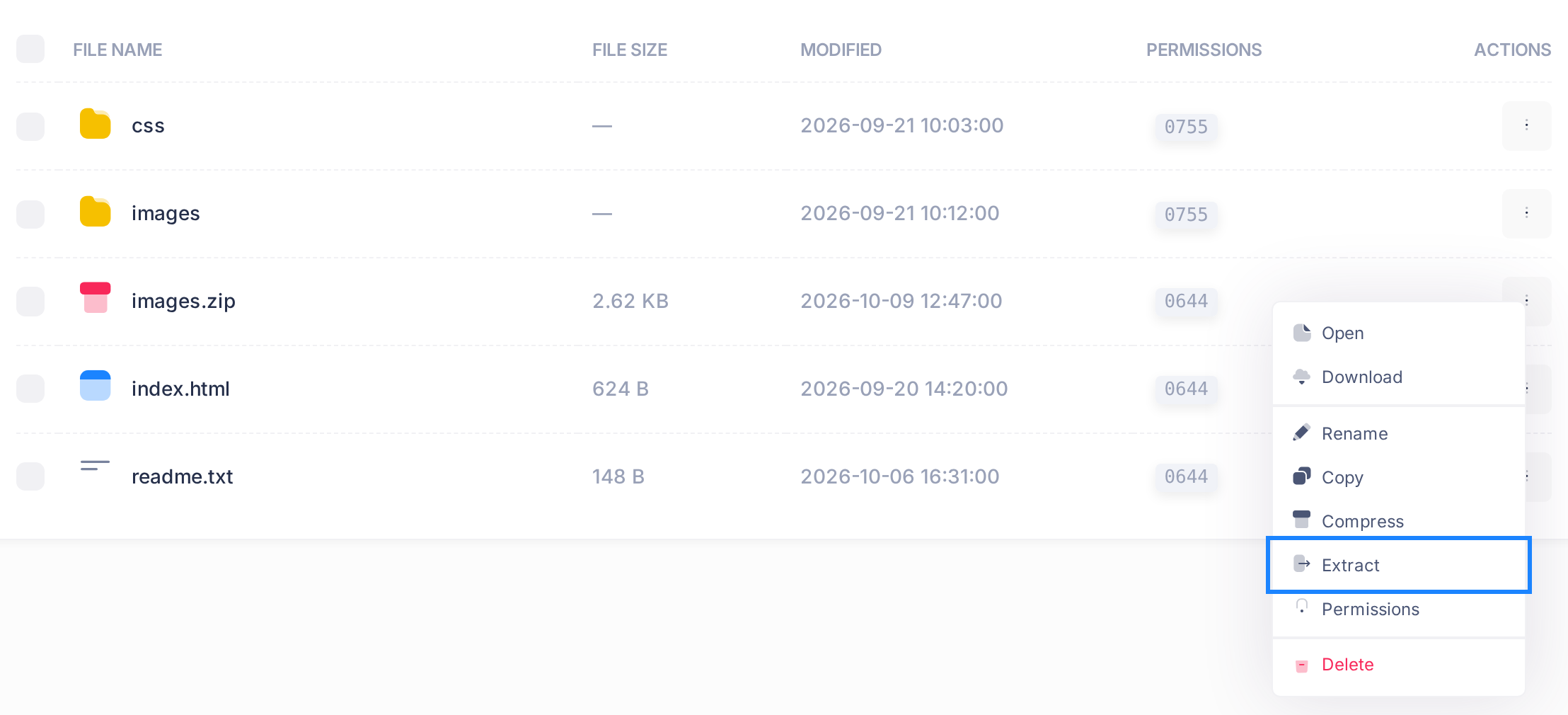
- In the archive's menu, click Extract. A box titled Extract Archive names the archive and asks whether to extract it into the current directory? (the folder that is open). Nothing has changed yet: to stop here, click Cancel.
- Check the name in the box and click Extract. The box closes and nothing shows while the server works: wait for the message Extracted successfully.
What happens next
An archive stays in its folder after downloading and unpacking: anyone who types its name after your site's address can download it. To remove it, click Delete in its menu. Deleting is permanent: in the box Delete Item, make sure the name is the archive's and not a folder's, then click Yes, Delete.
Extract does not set permissions (who may read a file): if part of the site is not shown to visitors afterwards, see "Set File Permissions". For the site's first page, see "Put Your Website Online".
When the name is already there
Compress gives no warning. ZIP (.zip) adds the item into the old archive: entries of the same name inside it are replaced, the rest stays. TAR (.tar) and GZip (.tar.gz) replace the old archive, which cannot be brought back. So never compress a .tar file with TAR (.tar): the file itself is emptied.
If something goes wrong
- Compression failed: Command failed — If you chose 7-Zip (.7z), choose ZIP (.zip): 7-Zip always fails here.
- Extraction failed: Command failed or Unsupported archive format — An archive of a kind that cannot be unpacked here gives these messages: see "Before you start". With a
.zip, the first message can come although files were unpacked: click the button with two round arrows beside New Folder and check the list against the archive.
For anything this guide does not explain, copy the exact words of the message for our support team: click the Loop logo at the top of the page to return to the home screen, click Help, then Submit a Ticket.