
How can we help?

The file manager shows your website's files in the browser, so you can upload, create, edit, rename, copy, download and delete them without any other program. Where this guide says "contact support": click the Loop logo at the top of the page to return to the home screen, click Help, then Submit a Ticket.
Before you start
- Your hosting account's status, shown on its card in Step 1, is Active. While it is Suspended or Expired, the website is switched off.
- Every change is live at once, with no draft and no undo: keep a copy first (Step 3).
- On a phone the list is wider than the screen: move the page sideways to reach the end of a row.
Step 1 — Open the file manager
- On the home screen, click the tile Portal.
- On the page that opens, click View All Services.
- On the page My Services, click the tab Hosting.
- Click Manage on the card of your website.
- In the card Quick Links, click File Manager.
- Scroll past the first card, Git Repository, without clicking anything in it. Your files are in the card below it, under the buttons Upload, New File and New Folder.
Step 2 — Read the list and move between folders
The list opens on the top folder, normally the folder your website is served from. The site's first page is the file index.html (on some sites index.php).
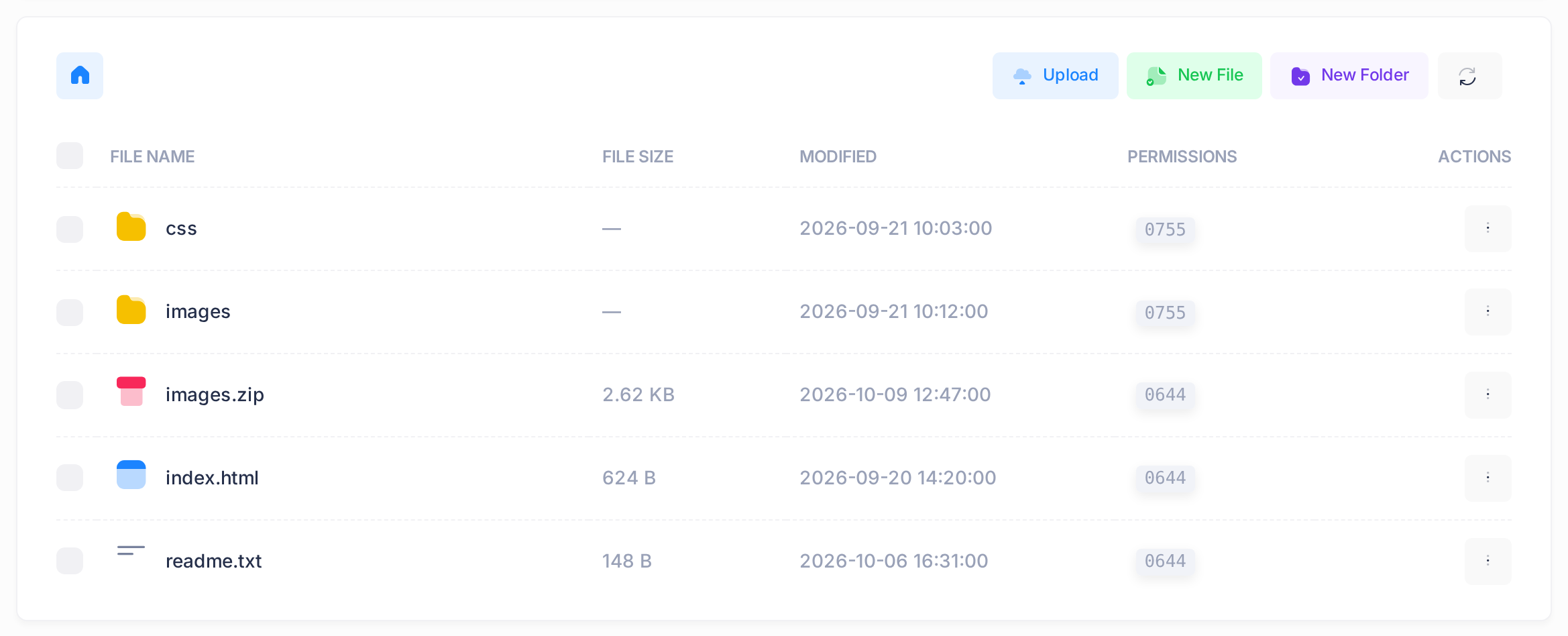
- Read the rows: folders first, then files, each from A to Z. MODIFIED is in UTC, world standard time, not your local time.
- Click the three-dot button at the end of a row, under ACTIONS: the row's menu opens. Every action on an item starts here and works on that one row.
- To go into a folder, choose Open in its menu. One click on a row only highlights it.
- To go back, use the line above the list: a house icon, then the folders leading to the open one. Click an earlier name, or the house for the top folder.
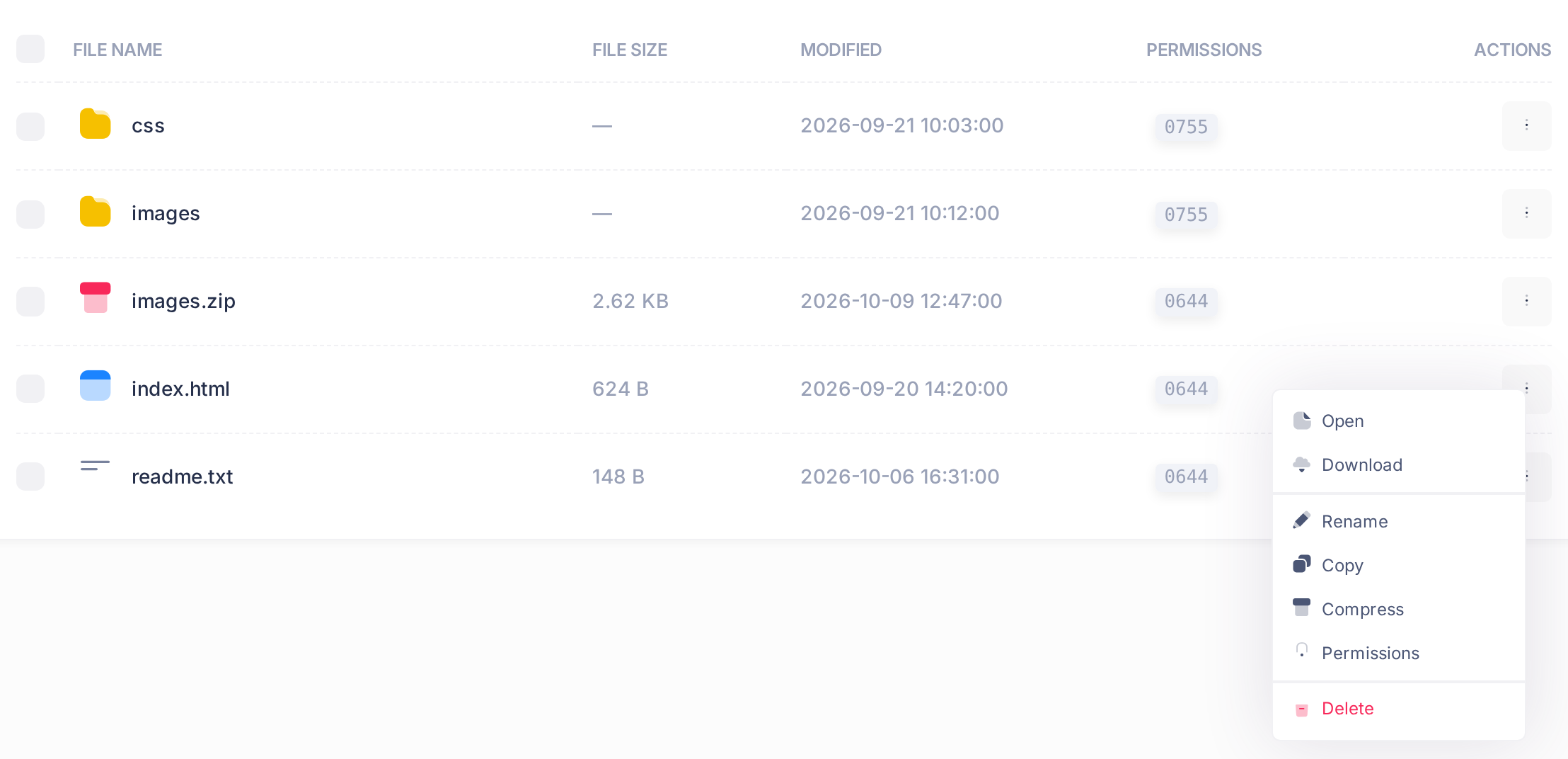
The menu entries Compress and, on an archive, Extract are explained in Compress and Extract Archives. Read it first: extracting overwrites files of the same name without asking.
Step 3 — Download a copy first
- Click the file's three-dot button and choose Download. A new tab opens and your browser saves the file under its own name.
- Check that the file is among your browser's downloads before you change anything.
A folder has no Download: make an archive of it first, as Compress and Extract Archives shows.
Step 4 — Upload files
- Open the folder the files belong in: files always go into the folder that is open.
- Check the names there. A file whose name is already in the folder is not stored: an upload never replaces a file (see Replace a file with a new version).
- Click Upload. The window Upload Files opens.
- Click the area Drag & drop files here or click to browse and choose your files, at most 20 at a time. The window lists them; choosing again replaces the whole list.
- Click Upload in the window. A bar shows the progress. Wait until the window closes by itself and a message reads, for three files, 3 file(s) uploaded successfully.
- Compare that number with the number of files you chose. If it is lower, or the window stays open with the message Upload failed, see If something goes wrong.
Step 5 — Create a folder or an empty file
- Open the folder the new item belongs in.
- Click New Folder or New File. A small window opens with one field, Name.
- Type the name, for a file with its ending, such as
about.html. - Click Create. The window closes, a message reads Folder created or File created, and the item is in the list.
A new file is empty: to fill it, see Step 6. If the window stays open, nothing was created and a message says why; Invalid path or Invalid folder name means the name has two dots in a row.
Step 6 — Edit a file
The editor opens text files, such as a page or a style sheet, up to 5 MB; it does not open pictures. Saving replaces the file on the live site: the earlier text is gone for good. It also sets the file's permissions to 0644, the standard value: only a file given another value on purpose needs it set again (see Set File Permissions).
- Download a copy of the file (Step 3) and note its FILE SIZE and its number under PERMISSIONS.
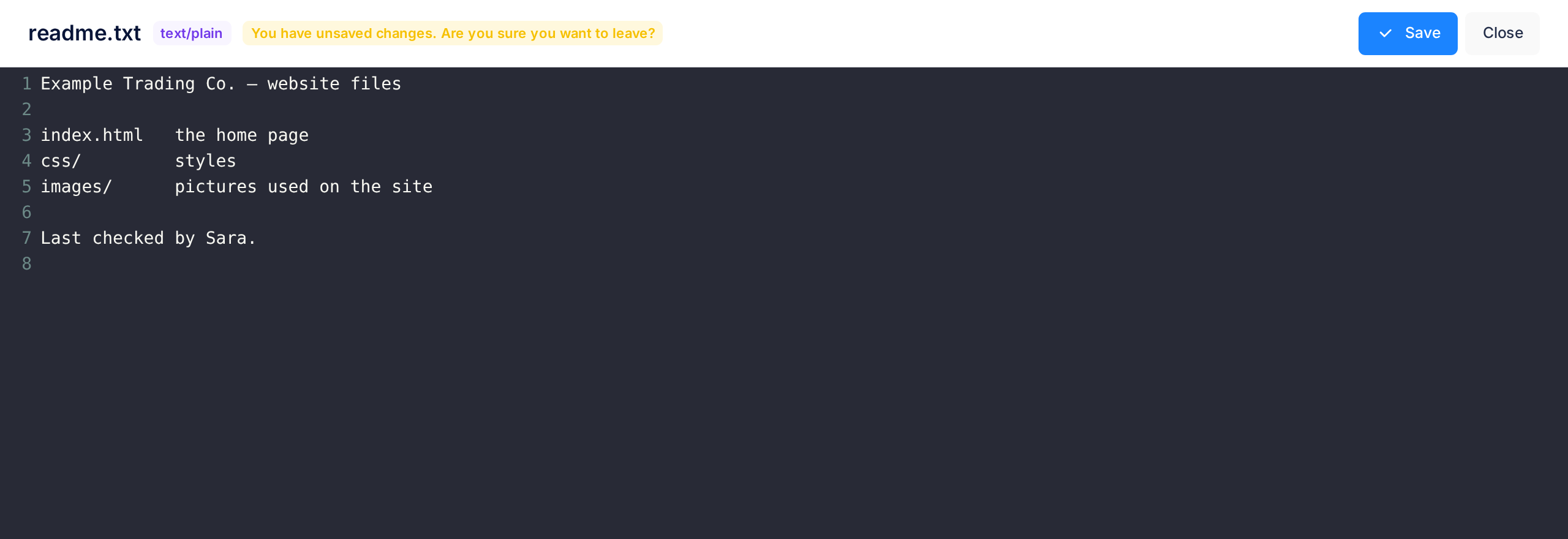
- Click the file's three-dot button and choose Open. The editor fills the screen; at its top are the file's name and the buttons Save and Close.
- Check that the file's text is there. If the editor is empty although the size you noted is above zero, click Close and contact support. Do not click Save: it would replace the real file with an empty one.
- Make your change. A yellow mark appears beside the name: You have unsaved changes. Are you sure you want to leave? It is only a label: while it shows, Close and the Esc key both throw your changes away without asking.
- Click Save. The editor stays open, a message reads File saved and the mark disappears.
- Click Close to return to the list. It shows the file's new size and time only after you click the icon button beside New Folder.
Step 7 — Rename or copy
Renaming changes the web address of the file or folder at once: a page or a link that still uses the old name no longer finds it.
- Click the item's three-dot button and choose Rename. The window Rename opens with the present name in the field New Name.
- Type the whole new name, ending included, and click Rename. A message reads Renamed successfully; a name already used in this folder is refused with Target name already exists.
- To duplicate an item, choose Copy in its menu. At once a copy appears in the same folder, with a number in brackets before the ending (
index.htmlgivesindex(1).html), and a message reads Copied successfully.
To have a file in another folder, download it, upload it there, then delete the first one.
Step 8 — Delete a file or a folder
Deleting is final: there is no trash, and a folder goes with everything inside it after one question. If you delete index.html and the folder has no other first page, visitors see a list of the folder's files instead of your site.
- Download a copy first (Step 3).
- Click the item's three-dot button and choose Delete. A box titled Delete Item names the item and adds This cannot be undone.
- Read the name, then click Cancel to keep the item, or Yes, Delete: a message reads Deleted successfully and the row is gone.
What happens next
Open your website in another browser tab to see the change as visitors do: it is there as soon as its message appears. If the tab still shows the old version, reload it.
Replace a file with a new version
Swap the two files by name, so that your site is without the file only for the moment between actions 2 and 3.
- On your computer, give the new file another name, for example
index-new.html, and upload it (Step 4). - Rename the old file, for example
index.htmltoindex-old.html(Step 7). - At once, rename
index-new.htmltoindex.html. - Check the page on your website. If it is right, delete
index-old.html(Step 8); if not, deleteindex.htmland renameindex-old.htmlback.
If something goes wrong
- Upload failed, or the message counts fewer files than you chose. The message does not say which files were not stored or why: compare the list with the files you chose. A file whose name was already in the folder is one of them (Step 4). Upload any other missing file again; if it still does not arrive, contact support with its name and size.
- File too large to open (max 5 MB), or the editor does not open and a message in technical words appears. The file is too large, or is not text the editor can read, such as a PDF: change it on your computer and replace it as described above.
- A message other than File saved after you click Save. Your text is still in the editor: do not click Close. Copy the text into a file on your computer, then click Save once more; if the message comes back, contact support.
After any other message, reload the list with the icon button beside New Folder, check what is there and try once more. If the message comes back, contact support with the domain, the file's name and the exact words of the message (more in Describe a Problem So We Can Fix It Fast).