
How can we help?

A ticket is a written request to our support team, sent from the Help Center in Loop. Use one when something is not working or you need something from us: our team answers on the ticket's own page, and you can write back there. This guide shows how to send a ticket with its files, check that everything arrived, and follow and answer the replies.
Before you start
- You are signed in to Loop.
- Your notes are ready. The guide "Describe a Problem So We Can Fix It Fast" shows what to write and how to take a picture of your screen.
- Every file you want to send is ready. Files go with the ticket when you send it: none can be added to it afterwards.
Step 1 — Open the ticket form
- On the home screen, the page that shows your apps as tiles, click the Help tile. The Help Center opens with the heading How can we help?
- Click the card Submit a Ticket. The form Submit a Support Ticket opens. If the Help Center shows no such card, your account does not include tickets: write to us on WhatsApp instead (the number is at the end of this guide).
On every page of the Help Center, the button Create Ticket at the end of the row of tabs opens the same form.
Step 2 — Fill in the form and send it
The form has five boxes. Subject and Description are marked with an asterisk: both must be filled.
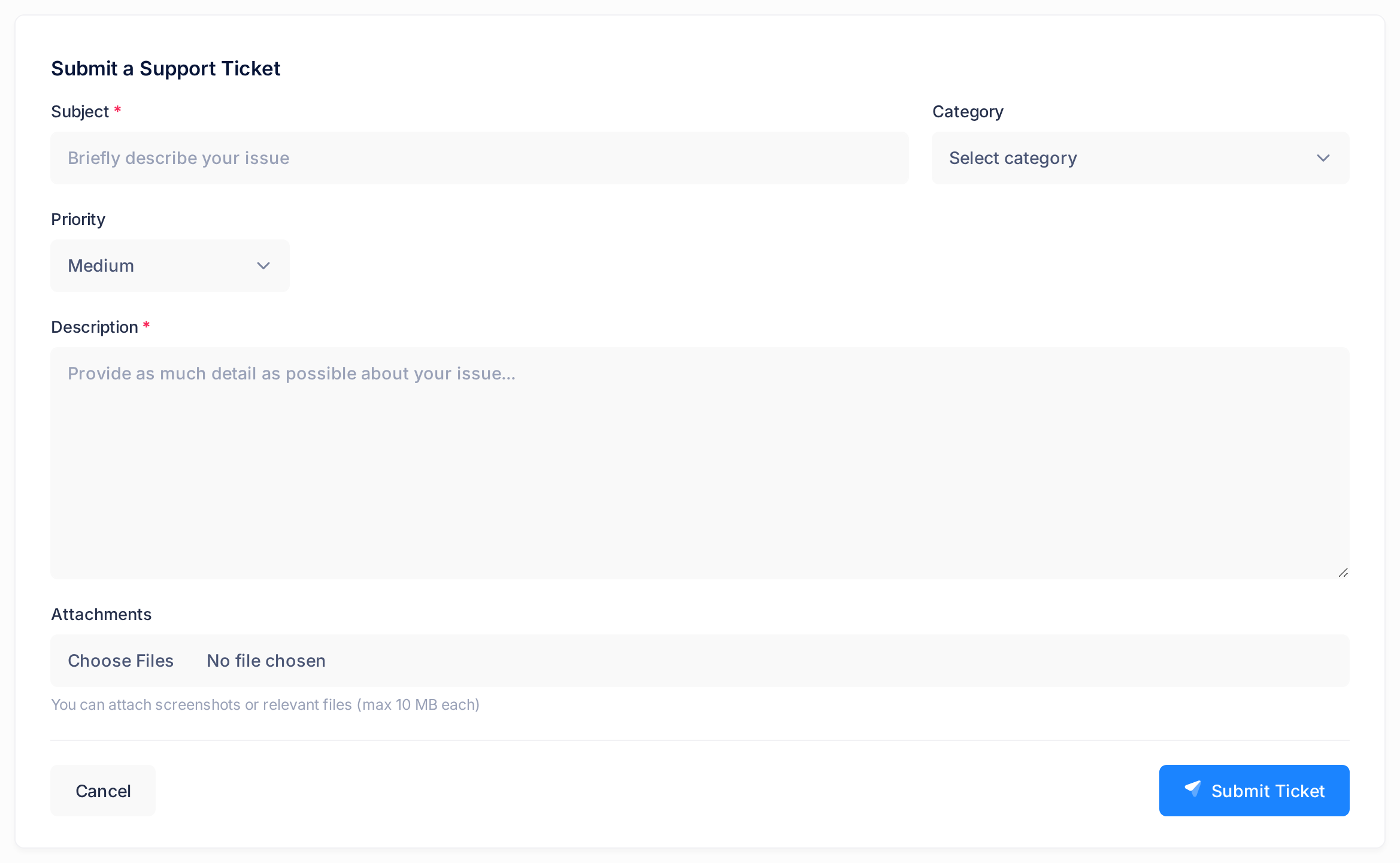
- In Subject, type one short line that says what is wrong and where. You will find the ticket by this line later, and our messages to you repeat it.
- In Category, choose the closest entry, or leave it on Select category: the ticket is sent without one.
- Leave Priority on Medium, or choose Low, High or Critical.
- In Description, write your notes, and name the service or domain they concern: the form has no box for it.
- Under Attachments, choose your files. To send several, choose them all in one go: choosing again replaces your earlier choice. The line under the box reads You can attach screenshots or relevant files (max 10 MB each). The form accepts pictures (JPEG, PNG, GIF, WebP), PDF, Word and Excel files, plain text, CSV and ZIP files, sound files such as MP3 and video files such as MP4.
- Click Submit Ticket. While the ticket is being sent, the button reads Submitting... and cannot be pressed.
Step 3 — Check that the ticket and its files arrived
The browser goes straight to the page of your new ticket. That page is your confirmation: no message appears, and no email or notification about a new ticket is sent to you. If a message box appears instead, see If something goes wrong.
- Read the title of the page: it is your subject. Under it are Ticket # with a number and the badge Open, a small label that shows the status of the ticket.
- Find the box Details: beside your text on a computer, at the end of the page on a phone. Under Attachments it lists every file that was saved, by name.
- Compare that list with the files you chose. A file that is too large, or of a kind the form does not accept, is left out without any message, so a file that is not listed did not reach us. If Details shows no Attachments at all, no file was saved.
Step 4 — Find your ticket again
- Open the Help Center and click the tab TICKETS. The page My Tickets lists the tickets sent from your account, newest first.
- Look for your subject. Under it you see # with the ticket's number, a status badge such as In progress and, if you chose a category, its name, for example
technical. The date at the end of the line is the day you sent the ticket. - Click the subject. The ticket's page opens.
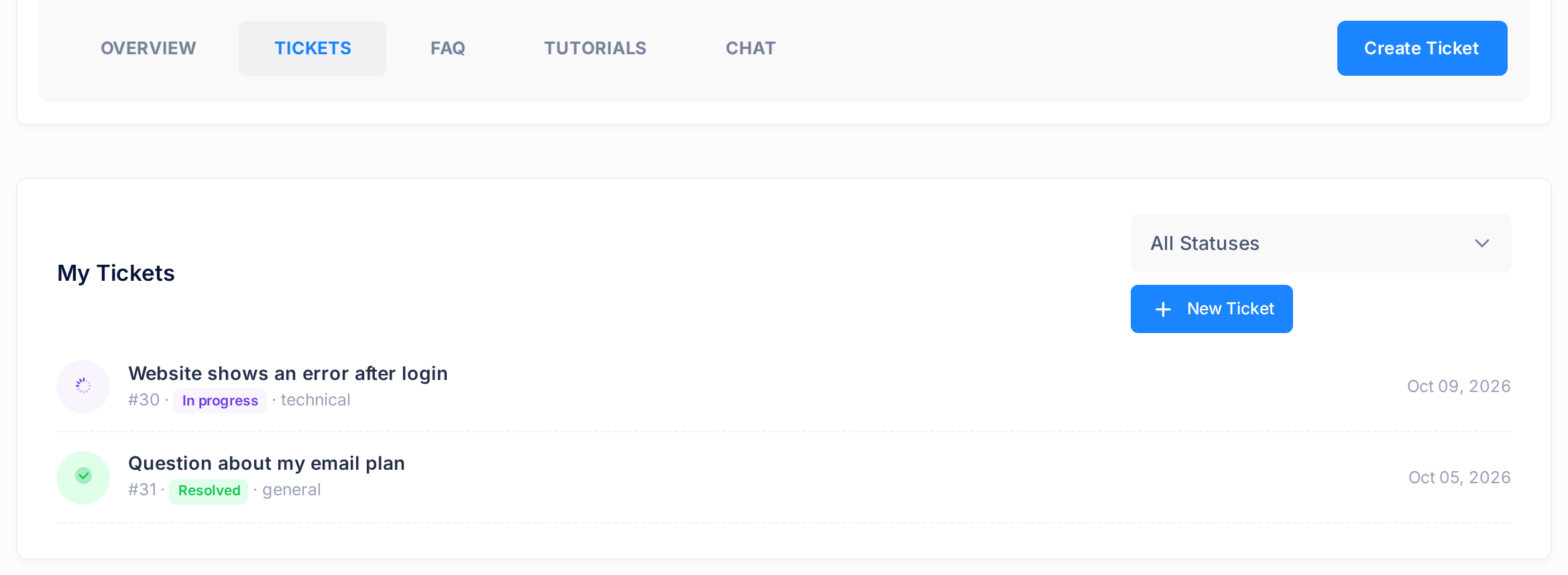
Your five newest tickets are also listed on the first page of the Help Center, in the card Your Recent Tickets.
Step 5 — Read the replies and answer
On the ticket's page, the box Comments holds the replies, the oldest first, and the number beside its title counts them. Each reply shows the writer's name, the date and time, and the text. A reply under a name that is not yours is from our team. The times are world time (UTC), not your local time. While nobody has replied, the box reads No comments yet.
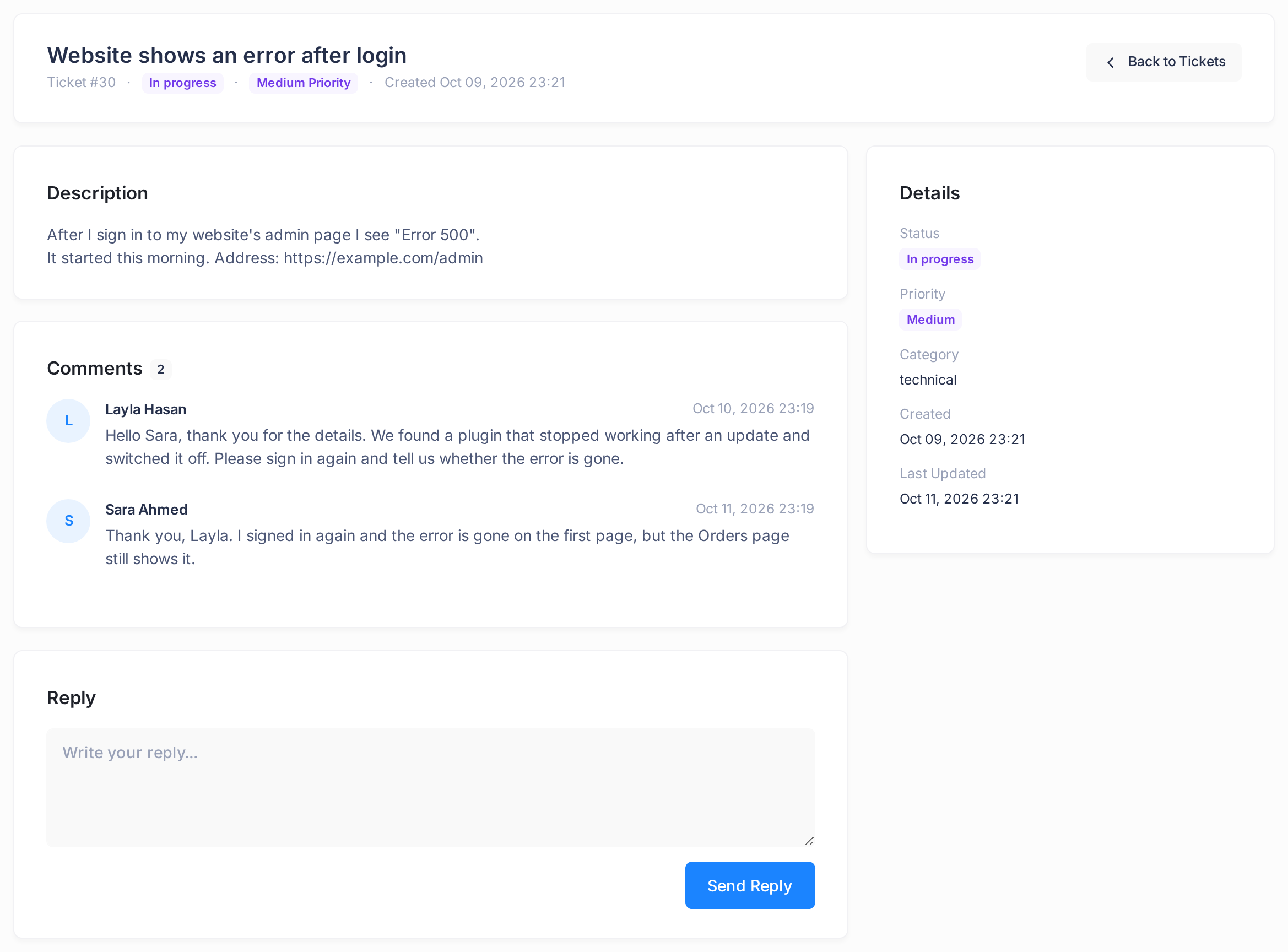
- Click in the box under Reply, where the grey text reads Write your reply..., and type your answer. A reply is text only: no file goes with it.
- Click Send Reply. The button reads Sending... for a moment, then the page loads again.
- Check the box Comments: your reply is now the last entry, under your own name, and the number beside the title is one higher. That is your confirmation; no message follows.
Our support team is notified of your reply inside Loop.
What happens next
When a member of our team replies, Loop sends you an email and adds a notification inside Loop, in the notifications list of the top bar. Both are titled New Reply on Your Ticket; the text reads New reply on ticket, then a ticket number and your subject.
- Neither of them opens the ticket. The email has no link to the ticket, and clicking the notification only marks it as read. Open the ticket yourself, as in Step 4.
- The number in that text is not the one on your pages. It is a longer number, such as
TKT-202610-0001, while your pages show a short one after the # sign. Go by the subject: the email shows it, while the notifications list cuts the line short before it. - A change of status is not announced. The badge on the ticket is the only sign.
- The number on the Help tile is how many of your tickets are Open or In progress. It does not count new replies.
What the status badges mean
Only our team changes the status of a ticket. Your reply does not change the badge, and your page has no button to close or reopen a ticket.
| Badge | What it tells you |
|---|---|
| Open | Every ticket starts with this badge. |
| In progress | Our team is handling the ticket. |
| Waiting on customer | Our team is waiting for something from you. Open the ticket, read the latest reply and answer it. |
| Resolved | Our team has marked the ticket as solved. The reply box is still there: if the problem is not solved, reply. |
| Closed | Our team has closed the ticket, and its page has no reply box. For the same matter, open a new ticket and name the old one by its number and subject. |
If something goes wrong
- When you send a ticket, a message box says Subject and description are required. One of the two boxes is empty and nothing was sent. Fill both and click Submit Ticket again.
- When you send a ticket, a message box says anything else, such as Network error, Submission failed or Failed to create ticket. Copy your description, so that you can paste it again, then click the tab TICKETS. If your subject is in the list, the ticket was saved: open it and check it as in Step 3. If it is not, click New Ticket, fill in the form again with its files, and send it. If the message comes back, write to us on WhatsApp.
- A file is missing under Attachments, or you need to send a file later. Check the file against the kinds and the 10 MB named in Step 2. Then open a new ticket with it attached, and say in its first line which ticket it belongs to, by number and subject.
- When you send a reply, a message box says Please enter your reply. The reply box was empty. After any other message, such as Reply failed or Network error, your text is still in the box. Copy it, load the page again and look under Comments: if your reply is not there, paste it and send it again.
- The page reads No tickets found although you sent a ticket. The status list above it is set to one status: set it back to All Statuses. A ticket sent from a colleague's account is not in your list: each account sees only its own.
- You are still waiting for an answer. Open the ticket and read Comments: the answer can be there although no email reached you. If there is none, write a short reply on the ticket; our team is notified again. If the matter cannot wait, write to us on WhatsApp.
To reach us another way, write on WhatsApp to +964 770 805 8050. The guide "Reach Us on WhatsApp" shows what to put in your message.