
How can we help?

When a page shows an error, or a website or a mailbox stops working, a complete report lets our support team start on it at first reading instead of writing back with questions. This guide shows what to collect, how to take a picture of your screen, and how to send it all in one message.
Before you start
- Keep the problem on the screen until you have copied its words and taken a picture.
- A ticket (a written request to our support team) is sent from inside Loop. If you cannot sign in, send your report on WhatsApp; see "If you use WhatsApp instead" below.
- Say it all the first time. After you send a ticket you cannot change its text or add a file to it, so collect everything before you write.
Step 1 — Collect the details
Write these five things in a note, so that you can paste them later.
- Where. Name the app or the page. If it is a page in your browser, click or tap the address bar, the line that shows the page's address (at the top of the window on a computer), and copy the address: on a computer press Ctrl and C together (Command and C on a Mac), on a phone choose Copy.
- What you did. Write the actions that led to the problem, in order, one on each line.
- What the screen said. Copy the exact words of any message. Do not retell it:
Error 500tells us more than "it showed an error". - When. Write the day and the time on your own clock, name your city, and say whether it is still happening.
- Which service or domain. Name it, for example
example.com: the ticket form has no box for it.
Step 2 — Take a picture of the screen
A picture of the screen, called a screenshot, shows us what you see.
| Your device | Press | Where the picture goes |
|---|---|---|
| Windows computer | The Windows key, Shift and S together, then drag over the part of the screen to keep | It is copied, and a small notice appears. Click the notice, then save the picture as a file (the Ctrl and S keys together) in a folder you will find again. |
| Mac | Shift, Command and 4 together, then drag over the part of the screen to keep | A file on the desktop |
| iPhone | The side button and the volume-up button together, then let go. With a Home button: the Home button and the side or top button | The Photos app. If the picture fills the screen first, tap Done or the tick mark at the top, then save it to Photos. |
| Android phone | The power button and the volume-down button together, for a moment | With the phone's photos |
On some Android phones the keys, or the place where the picture is saved, are different. On Windows, if the notice has gone, press the Windows key and the PrtSc (Print Screen) key together: the whole screen is saved as a file in Pictures, in the folder Screenshots. If you cannot take a picture, type the message in full and describe what you see.
What you must never send
Never send a password or a sign-in code (the code sent to you when you sign in): not in a ticket, not on WhatsApp, not in a picture, even if you are asked for it. Look at your picture before you send it. If it shows one, take the picture again without it. Do not send the address of a page you opened from a password-reset email either: it carries a secret code. Name the page instead.
A weak report and a good one
| Weak | Done well | |
|---|---|---|
| Subject | Urgent problem | Error 500 after signing in to example.com/admin |
| Description | My website is not working. Please fix it as soon as possible. | Service: Business Hosting — example.com Page: https://example.com/admin What I did: 1. Opened the page. 2. Entered my sign-in details and clicked the sign-in button. What I saw: "Error 500" instead of the admin page. When: today, 11 October, about 9 in the morning, Baghdad time. It is still happening. |
| Attachments | None | One picture of the screen with the message on it |
The weak report leaves us asking which website, which page, what the screen said and since when.
Step 3 — Send it as a ticket
- Sign in to Loop and click the Help tile on the home screen. The Help Center opens.
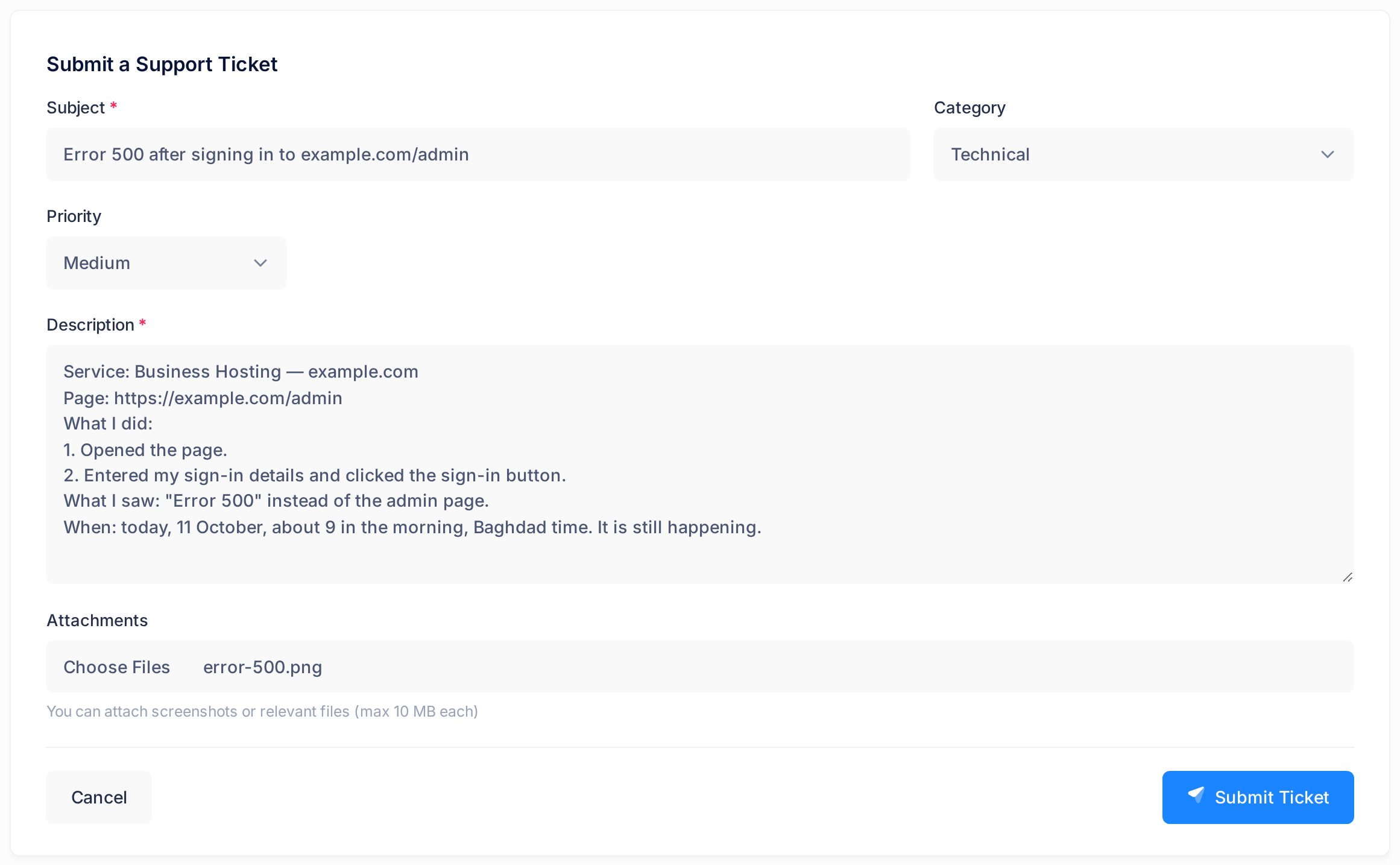
- Click the card Submit a Ticket. The form Submit a Support Ticket opens. If you are reading inside Loop, the button Create Ticket above this guide opens the same form in place of the guide, so read the remaining steps first.
- In Subject, type what the problem is and where, in one short line. This box and Description are marked with an asterisk: both must be filled. Do not press the Enter key in this box: once the description is filled, Enter empties the form and sends nothing.
- In Category, choose the closest in the list, or leave it on Select category: the ticket is sent without one.
- In Priority, the list starts on Medium. If you raise it to High or Critical, say why in your description.
- In Description, paste your notes from Step 1, each on its own line.
- Under Attachments, click the file button and pick your picture. To attach more than one, choose them all at once: choosing again replaces your earlier choice. The line under the box reads You can attach screenshots or relevant files (max 10 MB each). Pictures in JPEG, PNG, GIF or WebP format and PDF files are among the kinds the form accepts; photos in the HEIC format of many phone cameras are not, so attach a screenshot, not a camera photo.
- Read your report once more and copy the description, so that you can paste it again if the page fails.
- Click Submit Ticket. While the ticket is being sent the button reads Submitting... and cannot be pressed.
What happens next
- The browser goes straight to the page of your new ticket. That page is the sign that it was sent: no message, email or notification follows.
- The page has your subject as its title. Under it you see Ticket # with a number and the badge Open. Write the number down.
- In the box Details (beside your text on a computer, at the end of the page on a phone), look for Attachments: every file saved with the ticket is listed there by name. A file that is not listed, or no such list at all, means the file was not saved.
- If we ask you a question later, answer in a new ticket whose first line gives this number and subject, or on WhatsApp with the same two details.
If you use WhatsApp instead
Send the same report on WhatsApp to +964 770 805 8050: your notes from Step 1 as text, and your picture as a photo. On WhatsApp we see only your phone number and your WhatsApp name, not your Loop account, so start with your name, your company and the service or domain. The guide "Reach Us on WhatsApp" has the details. No automatic answer comes back: a member of our team replies in the same chat.
If something goes wrong
- A message box says Subject and description are required. One of the two boxes is empty and nothing was sent. Fill both and click Submit Ticket again.
- A message box says Network error, Submission failed or Failed to create ticket. Do not send again at once: the ticket may have been saved. Click the tab TICKETS: if your subject is in the list My Tickets, the ticket was sent. If it is not there, check your internet connection, click New Ticket, paste your description and send again. If the message comes back, use WhatsApp.
- A file is missing under Attachments, or you left something out. A file over the size limit, or of a kind the form does not accept, is not saved. Send the report again as a new ticket: complete, each file a JPEG or PNG picture or a PDF under 10 MB, and with a first line that says which ticket it replaces, by its number and subject.
- The Help Center shows no card for a ticket. Your account does not include tickets. Send the report on WhatsApp.
To reach support, click the Help tile on the Loop home screen, then Submit a Ticket, or write to us on WhatsApp.