
How can we help?

The Help Center is where Loop keeps its ready answers: the FAQ, a list of frequently asked questions with their answers, and the tutorials, which are step-by-step guides. Use it when you have a question and would like the answer now. This guide shows how to open it, search it and browse it, and where to turn when the answer is not there.
Before you start
- You are signed in to Loop. If you are not, read If you are not signed in further down.
- The Help Center answers in the language you use Loop in. What changes in Arabic is under English and Arabic.
Step 1 — Open the Help Center
- On the home screen, the page that shows your apps as tiles, click the Help tile. The first page of the Help Center opens, with the heading How can we help?
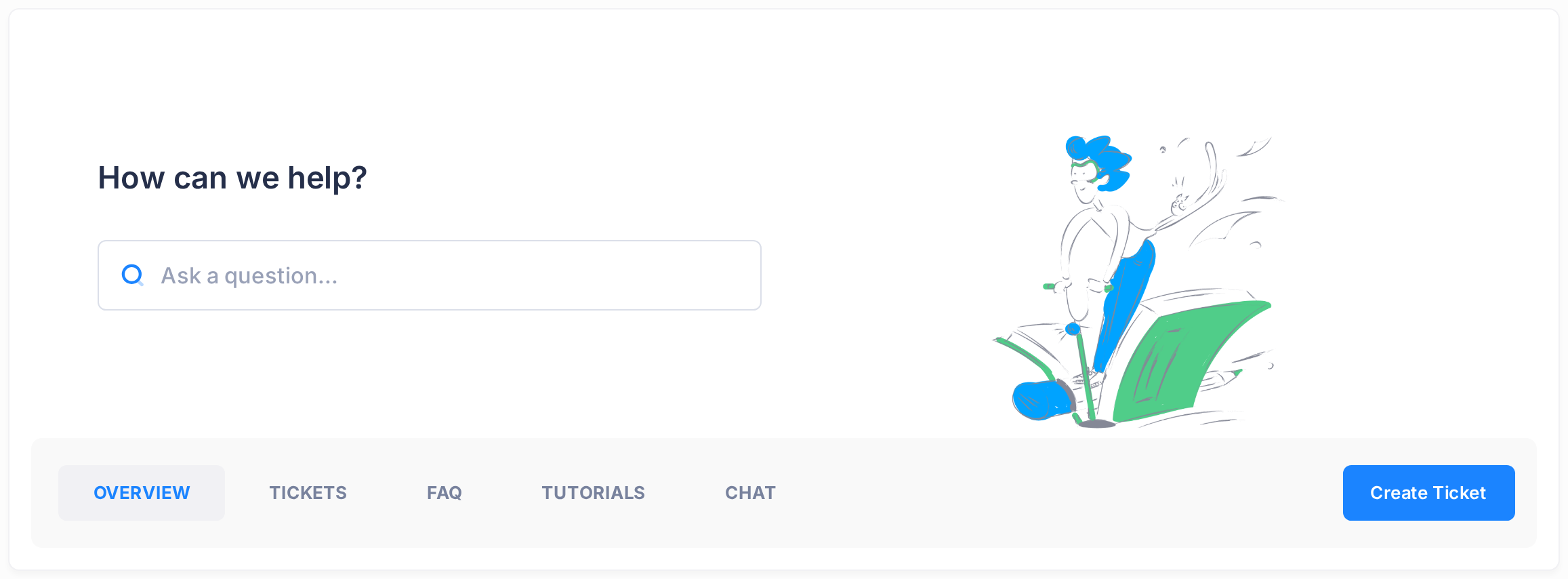
Under the heading are a search box with the grey text Ask a question... and a row of tabs, among them OVERVIEW, FAQ and TUTORIALS. The heading, the search box and the tabs are at the top of every page of the Help Center.
Step 2 — Search the FAQ
- Click in the search box and type one word that names your subject. For this example, type
password. - Press Enter. The page has no search button.
- Read the page that opens. The search box is empty again; under the row of tabs a line reads Search results for: password. The questions that were found are grouped under the names of their categories — here Account & Security, Mail, Troubleshooting and Drive — and the number at the end of the All Categories line is how many were found. On a phone, scroll down: the questions come after the Categories list and the box Didn't find your answer? If the page reads No FAQ items found. instead, see If something goes wrong.
- Click a question. Its answer opens under it. Click the question again to close it.
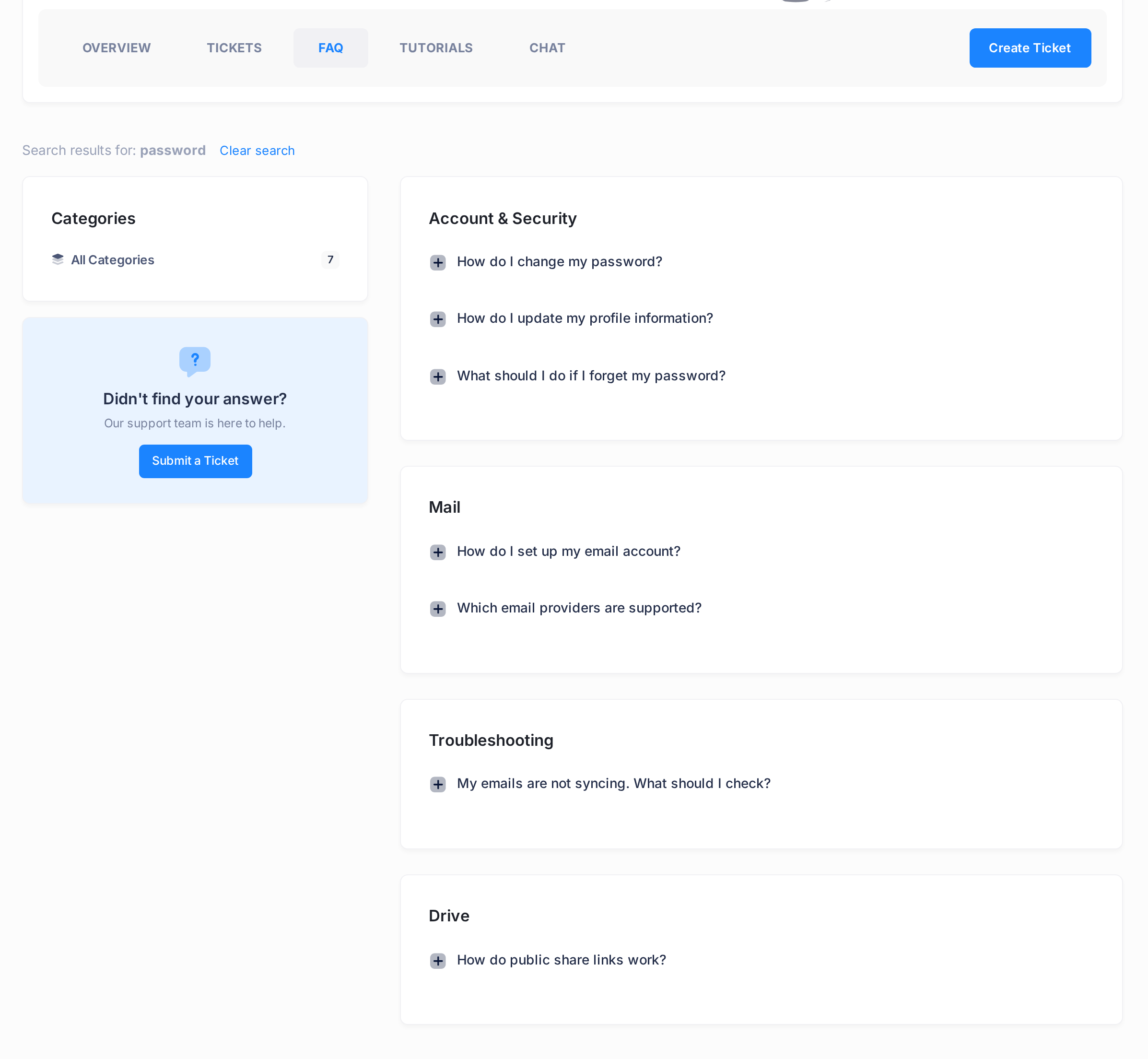
Read the whole list: it is not sorted by best match. A question can be listed although your word is not in it, for example How do I set up my email account? The search reads the answers too: open the question and the word is in its answer. To bring back the whole FAQ, click Clear search at the end of the results line.
Step 3 — Browse the FAQ by category
- Click the FAQ tab.
- In the list titled Categories, click a category, for example Mail. Only its questions stay on the page; on a phone they are again below the list.
- Click a question to open its answer. Opening another question in the same category closes the one you had open.
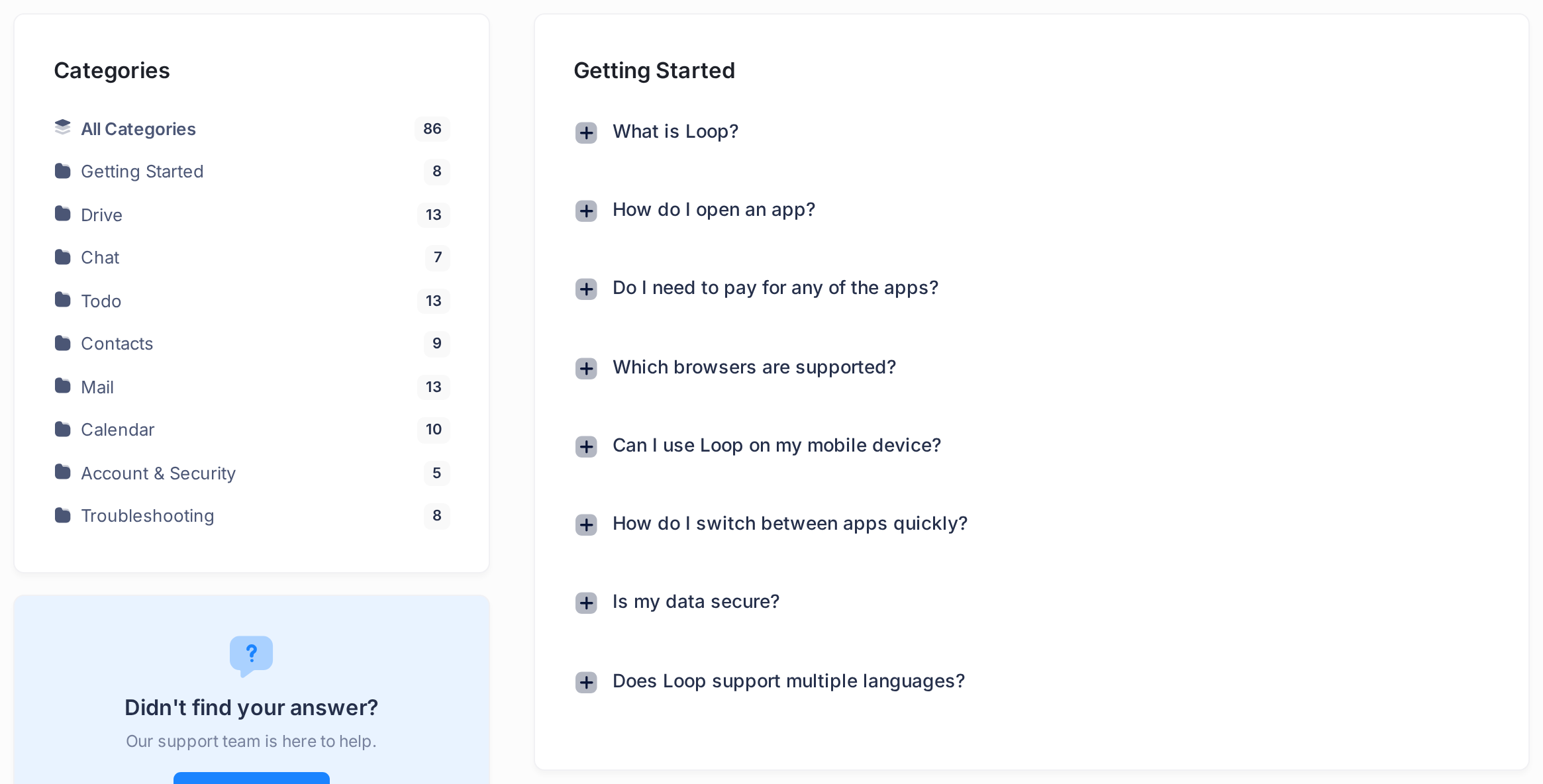
To see every question again, click All Categories, the first line of the list.
Step 4 — Read a tutorial
- Click the TUTORIALS tab.
- Scroll down, past the box at the top and the two selection boxes, to the cards: each card is one tutorial. A card shows the label Article, a category such as Billing or Domains, the title, the first lines of the text and a date.
- Click the title of the tutorial you want. It opens on a page of its own; the button Back to Tutorials under the text returns to the list.
What happens next
Searching and reading notify nobody, so search as often as you need.
When you have read an answer
Under every open answer is Was this helpful? with a thumbs-up and a thumbs-down button. Press one and the line changes to Thanks for your feedback! The press is only counted: nobody is notified and nobody replies, so a thumbs-down is not a request for help.
When the answer is not there
Click the OVERVIEW tab. Two cards there lead to our support team: Submit a Ticket opens a form for a written request (some accounts do not have this card), and Live Chat opens the page where a chat is started. Neither tells you whether somebody is available at that moment, so do not count on an answer at once. Before you write, see the guide Describe a Problem So We Can Fix It Fast. You can also write to us on WhatsApp: see the guide Reach Us on WhatsApp.
How the search reads your words
- It reads the FAQ only, the questions and their answers. It does not look in the tutorials: find a tutorial by the title on its card (Step 4).
- It finds whole words.
passwordfinds questions;pass,passwordsand a misspeltpaswordfind none. Capital letters make no difference. - Type one word, not a sentence. A question is listed when it contains any one of your words, so every extra word makes the list longer: when this guide was written,
uploadfound 6 questions andupload filefound 17. Words of one or two letters and a few small words such ashoware left out, but a word likecanis not: on its own it listed more than half of the FAQ. - Try another word. When a word finds nothing, check its spelling, try its other form, singular or plural, then try another word for the same thing:
loginfound nothing, andsign in, the words Loop itself uses, found questions.
English and Arabic
The FAQ and the tutorials are written separately in each language, and Loop shows the set written in the language you use it in.
- Tutorials. The list shows only the tutorials written in your language. When this guide was written, the Arabic list was much shorter than the English one: the guides about subscriptions, for example, were only in English.
- Search. The search reads only the FAQ of your language:
passwordfinds nothing in the Arabic FAQ, and «كلمة المرور» finds nothing in the English one. An English word finds an Arabic question only if it is written in the Arabic text, as app names such asDriveare. - Arabic words. Type one word, spelt as the answers spell it: with the hamza (أ, إ) and the «ة» where the text has them, and with «ال» only where the text has it. «إضافة» finds questions and «اضافة» finds none; «المرور» and «مرور» give different lists. No Arabic word is left out for being common: «كيف» on its own lists a third of the FAQ.
If you are not signed in
Loop has a public Help Center that needs no account: open loop.pearlfibers.com/help, or click Help Center at the foot of Loop's public home page. It has three tabs, OVERVIEW, TUTORIALS and FAQ, with the same questions and tutorials, and its search box finds the same questions. The pages are laid out differently: the FAQ has no Categories list — all its categories are on one page, each under its name. It has no tickets: sign in to send one.
If something goes wrong
- Nothing happens when you press Enter. Check that you typed something: Enter in an empty search box does nothing.
- The page shows No FAQ items found. Nothing matched. Search again with another word (see How the search reads your words), or click Clear search and browse the categories (Step 3). When this guide was written,
invoiceandbillingfound nothing in the FAQ; the guides about subscriptions are among the tutorials, on cards marked Billing (Step 4).
Still without an answer? Write to our support team: the guides Describe a Problem So We Can Fix It Fast and Reach Us on WhatsApp show how.