
How can we help?

A subscription in Loop is a service you pay for one billing period at a time — for example a hosting plan, an email plan or a domain. This guide shows where your subscriptions are and how to read them: what each field, badge and card means, when the current period ends, and what you will be invoiced.
Where to find it
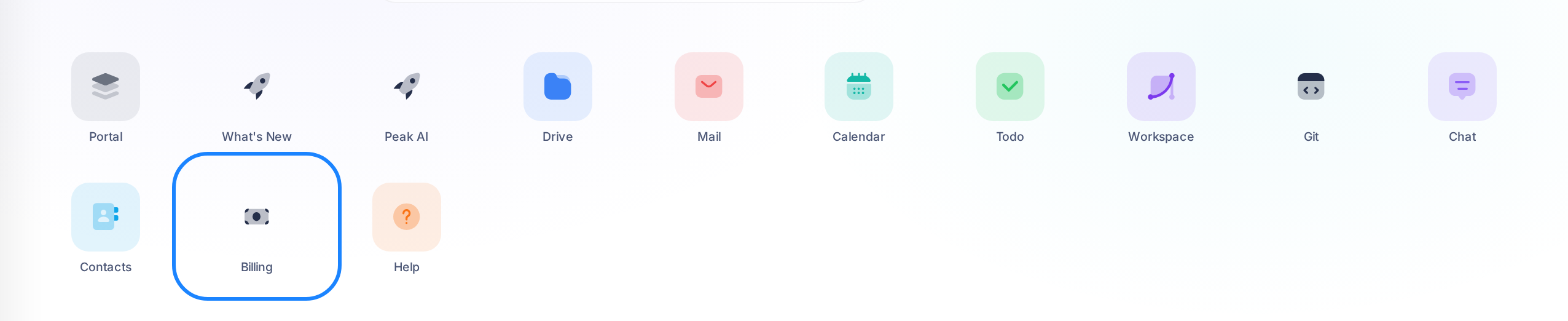
- Sign in to Loop and go to the home screen — the page that shows your apps as a grid of tiles.
- Click the Billing tile.
- The page My Subscriptions opens. This is your subscriptions list.
The summary cards and the tabs
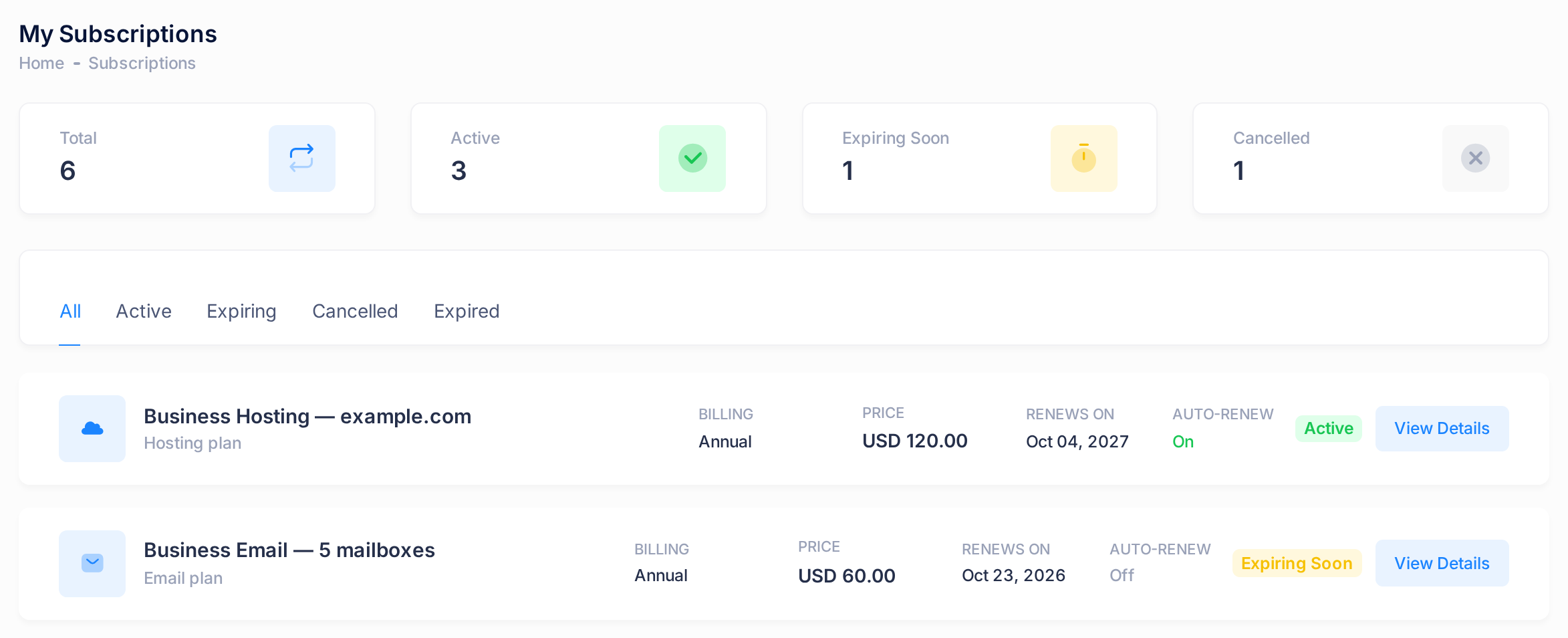
At the top of the list, four cards count all your subscriptions, whichever tab is open.
| Card | What it counts |
|---|---|
| Total | All your subscriptions. |
| Active | Those with the badge Active. |
| Expiring Soon | Those with the badge Expiring Soon or Grace Period. |
| Cancelled | Those with the badge Cancelled. |
Pending, Suspended and Expired subscriptions are counted in Total only. This is why, in the picture, Total is 6 while the other cards show 3, 1 and 1: the sixth subscription is Expired.
Under the cards, five tabs filter the list: All, Active, Expiring, Cancelled and Expired. A tab shows only the subscriptions with exactly that status, so Expiring lists the badge Expiring Soon but not Grace Period. Pending, Grace Period and Suspended subscriptions appear under All only.
One subscription card
Each subscription is one card. This is how to read the card of Business Hosting — example.com in the picture above.
| On the card | Example | What it means |
|---|---|---|
| Plan name | Business Hosting — example.com | The name of the plan or the domain. Click it to open the subscription. |
| The line under the name | Hosting plan | The kind of subscription, for example Hosting plan, Email plan or Domain. |
| BILLING | Annual | The length of one billing period, for example Annual (12 months) or Triennial (36 months). |
| PRICE | USD 120.00 | The price for one whole billing period — here for the whole year, not per month. |
| RENEWS ON | Oct 04, 2027 | The date the current period ends. The label is the same on every card, whatever the badge or the auto-renew setting, so it is not a promise that the subscription will renew. |
| AUTO-RENEW | On | On or Off. See "What auto-renew does" below. |
| Status badge | Active | The status. See the next section. |
| View Details | — | Opens the subscription page. |
Renewing, auto-renew and cancelling are on the subscription page, not on the list.
What each status badge means
The badge on a card shows one of seven statuses. The same badge is at the top of Plan Summary on the subscription page.
| Badge | What it means for you |
|---|---|
| Pending | The subscription is created and waits for its first invoice to be paid in full. That payment makes it Active. |
| Active | The subscription is running. |
| Expiring Soon | Our team has marked the subscription as close to the end of its period. Check the date and whether auto-renew is on. |
| Grace Period | Our team has marked the subscription as past its period end and not yet renewed. You can still ask for a renewal on its page. |
| Suspended | Our team has suspended the subscription. For a hosting plan, the website is disabled. Contact support to renew: when the renewal invoice is paid in full, the service is switched back on. |
| Expired | Our team has marked the subscription as ended. Contact support if you still need the service. |
| Cancelled | The subscription has been cancelled. |
A badge does not change on its own when a date passes: it changes when an invoice is paid or when our team changes it. So a subscription can still read Active after its RENEWS ON date. Read the badge and the date together.
Open one subscription
- In the list, find the card of the subscription.
- Click the plan name, or click View Details on the card.
- The subscription page opens, with the plan name as its heading.
To return to the list, click Back at the top of the page.
The page starts with Plan Summary, Lifecycle, Invoice History and Activity. The cards you act with are in a side column on a wide screen; on a phone they come last, under Activity.
Plan Summary and the Lifecycle bar
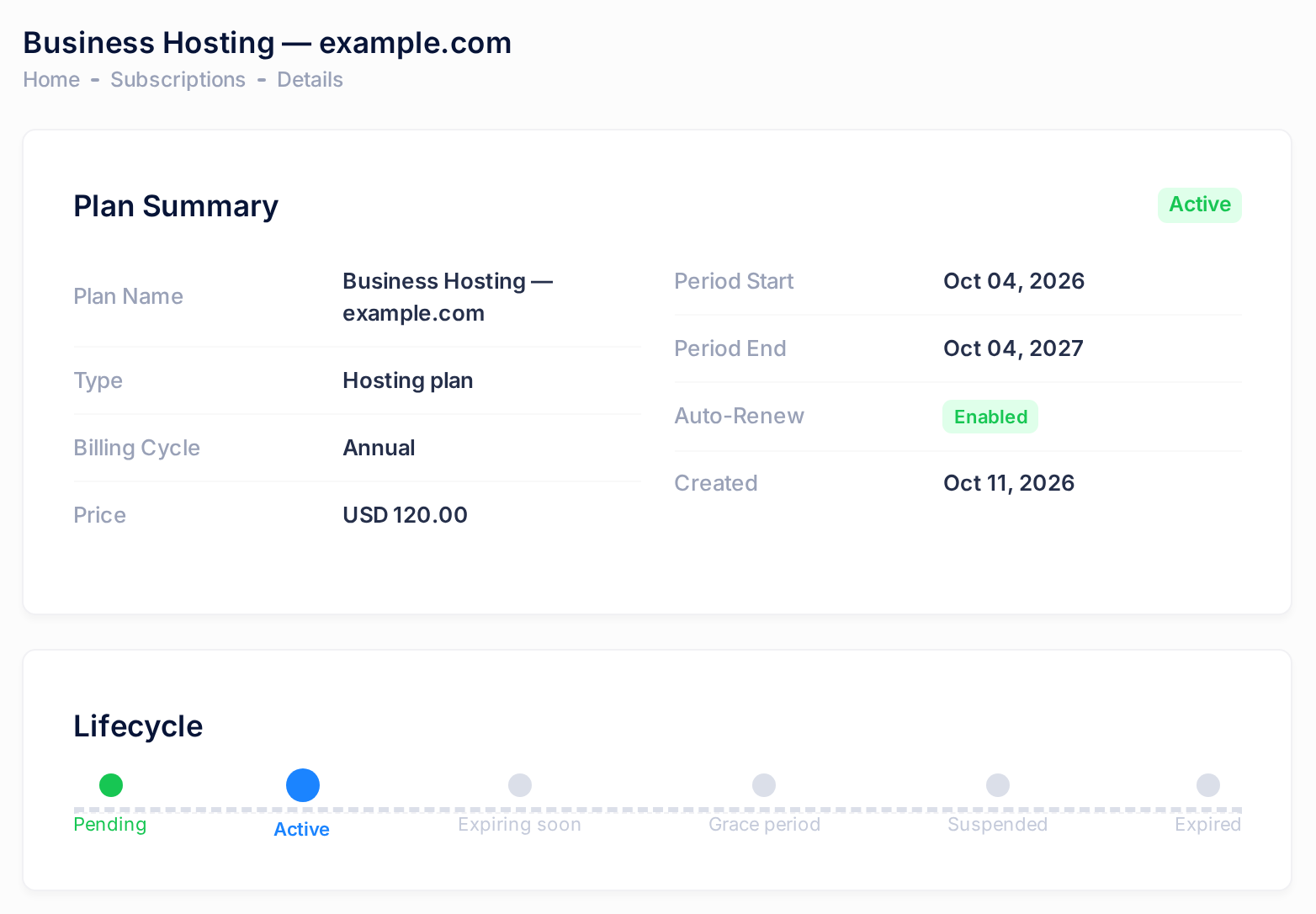
Plan Summary is the first card: the status badge at the top, then eight rows.
| Row | Example | What it means |
|---|---|---|
| Plan Name | Business Hosting — example.com | The name of the plan or the domain, as in the page heading. |
| Type | Hosting plan | The kind of subscription. |
| Billing Cycle | Annual | The billing period — BILLING on the list. |
| Price | USD 120.00 | The price for one whole billing period. |
| Period Start | Oct 04, 2026 | The date the current period started. |
| Period End | Oct 04, 2027 | The date the current period ends — RENEWS ON on the list. |
| Auto-Renew | Enabled | Enabled or Disabled — On or Off on the list. |
| Created | Oct 11, 2026 | The date the subscription was created in Loop. |
Under it, the Lifecycle card shows six steps in a row — Pending, Active, Expiring soon, Grace period, Suspended, Expired — and the dot of the current status is larger than the others. Cancelled is not one of the steps: on a cancelled subscription the bar marks Expired, so go by the badge.
Invoice History and Activity
The rows in the Invoice History card are the latest invoices of your whole account, not only of this subscription. To open an invoice, click View All Invoices on this card — not View on a row.
Activity lists up to the 10 most recent events of this subscription, newest first, each with its date and time — for example Payment confirmed and Renewed. Other names you may see include Auto renew toggled, Created, Activated and Admin override, a change made by our team.
The cards you act with
| Card | What it is for | Shown when the badge reads |
|---|---|---|
| Renew Subscription | Asks our team to renew the subscription. It shows Renewal Price, a Renewal Periods choice and the Request Renewal button, which sends a request for review: it does not create an invoice and does not charge you. See the guide Renew a Subscription. | Active, Expiring Soon or Grace Period |
| Auto-Renewal | One button switches auto-renew: Disable Auto-Renewal when it is on, Enable Auto-Renewal when it is off. See the guide Turn Auto-Renew On or Off. | Active, Expiring Soon or Grace Period |
| Cancel Subscription | Cancelling is done from this card. If you are unsure, contact support first. | Active or Expiring Soon |
| Quick Links | All Invoices opens your invoice list. All Subscriptions opens the subscriptions list. | Always |
Request Renewal and the auto-renew button act at once, without asking you to confirm, so read the guide before you click.
What auto-renew does
When auto-renew is on, Loop issues a renewal invoice once the Period End date has arrived. Auto-renew does not take a payment and does not move the date by itself. When auto-renew is off, no renewal invoice is issued: you ask for the renewal yourself with Request Renewal.
The price on the page and the invoice you get
- Price is the price stored on your subscription. Renewal Price, on the Renew Subscription card, is the price of one billing period worked out from today's price list, so the two can differ: for example, a domain can show a Price of
USD 16.99and a Renewal Price ofUSD 19.99. - With auto-renew on, the renewal invoice is for one billing period at the Renewal Price.
- When our team approves a renewal you asked for, the invoice total is the Renewal Price multiplied by the number of periods you chose. The figure on the card stays the price of one period, also when you choose 2 Periods or 3 Periods.
- A renewal invoice is due 14 days after it is issued. Subscription invoices are created without tax.
You do not pay inside Loop: the pages have no pay button, and our team records your payment on the invoice. When a renewal invoice is paid in full, the new period starts on the old Period End and the status becomes Active. Our team can also correct the date.
Where your invoices are
- On a subscription page, click All Invoices in the Quick Links card.
- The page My Invoices opens, with your invoices for subscriptions and for projects.
- Find the row of the invoice and read its DATE, DUE DATE, AMOUNT and STATUS. Go by the rows of the table, not by the Paid and Outstanding cards above it.
- Click PDF on the row to download the invoice as a PDF file.
STATUS reads Sent while a renewal invoice waits for payment, Overdue when it is still unpaid after its due date, and Paid when it is paid in full. AMOUNT is the full total of the invoice.
From the subscriptions list, use the side menu instead. It starts as a narrow dark bar that shows only icons: move the pointer over it, the words Subscriptions and Invoices appear, and you click Invoices. On a phone, tap the menu button at the top of the page to open the menu.
Common questions
The RENEWS ON date has passed. What should I do?
Open your invoice list and look for a renewal invoice that reads Sent or Overdue. If there is none, ask for the renewal on the subscription page: the guide Renew a Subscription shows how.
My plan has a price of zero. Do I need to pay anything?
No. When a renewal invoice with a total of zero is issued, it is settled automatically and the period is extended at once.
Will Loop remind me before a period ends?
Yes. For an Active or Expiring Soon subscription, reminders are sent 30, 14, 7, 3 and 1 day before the Period End: the first inside Loop only, the later ones also by email. Still, go by the date on the page.
If something looks wrong
- Your home screen shows no Billing tile. The tile is shown to client accounts. Contact support.
- You are in the Portal and cannot find your subscriptions. The Portal menu does not list them, and its My Services page shows each service's own dates. For what you will be invoiced and when, open the subscription from the Billing tile on the home screen.
- The list says No subscriptions found. No subscription has the status of the tab you opened. Click All. If All shows the same sentence, your account holds no subscriptions.
- You opened a subscription and landed on the list with the message Subscription not found. That subscription does not exist or does not belong to your account. Open it from your own list.
- The Renew Subscription card is not there. It is shown only while the badge reads Active, Expiring Soon or Grace Period. If you need to renew without it, contact support.
Need a hand? On the home screen, click the Help tile, then choose Live Chat or Submit a Ticket. Tell us the plan name as it is written on the subscription page, and the date or amount you are asking about.