
How can we help?

Auto-renew is a setting on each subscription. With it on, Loop issues the renewal invoice by itself when the period you have paid for ends. With it off, Loop waits for you to ask. Either way nothing is charged by itself: a subscription that costs money is renewed when its renewal invoice has been paid. This guide shows where to see the setting, how to switch it, and what each choice means.
Before you start
- The subscription's status must be Active, Expiring Soon or Grace Period. With any other status the page has no auto-renew switch.
- You have not asked to cancel the subscription. If you have, switching auto-renew on does not undo it: Loop prepares no renewal invoice and sends no reminders for that subscription. Contact support instead.
- The setting belongs to one subscription. Changing it for one changes nothing on your others.
- Where this guide says "contact support": on the Loop home screen click Help, then Live Chat to talk to our team or Submit a Ticket to write to us.
Step 1 — Open the subscription
- Sign in to Loop and open the home screen, the page that shows your tiles in one grid.
- Click the Billing tile. The page My Subscriptions opens, with one card for each subscription.
- Read the field AUTO-RENEW on the card of your subscription. It shows On or Off. A new subscription normally starts with it on.
- Click the plan name, or View Details on the card. The subscription page opens.

In the picture, Business Hosting — example.com has auto-renew on and Business Email — 5 mailboxes has it off. The list only shows the setting; you change it on the subscription page. The date under RENEWS ON is the end of the current period. The list shows it for every subscription, also when auto-renew is off.
Step 2 — Find the Auto-Renewal card
- In the card Plan Summary, read the row Auto-Renew: Enabled means on, Disabled means off. The row Period End is the end date of the period you have paid for.
- Scroll down to the card Auto-Renewal. It comes after the card Renew Subscription; on a phone both are below Invoice History.
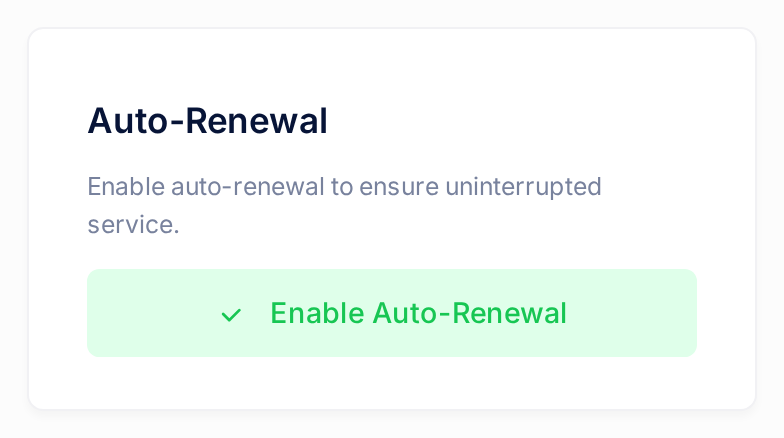
- Read the button on the card. Disable Auto-Renewal means auto-renew is on now; Enable Auto-Renewal means it is off.
Step 3 — Switch auto-renew off or on
Loop does not ask you to confirm. The setting changes as soon as you click, so read the button's name first.
- Click Disable Auto-Renewal to switch auto-renew off, or Enable Auto-Renewal to switch it on.
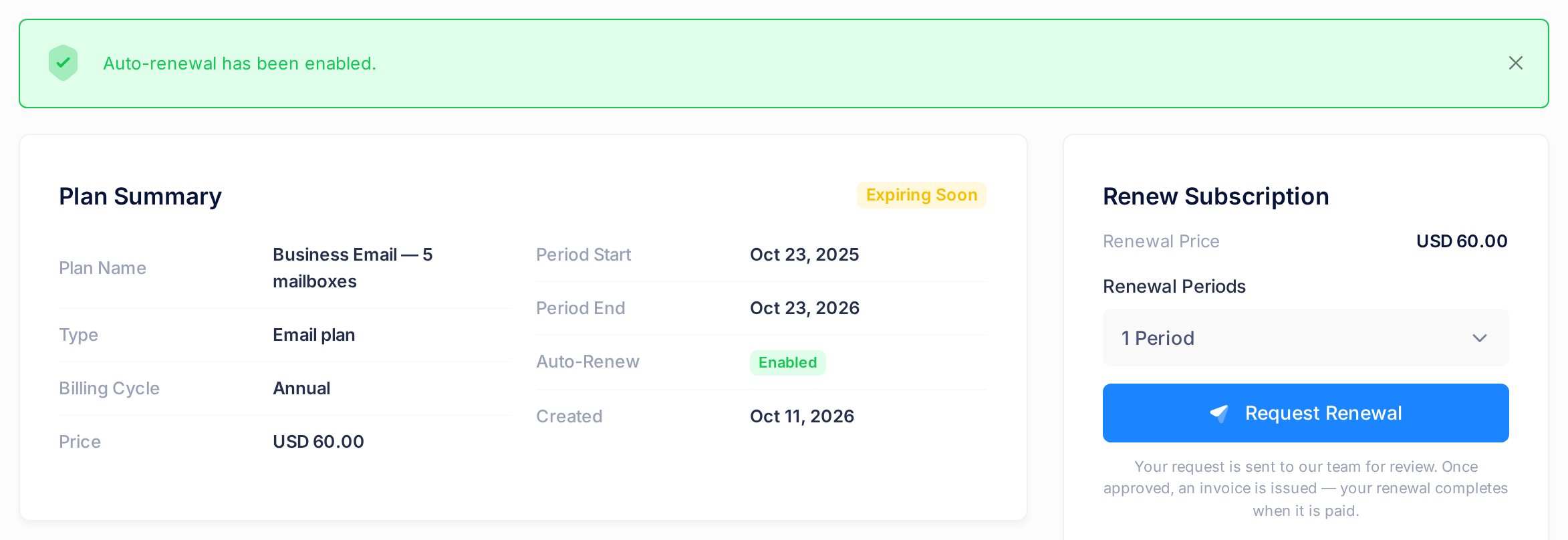
- Wait for the page to reload. A message appears at the top of the page: Auto-renewal has been disabled. or Auto-renewal has been enabled.
- Check the row Auto-Renew in Plan Summary: it shows the new setting. To switch back, click the button the card shows now.
What happens next
- Only this setting changes. No invoice is created and Period End does not move.
- The card Activity gets an entry, Auto renew toggled, with the date and time. It reads the same for on and for off.
- Loop sends no email or notification about the switch, so do not wait for one. Switching auto-renew off does not tell our team that you want to stop a service.
What each setting does when the period ends
With auto-renew on, the Auto-Renewal card says Your subscription will automatically renew before it expires. Here is what that means in practice.
| Auto-renew on | Auto-renew off | |
|---|---|---|
| Renewal invoice | Loop issues it by itself, on or after the Period End date, for one billing period (one year for Annual). | Loop does not issue one by itself. You ask for the renewal with Request Renewal in the card Renew Subscription; our team can also issue an invoice. |
| Reminders before the period ends finish with | It will be automatically renewed. | Please renew to avoid service interruption. |
| A plan that costs nothing | Loop extends the period at once. You get the message Subscription Renewed and no invoice message. | It is not renewed by itself. Request the renewal. |
| Choose it when | You will keep the service period after period, for example a domain name or your business mailboxes. | You want to decide at the end of each period, or you are not sure you will keep the service. |
Loop issues the automatic invoice only while the status is Active or Expiring Soon, and only when no renewal invoice is already waiting for payment. The reminders come 30, 14, 7, 3 and 1 day before the Period End date, with either setting.
Request Renewal works with auto-renew on or off, and lets you choose 1 Period, 2 Periods or 3 Periods. If you want more than one period, or want to pay before the current period ends, make the request before the Period End date: the invoice that auto-renew prepares always covers one period, and while it is waiting for payment Request Renewal creates nothing.
Switching auto-renew off is not a cancellation. To stop a service, contact support.
When the renewal invoice is issued
- Loop sends you a message titled Invoice Sent, inside Loop and by email, with the amount and the due date. The invoice is due 14 days after it is issued, and Loop does not remind you again when that date passes.
- Loop works the amount out on the day it creates the invoice, from the price list of that day, so it can differ from the row Price in Plan Summary. The card Renew Subscription shows the current figure as Renewal Price; it can change before the invoice is issued.
- To open the invoice, click View invoice in the email. Or, on the subscription page, click All Invoices in the card Quick Links. The list does not show which subscription an invoice belongs to: look for a row with the type Renewal dated on or after your Period End date and click PDF on that row. The invoice downloads as a file; the line under Description starts with the plan name, and Billing Period shows the period it pays for.
- These pages do not take payments. To pay the invoice, contact support. Our staff record your payment on the invoice. Until it is paid in full, the Period End date does not move and the status can still read Active; a part payment does not renew the subscription. Once it is paid in full, the new period starts on the old Period End date.
- Switching auto-renew off at this point does not withdraw the invoice. It stays open, and paying it still renews the subscription. If you do not want the renewal, contact support.
If something goes wrong
- The subscription page has no Auto-Renewal card. The status is Pending, Suspended, Cancelled or Expired, and auto-renew cannot be switched. Contact support about that subscription.
- An error message appears at the top of the page instead of the confirmation. Reload the page and check the row Auto-Renew. If it still shows the old setting, click the button again. If the error comes back, contact support.
- You clicked the button by mistake. Click the button the card shows now to switch back.
- Auto-renew is on, the Period End date has passed, and you saw no Invoice Sent message. Click All Invoices and look for the renewal invoice as described above. A plan that costs nothing gets no Invoice Sent message: check whether Period End has moved. If there is still no invoice a day after the Period End date, contact support.
Need help? On the Loop home screen, click Help, then Live Chat to talk to our team or Submit a Ticket to write to us.