
How can we help?

A subscription in Loop — a hosting plan, an email plan or a domain — runs for a paid term that has an end date. This guide shows when you have to ask for a renewal yourself, how to ask, and what has to happen before the term is extended.
Before you start
- You can ask for a renewal at any time during the term.
- Loop has no online payment. A renewal ends with an invoice that you pay the way PearlFibers has arranged with you. If you do not know how, ask our support team first: on the home screen, click Help, then Live Chat or Submit a Ticket.
Step 1 — Open your subscriptions
- Sign in to Loop and go to the home screen, the page that shows a grid of tiles.
- Click the Billing tile. The page My Subscriptions opens, with one card for each subscription.
Step 2 — Check whether you need to ask
- Find the card of the service you want to keep.
- Read the status badge on the card. If it reads Suspended, Pending, Cancelled or Expired, stop here and contact our support team: Loop issues no renewal invoice for it, whatever AUTO-RENEW says.
- Read the date under RENEWS ON. This is the day your current term ends.
- Read AUTO-RENEW. It says On or Off.

Go by the date: a subscription that ends soon, or whose date has passed, usually still shows Active.
- Auto-renew is on and the badge reads Active or Expiring Soon. You do not have to ask. When the date under RENEWS ON arrives, Loop issues a renewal invoice for one billing period — the length shown under BILLING, for example Annual — unless a cancellation has been requested. You still have to pay it; read on from How the invoice reaches you. To renew for more than one period, send a request well before that date: once Loop has issued its own invoice, an approved request does not produce another.
- Auto-renew is off, or the badge reads Grace Period. Loop issues no invoice by itself. Send a renewal request (Steps 3 to 5). If the badge reads Active or Expiring Soon, you can instead switch auto-renew on with Enable Auto-Renewal on the subscription page.
Step 3 — Open the subscription
- Click the plan name on the card, or click View Details. The subscription page opens.
- Scroll down to the card titled Renew Subscription. On a wide screen it is next to Plan Summary; on a phone it comes further down the page.
If the page has no Renew Subscription card, see If something goes wrong.
Step 4 — Read the price and choose the length
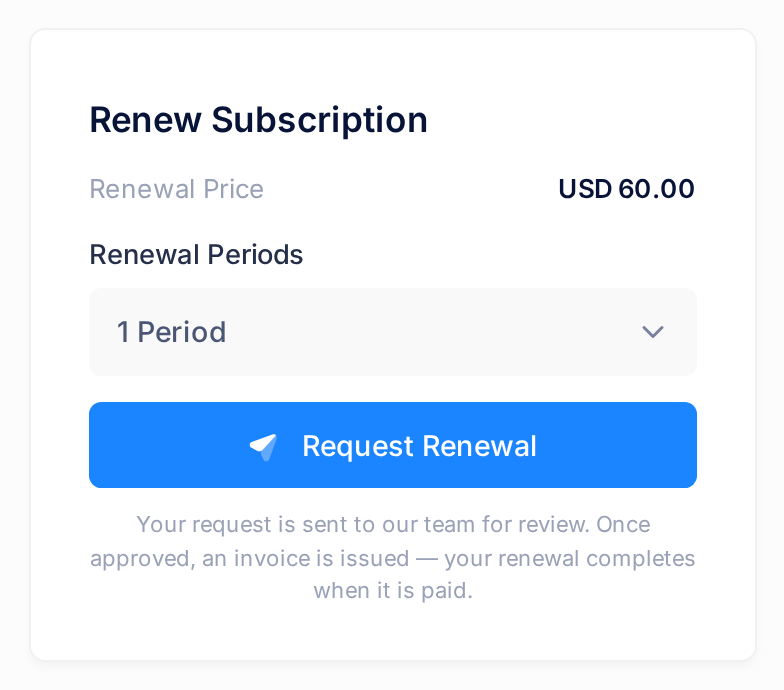
- Read Renewal Price. It is the price of one billing period, for example
USD 60.00. It is worked out from today's price list, so it can differ from Price in Plan Summary. - In Renewal Periods, choose 1 Period, 2 Periods or 3 Periods. One period is one billing period: one year if Billing Cycle in Plan Summary reads Annual.
The card keeps showing the price of one period, whatever you choose, and it shows no total and no new end date. The invoice will be the renewal price multiplied by the number of periods: with USD 60.00 and 2 Periods, expect twice that amount.
Step 5 — Send the request
- Check your choice in Renewal Periods once more. The next click sends the request at once, without asking you to confirm.
- Click Request Renewal.
- Read the sentence in the bar at the top of the reloaded page. A request that went through reads Renewal request submitted. An admin will review it and issue an invoice if approved. Any other sentence is explained under If something goes wrong.
The request only asks our team to review your renewal. No invoice exists yet, nothing is charged, and your dates have not changed.
What happens next
On the subscription page
A card titled Activity, below Invoice History, now lists an entry Renewal requested with the date and the time. It is the only sign of your request; Loop sends you no message about it. You cannot change or withdraw a request on this page, and clicking Request Renewal again does not replace it: if you chose the wrong number of periods, contact our support team.
Our team reviews your request
- If it is approved, Loop issues a renewal invoice for the number of periods you asked for, due 14 days after the day it is issued. If a renewal invoice for this subscription already exists by then, no second one is made. If the invoice you receive is not for what you asked, contact our support team before you pay.
- If it is declined, no invoice is made and your term does not change. You get a message titled Renewal Request Declined, with the reason when our team gave one.
If your end date is close and you have had no answer, contact our support team.
How the invoice reaches you
Loop sends you a message titled Invoice Sent, as a notification under the bell icon in the page header and as an email. The email names the Service and gives the Reference, the Amount and the Due date.
To find the invoice in Loop:
- On the home screen, click Billing.
- Click View Details on the card of the service.
- Scroll down to the Quick Links card and click All Invoices. The page My Invoices opens.
- Find the row whose INVOICE # is the reference given in the message, for example
INV-EE2D-BAED-0076. Without the message, look at the rows whose TYPE is Renewal and whose STATUS is Sent or Overdue. - Click PDF at the end of the row to download the invoice. Under Description it names the service and the period the invoice covers.
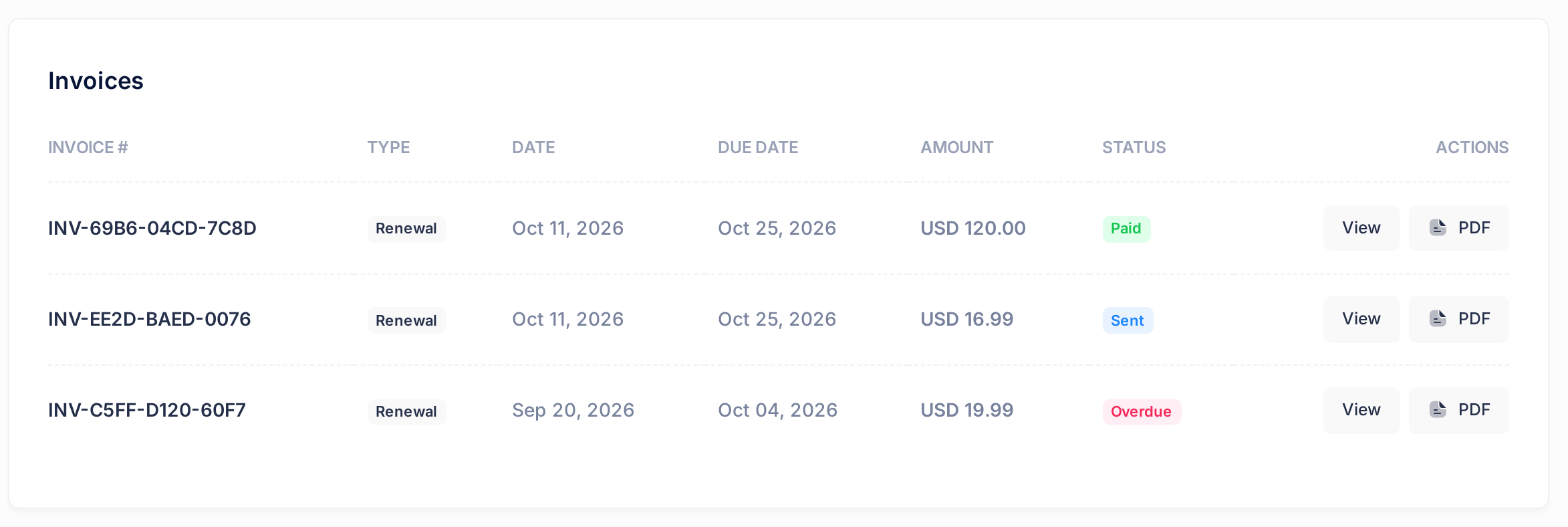
The menu has an Invoices item too. Move the pointer over the narrow bar at the side of the page; it opens and shows Subscriptions and Invoices. On a phone, open the menu with the button at the start of the page header.
The list does not name the service. When several renewal invoices are open, the PDF — or the Service line of the email — tells you which invoice belongs to which service. If it is still not clear, ask our support team before you pay.
Read the status, the amount and the due date in this list or in the PDF, not on the page that View or the email's View invoice button opens. Do not open an invoice from the Invoice History card of the subscription page either: it lists invoices under a different number.
Paying the invoice
Pay the invoice the way PearlFibers has arranged with you. Our team then records your payment on the invoice. If the list still shows Sent or Partially paid after you have paid in full, send our support team the invoice reference.
When the invoice is paid
Your term is extended only when the renewal invoice has been paid in full — not when you send the request, not when it is approved, and not after a part payment. The new term starts on the old Period End, whatever day you pay, and runs for the period or periods the invoice covers. Loop sends you Subscription Renewed, with the date the new term runs until, and Invoice Paid, your receipt. Plan Summary on the subscription page then shows the new dates: for an annual plan renewed for one period, for example, Period Start Oct 04, 2026 and Period End Oct 04, 2027.
If your plan costs nothing
A plan can have a renewal price of zero. Then there is nothing to pay: when your request is approved — or, with auto-renew on, when the end date arrives — the invoice is settled by itself and the term is extended at once. You get Subscription Renewed, but no Invoice Sent and no Invoice Paid.
If something goes wrong
After you click Request Renewal, the bar at the top of the page can show one of these sentences instead of the confirmation:
- A renewal request for this subscription is already awaiting review. You have already sent a request and our team has not decided yet. Wait for the answer.
- A renewal invoice is already pending payment for this subscription. A renewal invoice that is not fully paid already exists, so no request was created. Find it as described under How the invoice reaches you and pay it. If you wanted more periods than it covers, contact our support team before you pay.
- Cannot renew: status is 'active' — the word in quotes can differ. This is the answer when a cancellation has been scheduled for the subscription. To check, look in Activity for an entry Cancellation requested. To keep the service, contact our support team.
Other situations:
- The page has no Renew Subscription card. This subscription cannot be renewed from the page, for example because its status is Pending, Suspended, Cancelled or Expired. Contact our support team.
- The card shows no Renewal Price. Ask our support team for the price before you send a request.
- No message arrived. Look in My Invoices: a renewal invoice is listed there whether or not a message reached you.
- The invoice reads Overdue. It was not paid in full by its due date. It can still be paid, and the term is extended when it is paid in full.
- You have a question about an invoice. The email invites you to reply to it. To be sure your question reaches us, use Help instead.
Need a hand? On the home screen, click Help, then Live Chat or Submit a Ticket.