
How can we help?

PearlFibers Analytics counts the visits to your website: how many there are, which pages are opened and where visitors come from. It is not a page of Loop but a separate site, which you open from Loop's home screen and reach already signed in.
Before you start
- PearlFibers must have switched Analytics on for your website, and the website must be hosted with us. You cannot switch it on yourself, and hosting alone does not bring it. To ask for it: on Loop's home screen click Help, then Submit a Ticket, and name the website.
- Until then your home screen has no Analytics tile. Once we have switched it on, it appears within about five minutes, or at your next sign-in. Loop does not announce it, so reload the home screen to look.
- You are signed in to Loop.
Step 1 — Click the tile
- Go to Loop's home screen, the page with the tiles.
- Find the tile PearlFibers Analytics; its name is the same in Loop's Arabic interface. On the tile the name is cut short, to PearlFibers Anal… or similar.
- Click it. The browser leaves Loop and, in the same tab, opens the Analytics site,
analytics.pearlfibers.com. You are already signed in there.

Step 2 — Open your website
With one website in Analytics, you are taken straight to its page, on the tab Dashboard. With two or more, you land on the page Your sites, which has one card for each.
- Find the card of the website you want. A card shows the website's name, a small badge that marks you as its owner, a number, usually with an arrow and a percentage, the words visitors · last 30 days, a small line chart, and a line such as 6 visitors in the last 30 min.
- Click the card. The website's page opens on the tab Dashboard, with its numbers.
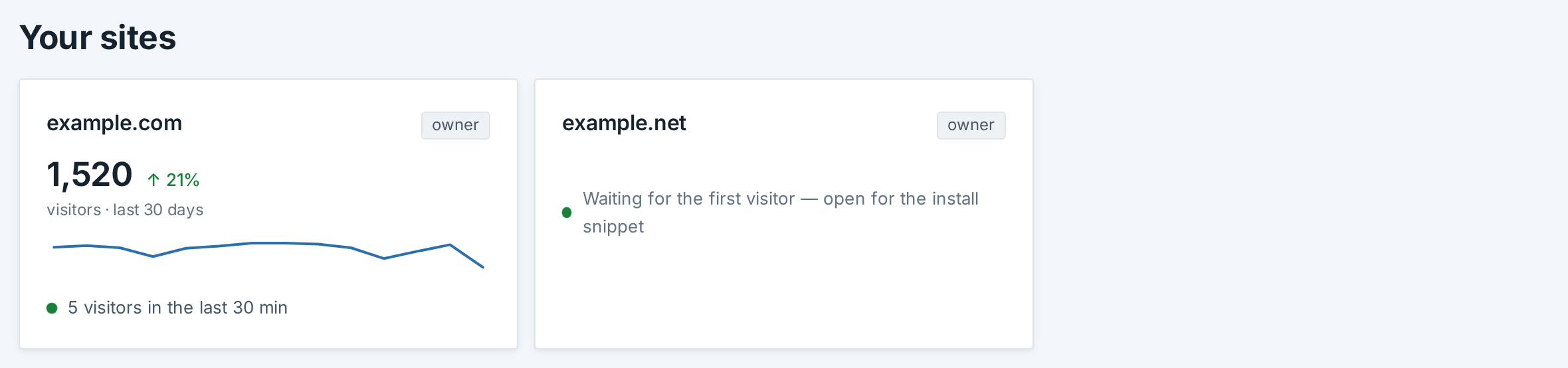
A website that has not counted a visit yet has no numbers. Its card reads Waiting for the first visitor — open for the install snippet, and its page shows a card headed Let's connect example.net — with your website's name — holding one line of code to paste into the website. That card is shown only until the first visit is counted; the guide Install the Tracking Code on Your Website takes you through it.
Step 3 — Go back to Loop
- In the bar at the top of the page, click the round button with your initials: SA for Sara Ahmed. A small menu opens with your name and your email address.
- Click Your PearlFibers portal. Loop's home screen opens.
What happens next
The Analytics site has no password of its own and no sign-out button. It knows you from your Loop sign-in: when you sign out of Loop, you are signed out of Analytics too.
For what the numbers mean, see the guide Read Your Analytics Dashboard.
A map of the Analytics site

The bar at the top is on every page. In it, from the start of the line:
- The logo with the word Analytics. It leads to Your sites or, if you have one website, to its dashboard.
- On a website's pages, the website's name. From any tab but Dashboard, a click on it returns to Dashboard.
- On a website's pages, a button with three sliders. It opens the tab People.
- The language button. It reads عربي while the site is in English and English while it is in Arabic. The site does not follow Loop's language: it opens in Arabic if Arabic is among your browser's languages, otherwise in English, and then keeps the choice you make here.
- The round button with your initials (Step 3).
- A moon or sun button, which switches between a dark and a light look.
Under the bar, every page of a website has the same tabs: Dashboard, Pages, Sources, Countries, Devices, Campaigns, Goals, People and Plan. The first six show your numbers.
Open Analytics from a bookmark
The site has its own address, https://analytics.pearlfibers.com, which you can bookmark.
- While you are signed in to Loop in that browser, the bookmark opens your numbers directly, as the tile does.
- While you are not, that address shows a page that presents Analytics, with the buttons Sign in and Open your dashboard; a bookmarked page of one website shows a small card with the button Sign in. Each button opens the PearlFibers sign-in page: sign in as you do for Loop. If you do not end on your numbers afterwards, go to Loop's home screen and click the tile.
On a phone
All of the above works the same with a tap. The Analytics pages are laid out in one column, with the tabs on several lines, and the bar at the top keeps at most one letter of the website's name: if you have several websites, tap the logo to return to Your sites and open the one you mean.
If something goes wrong
- There is no Analytics tile. Analytics is not switched on for the account you are signed in with, or was switched on a few minutes ago (see Before you start). If it is still missing later, or was there before and is gone, send us a ticket.
- Analytics asks you to sign in. Follow Open Analytics from a bookmark above.
- You read No sites yet. A card under the heading Your sites says this. You are signed in, but Analytics is not switched on for any website of this account. The card has no button: ask us in a ticket.
- You read That page doesn't exist or you don't have access to it. The address you opened is not a page of one of your websites: a mistyped address, an old bookmark, or a website whose Analytics has been switched off. Click Back to your sites. If a bookmark shows only the line
{"error":"forbidden"}, it means the same: openhttps://analytics.pearlfibers.com.
For anything else, click Help on Loop's home screen, then Submit a Ticket, and tell us the website and the exact words on your screen.