
How can we help?

The tracking code is one line that you add to the pages of your website: when somebody opens a page, the line reports that visit to PearlFibers Analytics, the site that shows your website's visitor numbers. It sets no cookie and stores nothing in your visitor's browser. Follow this guide when your website is in Analytics but its page still says it is waiting for the first visitor.
Before you start
- PearlFibers has switched Analytics on for your website. You cannot switch it on yourself, and until we have, Loop's home screen has no PearlFibers Analytics tile. To ask us, click Help on the home screen, then Submit a Ticket. Open Analytics from Loop tells you more about the tile.
- Your website is online at its own domain, and you or the person who looks after it can change its pages.
Step 1 — Open the card with your code
- On Loop's home screen, click the PearlFibers Analytics tile. Analytics opens in the same tab, and you are signed in already.
- If you have one website in Analytics, its page opens at once. If you have several, the page Your sites opens first: click the site that reads Waiting for the first visitor — open for the install snippet.
Instead of numbers, the site's page shows one card. Its heading is Let's connect with the name of your site after it (example.net in the picture). Under the sentence that begins Paste this one line before </head> on your site. stand the code in a grey box and the button Copy the snippet.
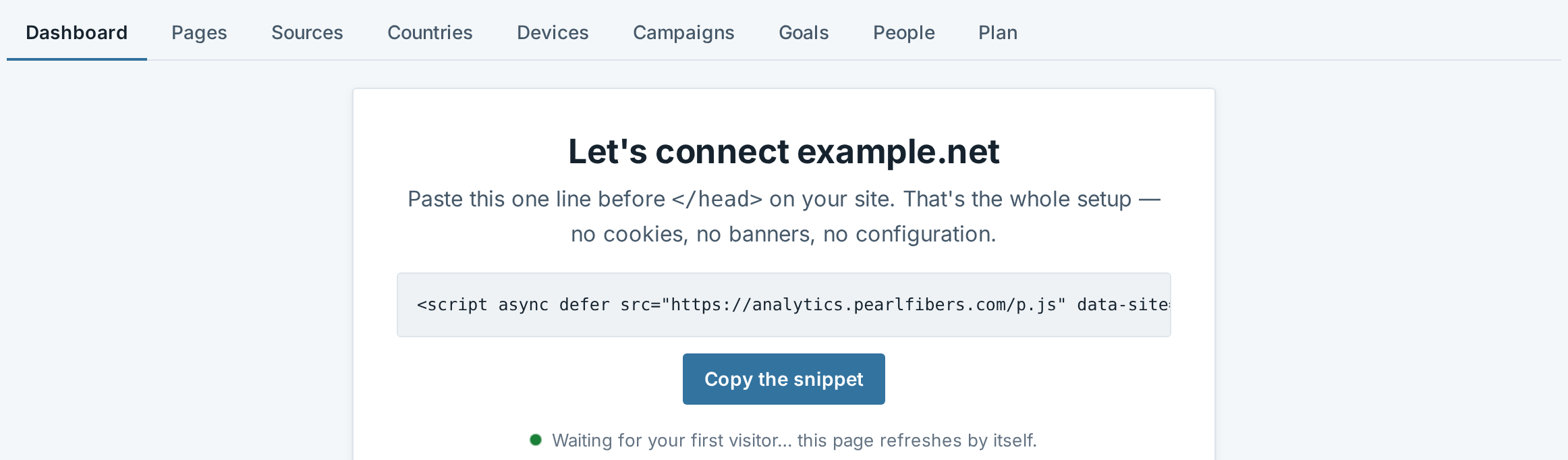
If the page shows numbers and no card, the site has counted a visit already: see "If something goes wrong".
Step 2 — Copy the line and keep a copy
- Click Copy the snippet. The button reads Copied ✓ for two seconds, and the whole line is copied. Do not select the text in the grey box by hand: the line is longer than the box, and its end, with your site's own code, is out of sight.
- Paste the line into a note, a document or an email to yourself, and save it.
- Check that what you pasted is one line that starts with
<scriptand ends with</script>, like the one below. If it is not, click the button again and paste once more. The part afterdata-site=is your site's own code of 32 letters and digits; the one shown here is made up.
<script async defer src="https://analytics.pearlfibers.com/p.js" data-site="0123456789abcdef0123456789abcdef"></script>
With the first visit your site counts, the card is replaced by the numbers, and from then on Analytics shows your code nowhere: without your own copy you would have to ask PearlFibers for the line.
Step 3 — Put the line on your website
The line belongs before </head>, the mark in a page's code that ends its hidden top part, on every page that should be counted.
- Find where your website keeps the code for the top of its pages. If it has one shared header file, or a setting for "header code", that is the place: one paste there puts the line on every page. If every page is a file of its own, each page needs the line.
- Paste the line once, directly before
</head>, and change nothing inside it. Pasted twice, it counts every page view twice. - Save, and publish the change if your website has a separate step for that.
If somebody else looks after your website, send them the line from your copy and tell them three things: it goes before </head> on every page; it has to be on the live website, not only on a test copy; and they should tell you when it is done, so that you can do Step 4. The card also offers Add your developer in Sharing; on the plan Basic that page lets you add nobody, so send the line instead.
If PearlFibers built your website, ask us to put the line in, and name the website in your ticket.
Step 4 — Check that visits arrive
- Open your site's page in Analytics again and leave it open on the tab Dashboard. Under the button it reads Waiting for your first visitor… this page refreshes by itself. If the page shows numbers instead, a visit has been counted already: the line works.
- In another window, or on your phone, open a page of your live website that carries the line. Your own visit counts like anybody's.
- Look at the Analytics page again. It asks every 10 seconds whether a visit has been counted and reloads by itself as soon as one has: the card with the code is gone, and above the four number cards stands the line 1 visitor in the last 30 min, or a higher number if others have visited meanwhile.
The four number cards can still show 0, and the lists Nothing here for this period yet. Only the line about the last 30 minutes is counted live; the cards and lists are brought up to date every five minutes, and newer numbers show after you reload the page. The picture shows that part of the page on a site with weeks of visits.

If the card is still there after a minute, reload the page. If it is there even then, the visit was not counted: go to "If something goes wrong".
What happens next
From now on, every page that carries the line reports, with no further setup:
- each page view;
- each click on a link that leads to another website;
- each click on a link to a file ending in pdf, doc, docx, xls, xlsx, ppt, pptx, zip, rar, 7z, gz, dmg, exe, apk, csv, mp3 or mp4.
The clicks show in the dashboard's list Goals, as Outbound link clicks and File downloads, each for the periods in which such a click was counted. Read Your Analytics Dashboard explains the numbers.
Keep the counting going
- New pages need the line too. A page you add later is counted only if it carries the line.
- A rebuilt website can lose the line. After a new design or a move to another system, check that the pages still carry it, and paste it again from your copy if they do not.
If something goes wrong
- The card with the code is still there after your visit. Go through these in order:
- The line is not on the page you opened, or it was changed on the way. Whoever looks after the website can search the page's code for
p.jsand compare the line with your copy. - You opened the page at another address than the domain registered for the site. For the site example.net, visits are counted at example.net and www.example.net only. A visit to a test copy, to a second domain or to a page opened from your computer's disk is thrown away without a message.
- Your browser asks websites not to track it (the settings "Do Not Track" or "Global Privacy Control"). The line then sends nothing. Open the website in another browser or on another device.
- The visit was made by a program, such as an automatic test: robots are not counted.
- The line is not on the page you opened, or it was changed on the way. Whoever looks after the website can search the page's code for
- The site's page shows numbers and no card. The site has counted a visit already: the line has been at work on at least one page of your website, and Analytics no longer shows the code. You need the line again only for pages that do not carry it; if you kept no copy, ask us for it.
- The numbers stop although people still visit. First make sure that the line is still on your pages and that your website still runs at the same domain. If both are so, ask us: PearlFibers can replace a site's code without a message to you, and after that the old line counts nothing and the new one has to be pasted.
To reach us from Analytics, click the round button with your initials at the top of the page, then Your PearlFibers portal: Loop's home screen opens. There, click Help, then Submit a Ticket, and tell us the website's address and what its Analytics page shows.