
How can we help?

The Portal in Loop puts what you have with PearlFibers in one place: web hosting, email plans, domain names, services made to order for you (a website, for example) and your projects. This guide shows how to read its first page and the page My Services: what each number counts, what a card tells you, and which figures to rely on. In this guide "contact support" means: on the home screen click the tile Help, then Submit a Ticket.
Where to find it
- On the home screen, click the tile Portal. The first page opens: a greeting, and under it the line My Portal with today's date.
- In the box that shows a large number beside the words My Services, click View All Services. The page My Services opens on its first tab, Overview.
- To return to the first page, click Dashboard in the small line under the page heading (on a computer the side menu can cover its first letters). To return to the home screen, click the Loop logo at the top of the page.
The first page: your account in numbers
| What you see | What it counts |
|---|---|
| Active Projects | Your projects whose status is Active; Average Progress is their average progress. |
| My Services, the box with View All Services | Your hosting accounts, email plans, domains and services made to order that are Active or Pending, added together. Suspended and expired ones are left out, so the number can be lower than what My Services lists: in our example 7 against 8, because one domain is expired. |
| Pending Amount | What is still unpaid on the invoices sent to you, as one sum, with the number of those invoices under it — or All Paid Up. |
| Recent Projects | Your five newest projects; Total Projects counts all your projects. See the guide "Follow Your Project". |
| My Services, the card lower on the page | Lists only services made to order. Its badges and its line such as "0 Active, 2 Pending" are not updated once a service is set up: a service can read Pending here and Active on the Services tab. Trust the Services tab. |
| Overview | Counts of your projects, and Pending Services, which is not updated either. |
Contact Us at the top of this page and Start Chat at its foot open Loop's chat panel for writing to another person. They send nothing to PearlFibers; nor do Inquire and Contact Support on the pages below.
My Services and its Overview tab
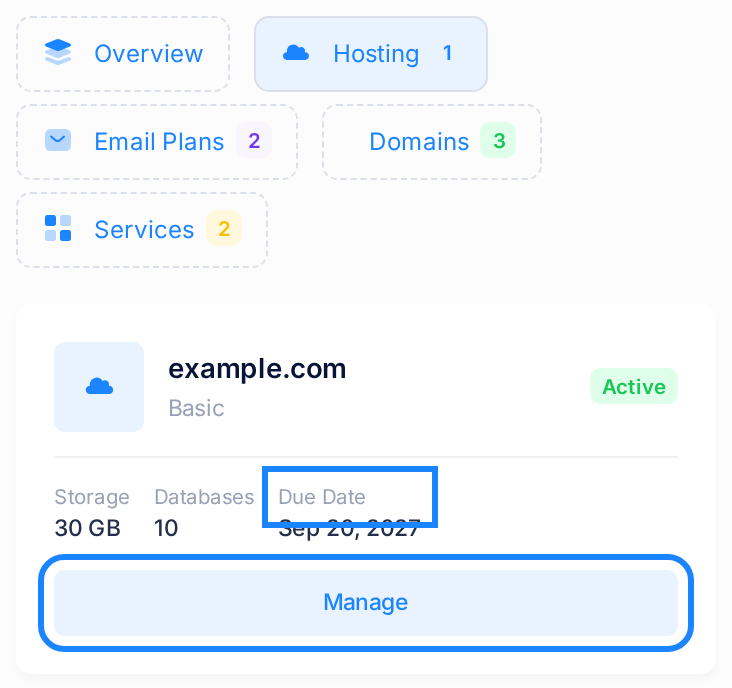
The page has five tabs: Overview, Hosting, Email Plans, Domains and Services. The number on a tab is how many entries it lists; a tab without a number is empty and shows a sentence such as No hosting accounts.
The Overview tab repeats those numbers on four cards — Hosting Accounts, Email Plans, Domains, Services — each with a small badge such as "2 active": how many of them are Active. Click a card to open its tab. The badge on the Services card is not updated either: it can read "0 active" while the Services tab shows Active.
Under the cards, Available Services is PearlFibers' catalogue: what we offer, not what you have. Nothing can be ordered from it here; to ask about one of its services, contact support.
What one card shows on each tab
| Tab | What you read | The button |
|---|---|---|
| Hosting | The website's domain name, the plan's name, a status badge (the small label that names the state the service is in), Storage and Databases — what the plan allows, not what you have used — and Due Date. | Manage opens the hosting account's page. |
| Email Plans | The domain name, the plan's name, a status badge, Accounts Limit (the mailboxes the plan allows), Storage (the space of one mailbox) and Due Date. | Manage opens the plan's page. |
| Domains | The domain name — with PearlFibers under it only when the domain is registered through PearlFibers' own registrar account — a status badge and Expires with the date. Days Left is added only when 90 days or fewer remain; it reads "0 days" once the date has passed. | Manage opens the domain's page. |
| Services | A table, one row per service: the name, Started: with a date, Status, Billing (One-time when no repeating period is set), Amount and Next Billing. On a phone the table slides sideways. | Details opens the service's own page. |
The pages behind Manage have their own guides: "Manage Files in the File Manager" for the files of a hosting account, "A Tour of Your Email Plan" and "View and Understand Your Domains".
What the status badges mean
| Badge | Meaning |
|---|---|
| Active | The normal, running state. |
| Suspended | PearlFibers' team has suspended the service, for example because it was not renewed. |
| Expired | The stage after Suspended, for a service that stayed suspended. |
| Pending | On the Services tab: PearlFibers' team has not yet set your order for this service to active. |
While a hosting account is Suspended or Expired, its website is switched off and its files are kept. A domain with either badge keeps its DNS records, the entries that direct its website and email. A badge changes when an invoice is paid or when PearlFibers' team changes it, not by itself when a date passes.
What the dates on a card tell you
Due Date on a hosting or email card is set when the service is ordered. It is not read from your subscription and renewing does not move it, so an active, paid service can show a Due Date in the past. Do not read it as the day your service ends.
For the end of the period you have paid for, click the tile Billing on the home screen: each subscription shows it under RENEWS ON. See the guide "Understand Your Subscriptions".
Expires on a domain card is not moved by paying a renewal either, so an Active domain can show a date that has passed: see the guide "View and Understand Your Domains".
The page of one service
On the Services tab, click Details in a service's row. The page Service Details shows the service's name, its status badge and the fields Service Name, Status, Billing Cycle, Price, Start Date, End Date, Created and Currency.
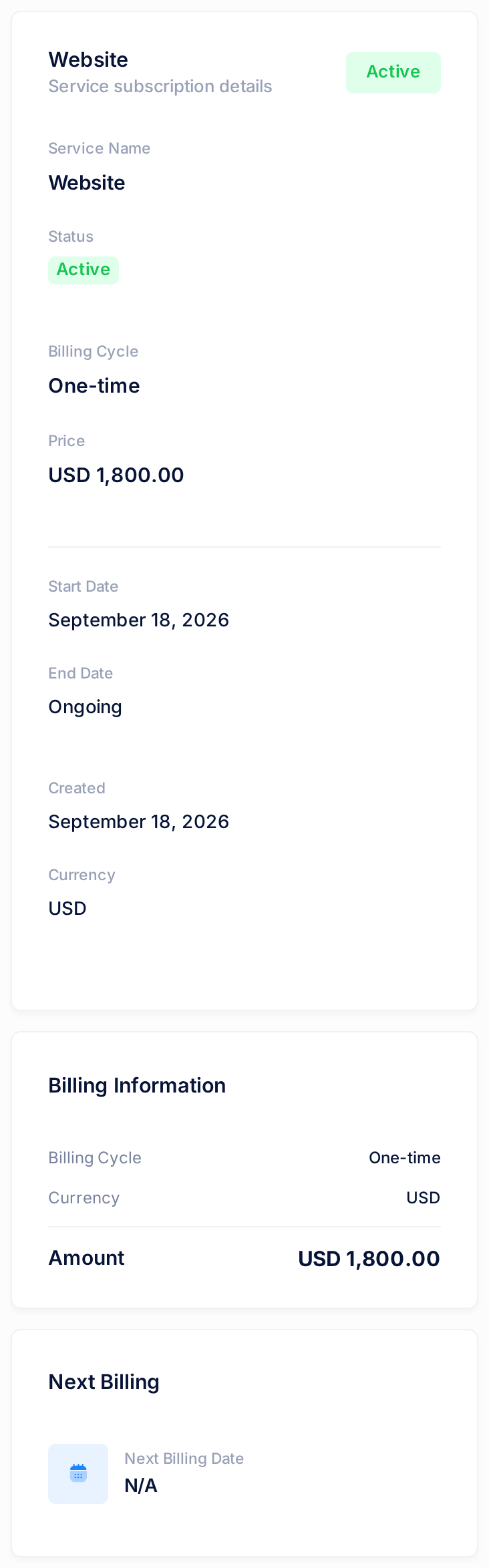
End Date reads Ongoing when none is set, and Next Billing Date reads N/A when there is none. Back to Services returns to My Services, on its Overview tab.
Common questions
The first page says "No services yet", but I have hosting and email. Is something missing?
No. That card lists only services made to order, so it reads No services yet when you have none of those. Your hosting, email plans and domains are on My Services.
Can I renew, change or cancel something from these pages?
No. Nothing you can press on these pages renews, changes or cancels a service, or creates an order, an invoice or a charge. Your subscriptions are under the tile Billing on the home screen.
If something looks wrong
- A service reads Suspended or Expired. Nothing on these pages brings it back, paid or not: contact support and name the service as its card names it — the domain name and the plan.
- A service is missing from its tab. Cancelled hosting accounts, email plans and domains are not listed. If something you still use is missing, contact support.
Still not sure what a card is telling you? Contact support and say which service you mean. The guide "Describe a Problem So We Can Fix It Fast" shows what to send.