
How can we help?

PearlGit is PearlFibers' own place for code: the files of a website or a program are kept there with their full history, each project in a place of its own called a repository. It is a tool for whoever builds your site or program. It is a separate site, git.pearlfibers.com, not a page of Loop: you open it from the tile Git on Loop's home screen and enter with your Loop sign-in.
Before you start
- You are signed in to Loop. Every customer account has the tile Git: there is nothing to ask for first.
- The tile opens PearlGit in the same browser tab, in place of Loop. Step 5 shows the way back.
- If you get stuck, go to Loop's home screen, click Help, then Submit a Ticket.
Step 1 — Click the tile
- Go to Loop's home screen, the page with the tiles.
- Click the tile Git.
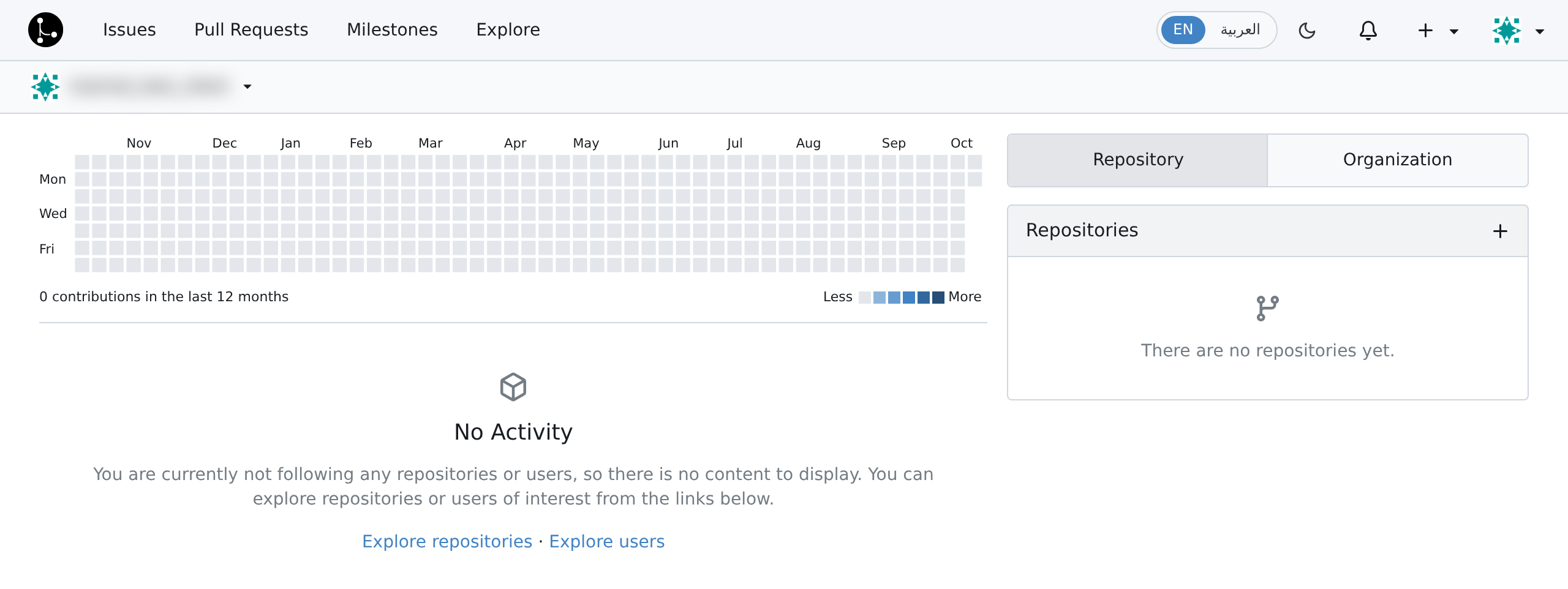
The browser leaves Loop and PearlGit's dashboard opens, with no second password and no question. If you had no PearlGit account, one is made for you by itself at this click; nothing on the screen announces it.
Your account name stands above the dashboard, and in the line Signed in as when you click your small picture at the end of the top bar. It is part of the address of every repository you make.
On a phone, a button with three lines in the top bar holds the rest of the bar: the language switch, Create… beside the +, and your account name beside your picture.
Step 2 — Choose your language
PearlGit does not take its language from Loop: it can open in English even when you came from Loop's Arabic home screen. Skip this step if the language suits you.
- Click EN or العربية in the top bar. The whole site changes at once, but only until you next sign in: then the language saved in your account comes back.
- To save a language, click your small picture, then Settings.
- In the list User Settings, click Appearance.
- In the card Language, choose English or العربية from the list.
- Click Update Language. The page comes back in that language with a green line — in English, Language has been updated.
On a later visit the first page can still come in the other language; the next page you open is right again.
Step 3 — Make your first repository
- Click the + in the top bar, then New Repository.
- In Repository Name, type a short name without spaces — English letters, digits, hyphens, dots and underscores only — for example
sample-website. It is the only box you must fill, and it becomes part of the repository's address. - Under Visibility, leave the box Make repository private ticked, as it stands. Private means that only you, the owner, can see the repository: anyone else gets 404 Not Found at its address. Unticked, it is public: open to anyone, signed in or not.
- In Description you may say in a line what the project is.
- The box Initialize Repository (Adds .gitignore, License and README) is not ticked, which gives an empty repository. Tick it to start with one file,
README.md, that holds the repository's name. - Leave the other boxes as they are and click Create Repository.
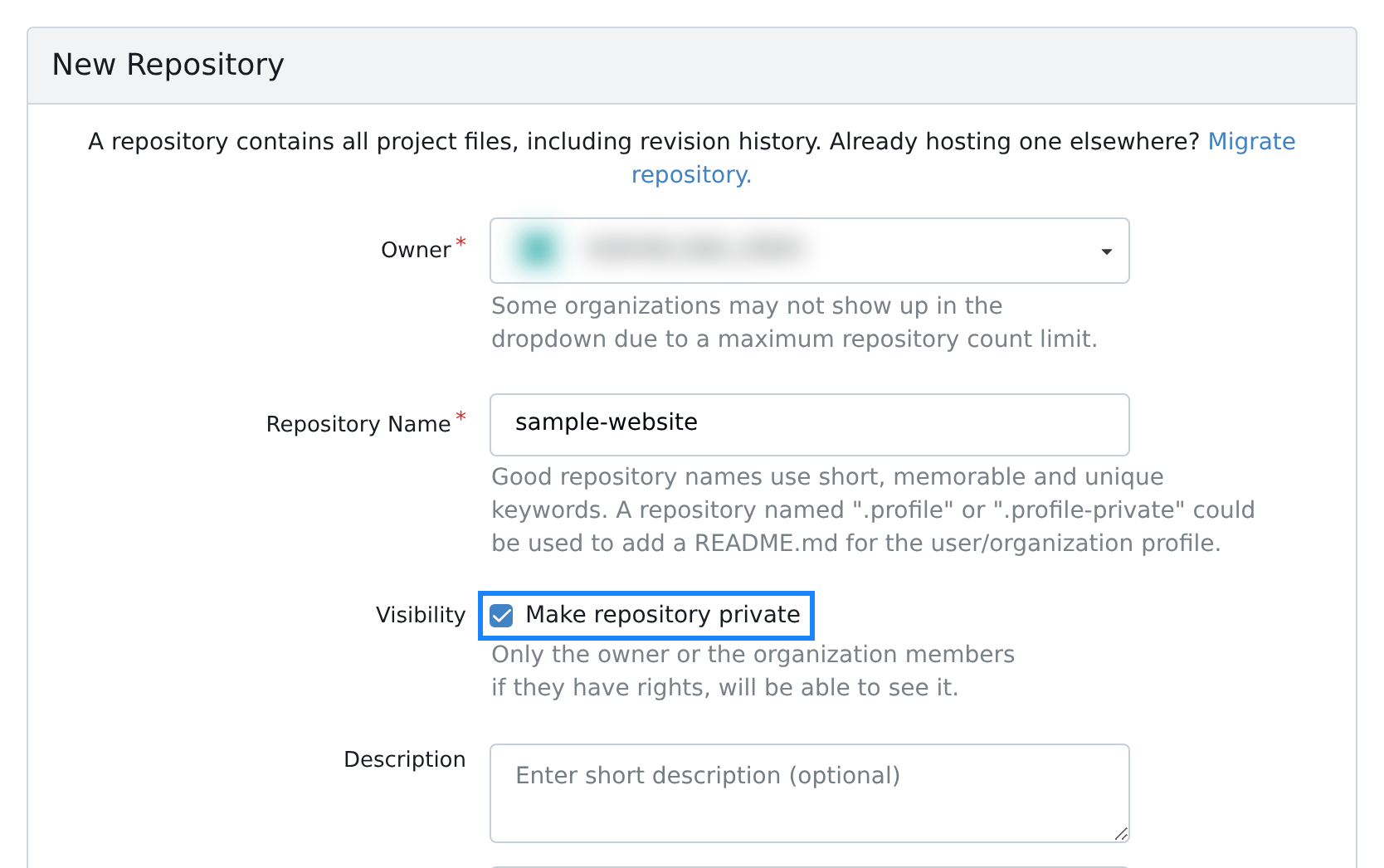
No message confirms it: the repository's own page opens, with its name and the badge Private at the top — on a phone, a small padlock in place of the word — and the dashboard lists it from now on.
An empty repository shows a box Quick Guide with its address, a copy button beside it and the commands for sending a project in; one that holds files has the same address behind its blue button Code. For the example the address is https://git.pearlfibers.com/your-account-name/sample-website.git, with your account name in its place.
Before you copy it, check that HTTPS is the marked choice beside the address, and click it if it is not: the other choice, SSH, stays marked in a browser where it was once clicked, and its address is not certain to connect from your network, so this guide does not use it.
Step 4 — Make an access token for a program
Code is copied to a computer and sent back with a program called git. With the HTTPS address it asks for a user name and a password, and you have no PearlGit password. In its place goes an access token: a long code that PearlGit makes for you and that opens your repositories to whoever holds it.
- Click your small picture, then Settings.
- In the list User Settings, click Applications.
- In Token Name, type a name that tells you where the token is used, for example
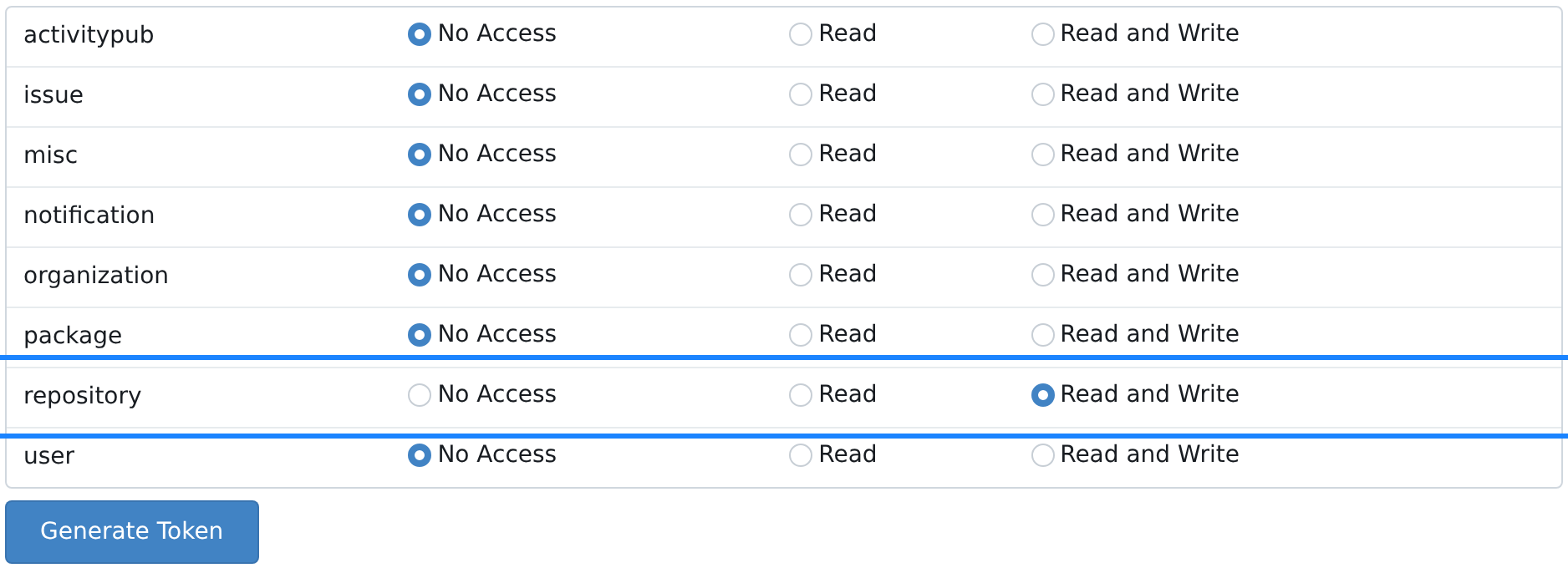
office-laptop. - In the table, set the line repository to Read and Write; with Read a program can copy a repository but not send changes back. Leave the rest as it stands: the other lines on No Access, and All (public, private, and limited) above the table.
- Click Generate Token. A green line appears — Your new token has been generated. Copy it now as it will not be shown again. — and under it, in a blue box, the token: 40 letters and digits.
- Copy it at once and keep it where you keep passwords.
The command that copies the example repository is git clone https://git.pearlfibers.com/your-account-name/sample-website.git. git then asks two questions: at Username for 'https://git.pearlfibers.com': type your account name, and at the line beginning Password for paste the token. A line beginning Cloning into, with no line beginning fatal after it, means the copy was made.
Step 5 — Go back to Loop
Once you are signed in, PearlGit has no link to Loop: its logo leads to its own dashboard. Press your browser's Back button until Loop appears, or type loop.pearlfibers.com/launcher into the address bar.
Sign Out in PearlGit's menu asks nothing and signs you out of Loop as well, as signing out of Loop signs you out of PearlGit: use it only when you want to leave both.
What happens next
Each time you want PearlGit, click the tile again, or open git.pearlfibers.com directly: in a browser that is signed in to Loop, the dashboard opens at once.
To take access away from a program, open Applications again, click Delete beside the token's name and confirm with Yes.
The first screen, part by part
The picture in Step 1 shows the dashboard of a new account.
- The top bar: the logo; Issues, Pull Requests and Milestones — three lists that a new account finds empty — and Explore; the language switch, a button for a light or a dark screen, a bell and the +; and your small picture, which opens the menu with Settings and Sign Out.
- A calendar of small squares with the line 0 contributions in the last 12 months, and under it No Activity. Both fill as work is done in your repositories.
- The box Repositories, with a + for a new one and the line There are no repositories yet.
What you can see of other people's work
Explore in the top bar has three tabs. Repositories lists other people's public repositories and your own, your private ones marked Private; other people's private ones are not listed. Organizations may show nothing but the line No matching results found., and Code is a search box.
Settings: what to leave alone
On the page Account, the cards Password and Delete Your Account both ask for the PearlGit password that you do not have, so neither Update Password nor Confirm Deletion can be used.
If something goes wrong
- PearlGit shows a page for visitors, headed Git hosting that earns the bill. — or, straight after Sign Out, Loop shows one headed Your Workspace, Connected. You are not signed in to PearlGit. Open Loop, sign in if it asks you to, then click the tile Git.
- You read 404 Not Found. The address is mistyped, or it is a repository you may not see — also your own private one while you are signed out.
- git answers Authentication failed. A password was typed, or the token was mistyped or deleted. A lost token cannot be shown again: make a new one under Generate New Token.
- git copies the repository but answers remote: Forbidden when changes are sent. The token was made with Read: make a new one with Read and Write.
For anything else, go back to Loop, click Help, then Submit a Ticket, and copy the exact words on the screen into the ticket. The guide Open and Follow a Support Ticket takes you through it.