
How can we help?

Peak AI is PearlFibers' AI assistant: you write a question or a request in a box, and it answers you in writing. Its own screen warns you, under the box: Peak AI can make mistakes. Verify important info. It is not a page of Loop but a separate site, ai.pearlfibers.com, which you open from the tile Peak AI on Loop's home screen and enter with your Loop sign-in.
Before you start
- You are signed in to Loop. Every customer account has the tile Peak AI: there is nothing to ask for first.
- The tile opens Peak AI in the same browser tab, in place of Loop. Step 3 shows the way back.
- If you get stuck at any point, go to Loop's home screen, click Help, then Submit a Ticket.
Step 1 — Click the tile
- Go to Loop's home screen, the page with the tiles.
- Click the tile Peak AI.
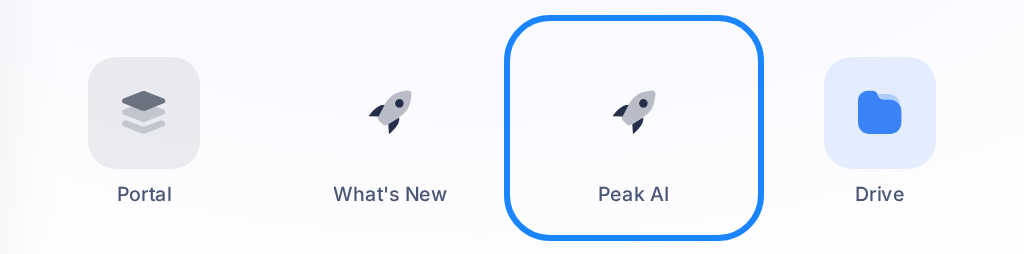
A PearlFibers page reading Checking your session... may show for a moment; it needs nothing from you. Then the chat opens. You are not asked for a second password, and no plan or payment screen comes first.
Peak AI does not take its language from Loop: until you choose one, it follows your browser's language, so it can open in English even when you came from Loop's Arabic home screen. Step 2 changes that.
Step 2 — Choose your language
Skip this step if the language you see suits you.
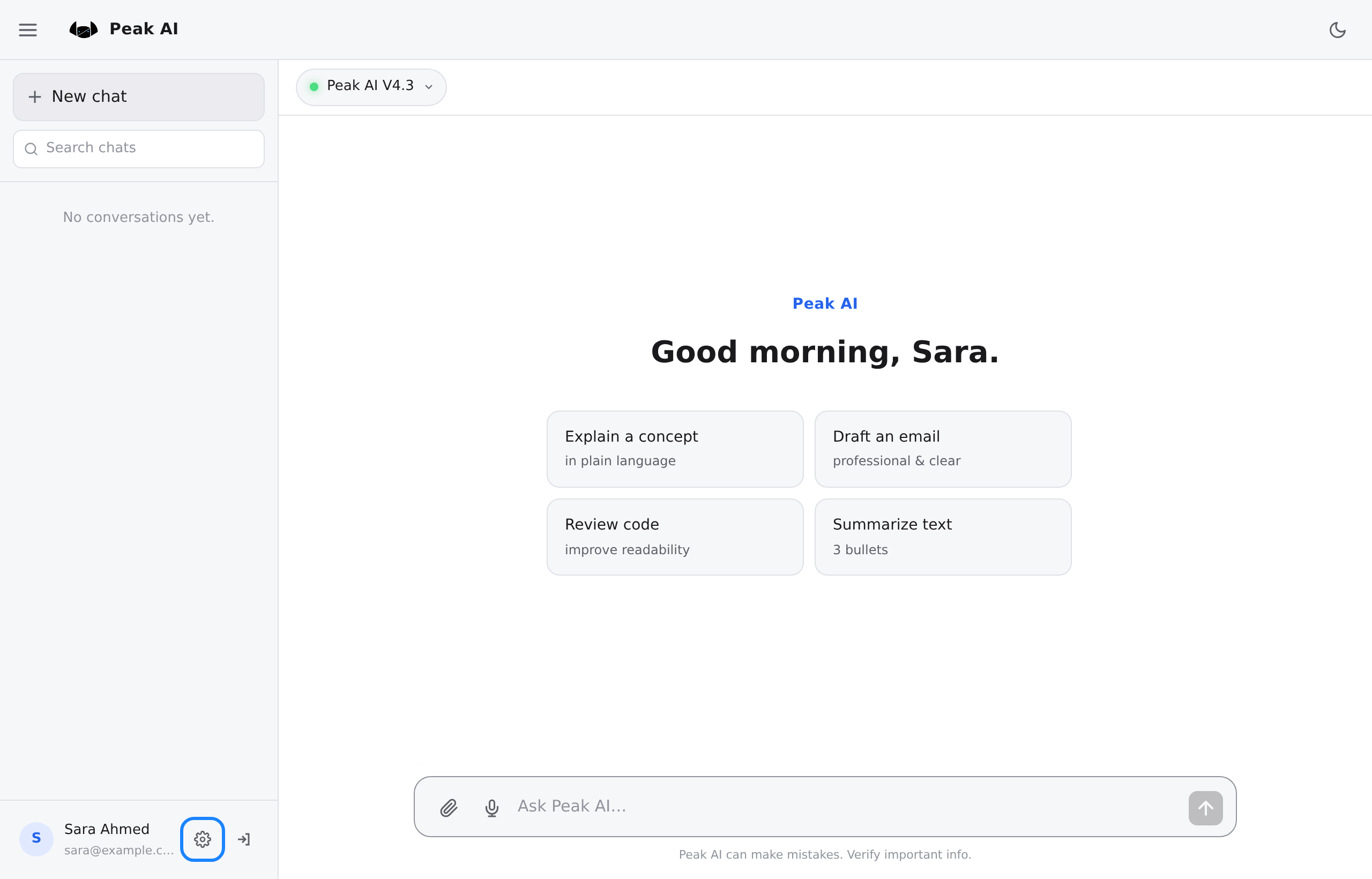
- At the side of the chat screen is the list for your conversations. If it is not there, the button with three lines at the top of the screen brings it back.
- Look at the foot of the list: your name and your email address, with two small buttons beside them. Click the first one, a cogwheel; with the pointer on it, it reads Settings. The second one, an arrow, reads Sign out — read the warning in Step 3 before you touch it.
- The page Settings opens on its tab Account. Find Language, with the line Choose how the interface is shown to you. under it.
- Click العربية for Arabic, or English. Peak AI is then shown in that language — Arabic from right to left — and keeps the choice for your account. System, the choice you start on, follows your browser again.
- Click the arrow at the top of the page to return to the chat.
Step 3 — Go back to Loop
Peak AI has one link back to Loop, and it is on the page Settings. Use it rather than your browser's Back button, which can bring up an almost empty page with one line of technical text instead of Loop.
- Open Settings as in Step 2 and stay on the tab Account.
- Where your name and email address are shown, click Manage in Loop ↗. A new browser tab opens on your account pages in Loop; Peak AI stays open in the first tab.
- In the new tab, click the Loop logo at the top of the page. Loop's home screen opens.
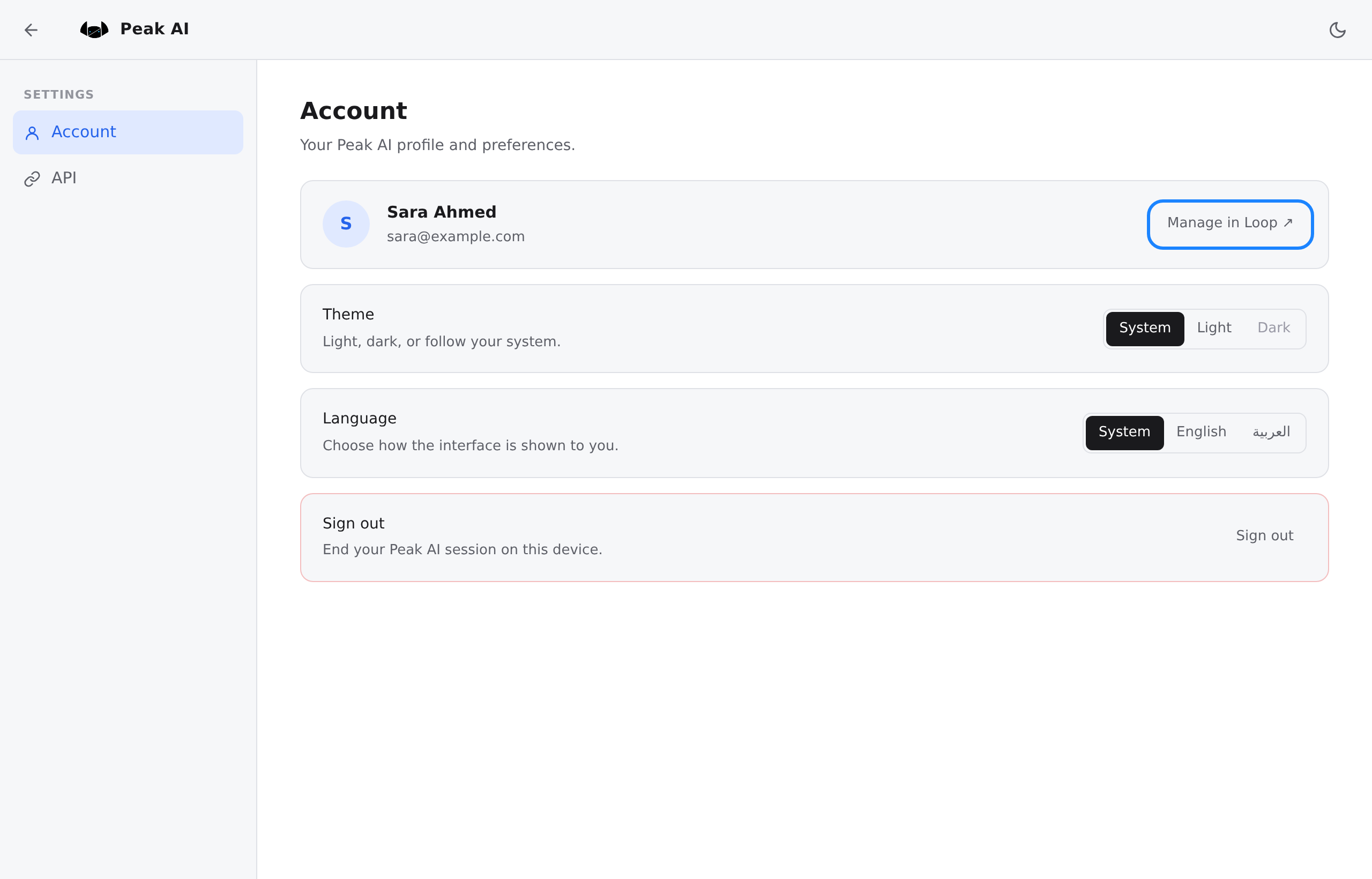
Do not use Sign out to leave Peak AI. Its line says End your Peak AI session on this device., but it ends your Loop sign-in as well: you land on a page headed You're signed out, and Loop asks you to sign in again. The small sign-out button beside your name on the chat screen does the same.
What happens next
Each time you want Peak AI, click the tile again. Once you have had a conversation, it is listed at the side of the chat screen, where a new account reads No conversations yet.
When Peak AI signs you in, it keeps your name and your email address.
There is a monthly limit on the messages you can send, but no screen shows it or counts what you have left. If you run into it and need more, ask us in a ticket.
The first screen, part by part
The picture in Step 2 shows these parts.
- The version button. The main part of the screen starts with a button that names the version of Peak AI in use: Peak AI V4.3. It opens a list of three: Peak AI V4.3 with the note Most capable, Peak AI V4.3 Light with Faster · lower cost, and Peak AI V4.3 Vision with no note. A new account is on the first, and you do not have to choose.
- The greeting. It follows the hour and carries your first name, such as Good morning, Sara.
- Four suggestion buttons: Explain a concept, Draft an email, Review code and Summarize text. A click sends nothing: it puts a starting sentence into the writing box — for the first,
Explain a complex concept in plain language.— in place of anything you had written there. - The writing box. It reads Ask Peak AI… while it is empty and has three buttons: one to attach files, one to dictate a message, one to send. The send button is grey while the box is empty.
- The list at the side. It starts with the button New chat and the search box Search chats; then come your conversations.
Settings: the two tabs
- Account holds your name and email address with Manage in Loop ↗; Theme, a light or dark look; Language; and Sign out.
- API is for people who want their own programs to use Peak AI; the chat does not need it. Its card Request API access says An admin will review your request. and holds one box that may stay empty and the button Request access. The card does not say when or how you would hear back: if you need this, ask us in a ticket.
On a phone
Tap where this guide says click. The list at the side starts hidden: tap the button with three lines at the top to see it. The settings page shows no name there, and its two tabs stand in a row at the top.
If something goes wrong
- A sign-in page opens instead of the chat. This browser is no longer signed in to Loop: sign in as you do for Loop. If the chat does not open afterwards, click the tile on Loop's home screen again.
- The Back button brought up an almost empty page with one line of text. Pressing Back again brings the same page. You are still signed in: type
loop.pearlfibers.cominto your browser's address bar, and Loop's home screen opens. - You read You're signed out. A sign-out button was pressed. Click Sign in again and sign in as you do for Loop.
- Peak AI refuses what you wrote, or shows a message you do not understand. Copy the exact words on the screen into a ticket. The guide Describe a Problem So We Can Fix It Fast lists what else helps us.
For anything else, go back to Loop and send us a ticket. The guide Open and Follow a Support Ticket takes you through it.